To successfully complete an AI-proctored exam, the system must have access to your webcam, microphone, and, in some cases, desktop screen. If any of these permissions are blocked, the exam may not start, or the proctoring system may not function correctly.
Camera Access
Google Chrome
Open Chrome
Go to Settings
Privacy and Security → Site Settings
Select Camera
Allow access for: https://app.trustexam.ai
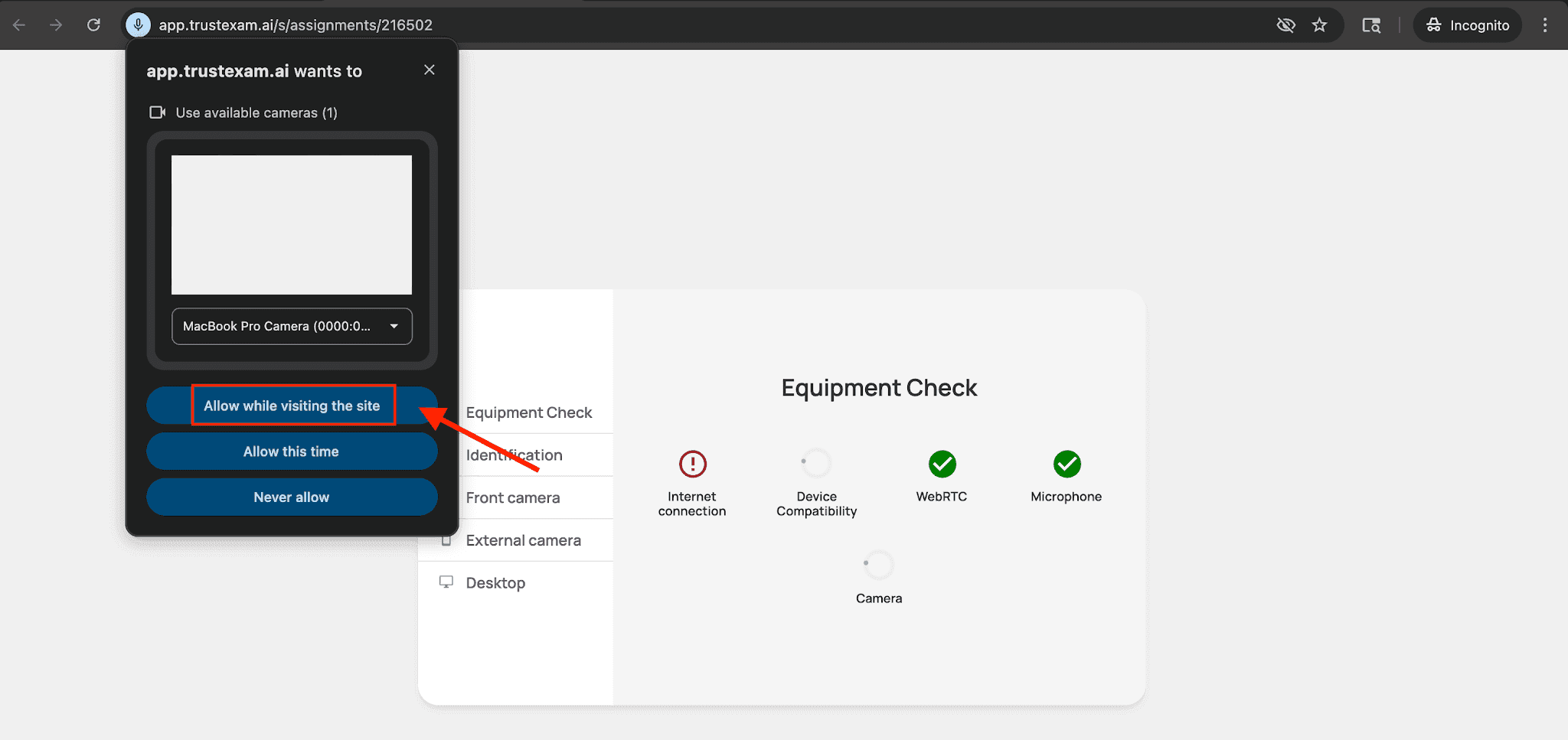
OR you can give the necessary permissions when it is prompted during exam setup:
Mozilla Firefox
Open Firefox
Settings → Privacy & Security
Permissions → Camera → Settings
Allow for the TrustExam website
Safari (macOS only)
Open Safari
Settings → Websites tab → Camera
Set Allow for the TrustExam website
Microphone Access
Chrome
Open Chrome
Go to Settings
Privacy and Security → Site Settings
Select Microphone
Allow access for: https://app.trustexam.ai
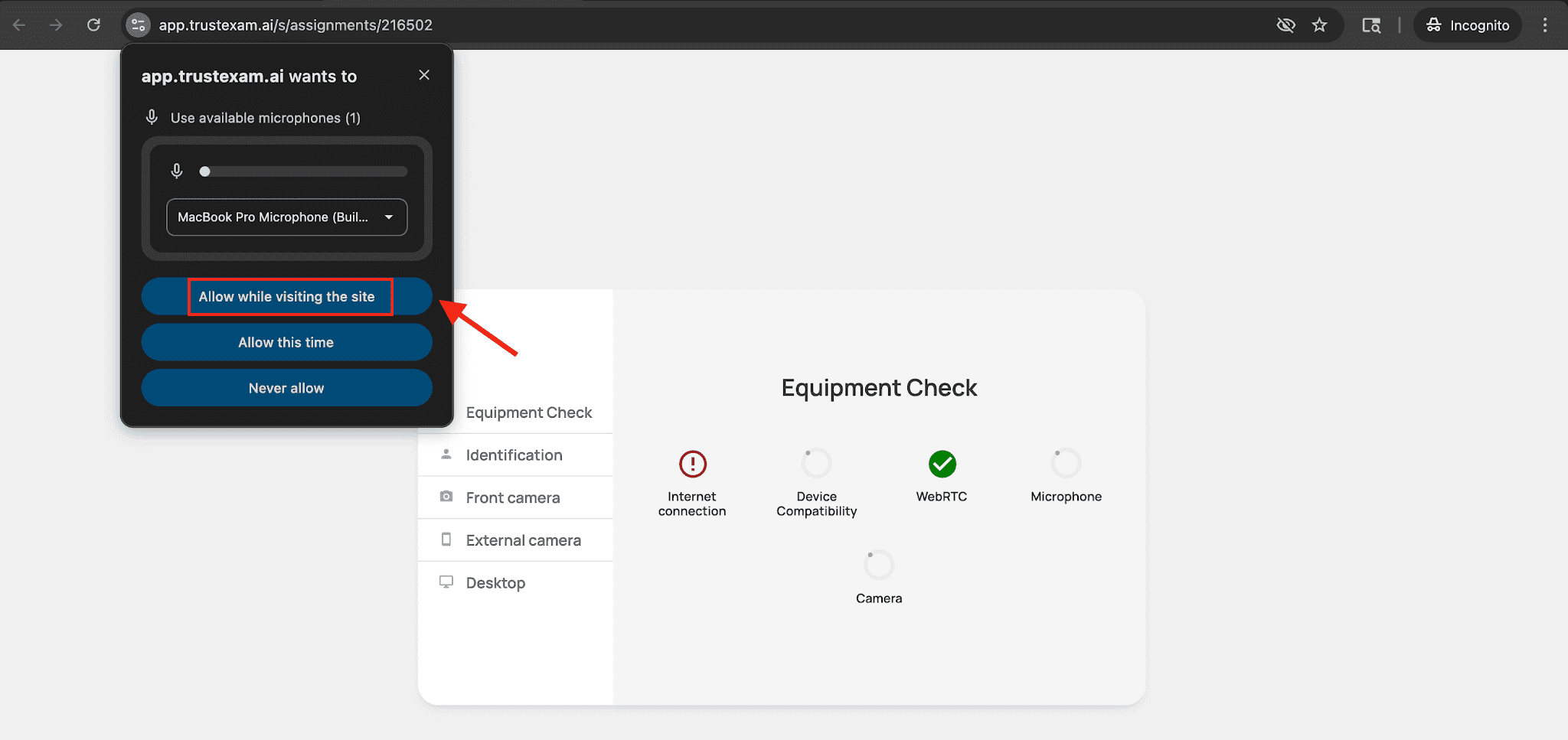
OR you can give the necessary permissions when it is prompted during exam setup:
Firefox
Open Firefox
Go to Settings
Privacy and Security → Permissions
Select Microphone
Allow access for: https://app.trustexam.ai
Safari
Open Safari
Settings → Websites tab → Microphone
Set Allow for the TrustExam website
Desktop Recording Access
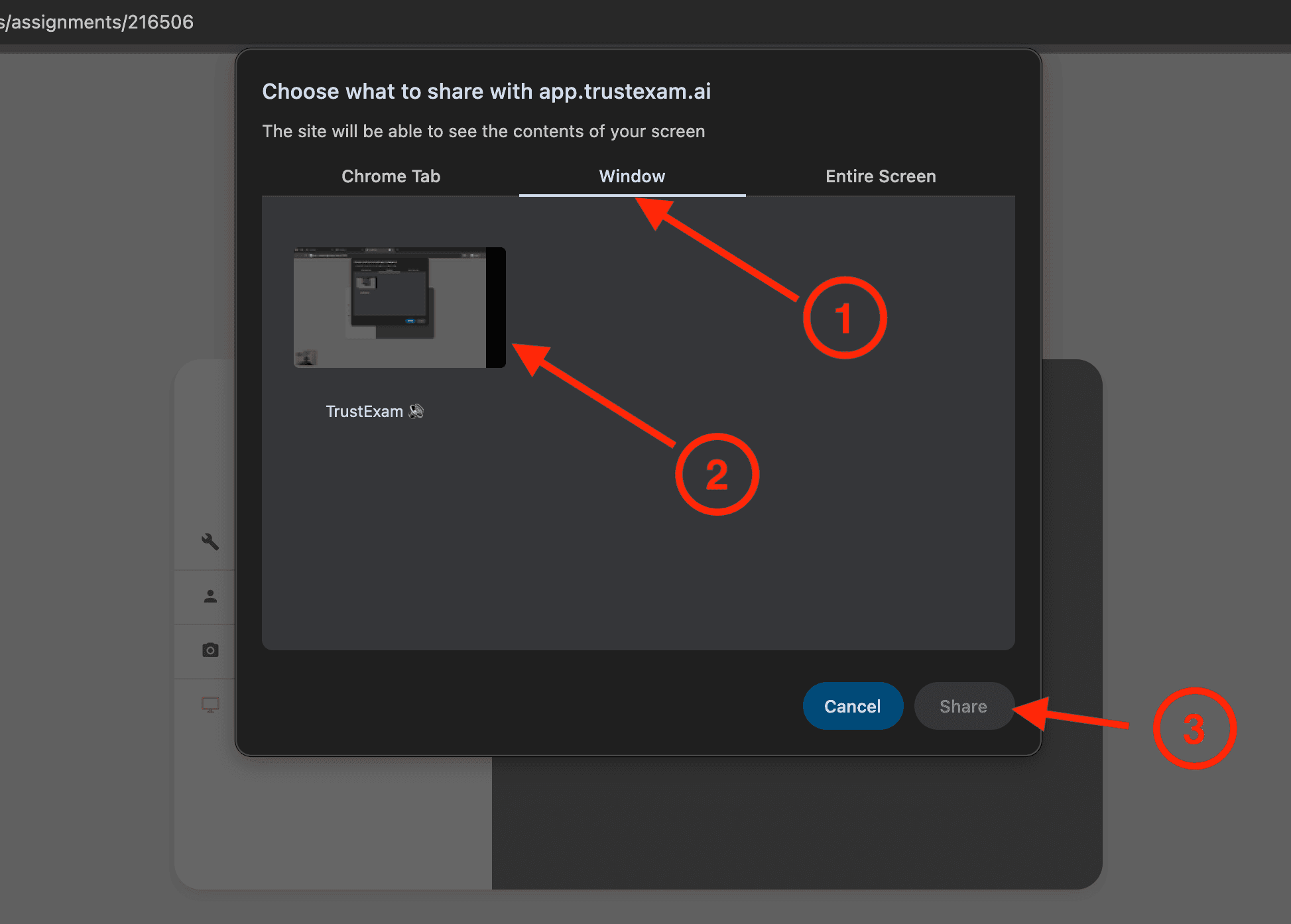
You will be prompted to share your screen.
Choose Window → TrustExam.