
1. General Page Overview
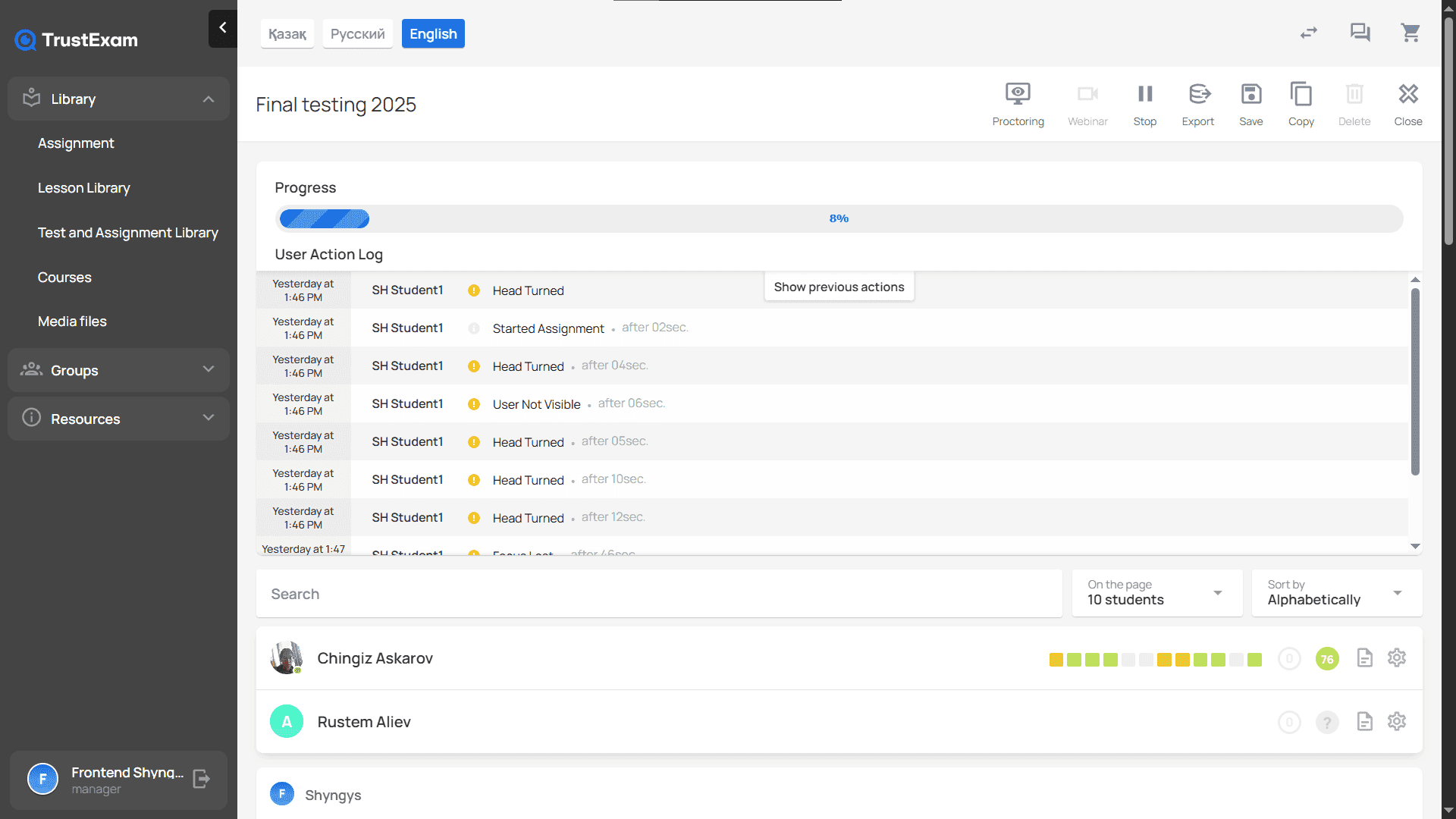
Description
Central dashboard for managing and monitoring a specific assignment (task/test). The page contains:
Header: “Test Testing Final” (assignment name)
Top Toolbar with control buttons
Completion Progress Indicator
Global Real-time Activity Log of all students
Student List with their results and statuses
Main Interface Elements
Sidebar navigation menu
Assignment control panel
Content area with sections
Student list with results
2. Top Control Panel

Buttons and Functions
Button | Function |
Proctoring | Switch to real-time mode/view proctoring records |
Webinar | Webinar management (disabled for current assignment) |
Stop | Temporarily suspend student access to the assignment |
Export | Export results in various formats |
Save | Save changes to assignment settings |
Copy | Create a copy of the assignment |
Delete | Delete the assignment |
Close | Return to the general assignment list |
3. Global Action Log
Description
Real-time event log for all students currently taking or who have completed the exam.
Event Types
The log shows recorded session actions and proctoring events. The following reference lists event types; their availability depends on the session configuration.
System Events and Proctoring Detections
1. System Actions (Lifecycle)
Event Code | Description |
| Student opened the assignment |
| Student agreed to the proctoring policy |
| Student started the test |
| Student finished the test |
2. Head Tracking
Event Code | Description |
| Face identification (photo before the test start) |
| Head rotated, gaze directed away |
| Face not detected in frame |
| Incorrect distance to camera (too close or too far) |
| Multiple faces detected in frame |
| Force disable Head Tracking |
3. Eye Tracking
Events are generated on the server using Stream Analyzer.
Event Code | Description |
| Gaze directed away from the screen |
| Gaze directed to the left |
| Gaze directed to the right |
| Gaze directed up |
| Gaze directed down |
4. Object Detection
Event Code | Description |
| Prohibited object detected |
Supported object types:
Cell phone
Laptop
Remote
Other electronic devices
5. Focus & Browser
Event Code | Description |
| Browser window focus lost (switching to another app or tab) |
| Browser window focus restored |
| Full-screen mode exited |
6. Keyboard & Mouse
Event Code | Description |
| Copy or paste attempt (Ctrl+C / Ctrl+V) |
7. Audio Detection
Event Code | Description |
| Unusual noise detected |
| Speech detected (Voice Activity Detection) |
| Microphone disabled or muted |
8. Screen & Display
Event Code | Description |
| Use of multiple monitors detected |
| Force disable Screen Share |
9. Network & Connection
Event Code | Description |
| Internet connection restored |
| Force disable RTC connection |
10. Hardware Detection
Event Code | Description |
| USB device connection detected |
| Headphones detected |
| Prohibited process or program detected |
11. Browser Extensions
Event Code | Description |
| Active browser extension detected |
12. Additional Events
Event Code | Description |
| Student opened a question |
| Question answer saved |
| Question skipped |
Grouping Events by Severity Level:
HIGH and MEDIUM are event severity labels. They help organise review and do not by themselves establish misconduct or an exam outcome.
Critical Violations (HIGH)
Event Code | Description |
| Multiple faces in frame |
| Prohibited objects detected |
| Prohibited programs or processes |
| Browser extensions |
| Exiting full-screen mode |
| USB device connection |
Medium Violations (MEDIUM)
Event Code | Description |
| Head rotation |
| Face missing from frame |
| Incorrect distance from camera |
| Window focus lost |
| Copy / Paste |
| Unusual noise |
| Speech detection |
| Use of multiple monitors |
| Use of headphones |
| Microphone disabled |
Technical and Information Events (INFO)
Event Code | Description |
| Testing lifecycle stages |
| Consent to proctoring policy |
| Photo identification |
| Focus restoration |
| Connection restoration |
| Student actions with questions |
4. Student List

Description
A table of all students registered for the assignment, along with their statuses and results. Click on the row of a specific examinee to expand a detailed block of their test results.
General Block Structure
The student results block consists of the following logical parts:
1. Student Card and Summary
At the top of the block, brief information about the student is displayed:
Student Avatar (if available)
Examinee Name
Online Status Indicator
Question Progress
Displayed as a set of indicators where each element corresponds to a question:answered
correct
ungraded / awaiting review
Additionally, aggregated metrics are shown:
Metric | Description |
Score | Total score for the assignment |
Trust Level | Confidence percentage in the result based on proctoring |
Quick actions are also available:
open report
go to individual student proctoring settings
2. Identification

The “Identification” section contains primary identity verification data:
user photo taken before the start of the assignment
date and time of capture
identification success status
The photo is available for viewing in full size.
3. Violations
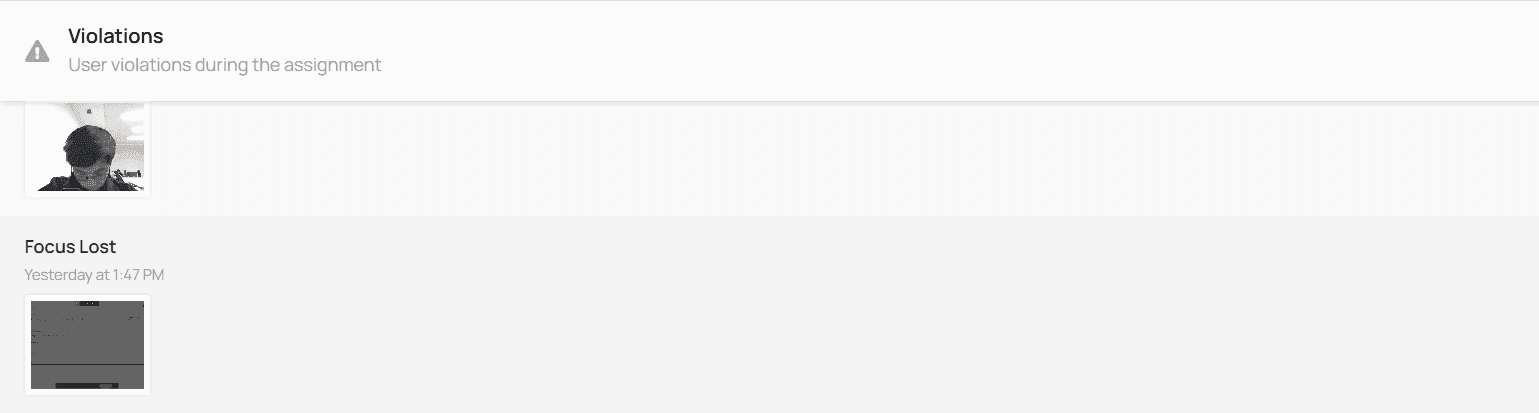
The section labelled “Violations” lists recorded proctoring events in chronological order. The interface label is not a final finding of misconduct.
Each event includes its type, date and time, and an associated screenshot or video frame when available. Review the relevant evidence, reported technical issues and permitted adjustments under the programme’s rules before recording a decision. Keep that decision separate from the participant’s answer grade.
4. Video

The “Video” section contains recordings of the testing session:
webcam video stream
screen recording
mobile device recording (if used)
Each recording has a completion status and can be opened for viewing.
5. Test Results
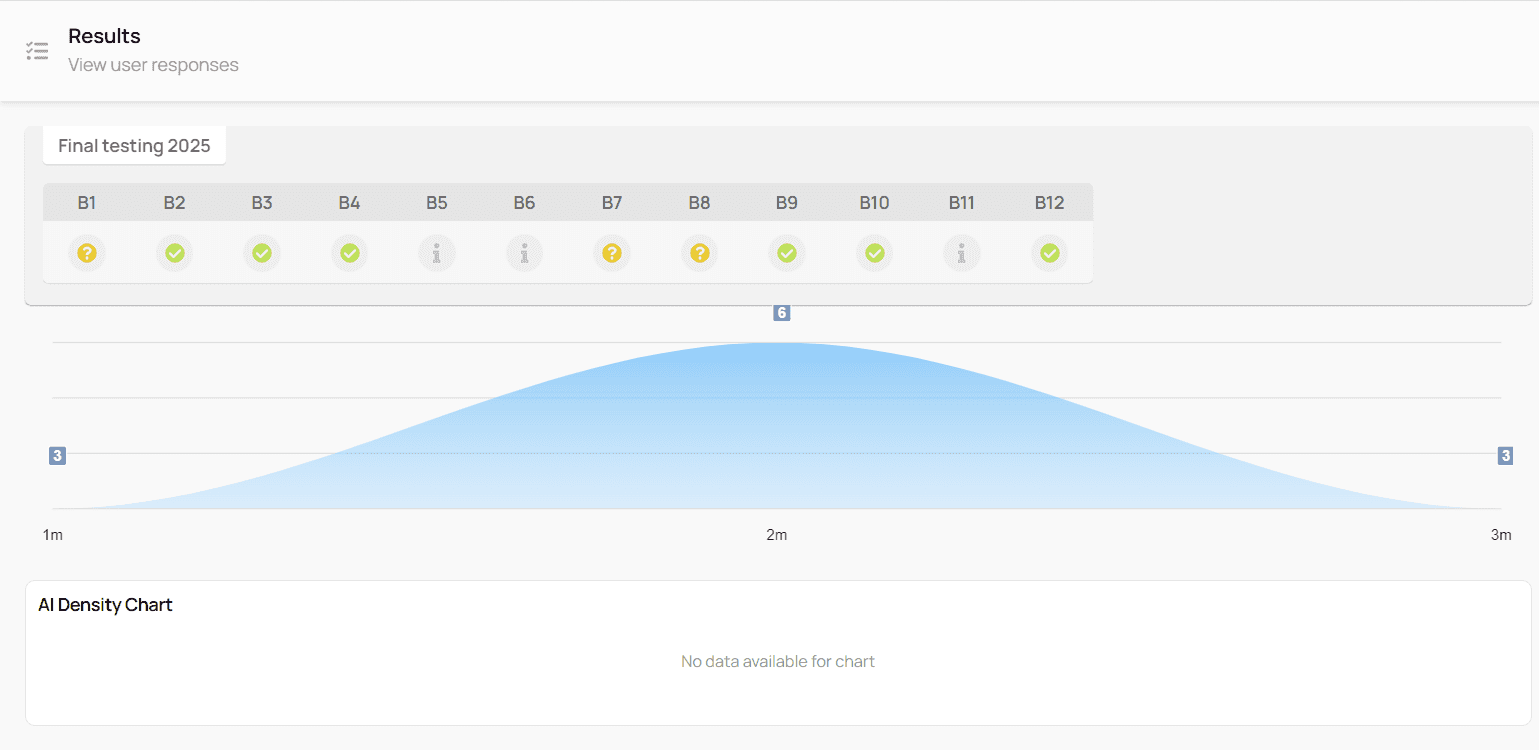
The “Results” section displays the student’s answers for each question in the assignment.
For each question, the following is specified:
question number
question type (multiple choice, open-ended, fill in the blanks, code compiler, etc.)
answer status:
correct
answered (awaiting review)
ungraded
incorrect
This section is used for a detailed analysis of the student’s knowledge and manual verification of answers. Analytical visualizations are also displayed in this section:
results distribution graph
activity dynamics timeline
AI density graph (if data is available)
If analytical data is missing, a corresponding notification is displayed.
6. Action Log
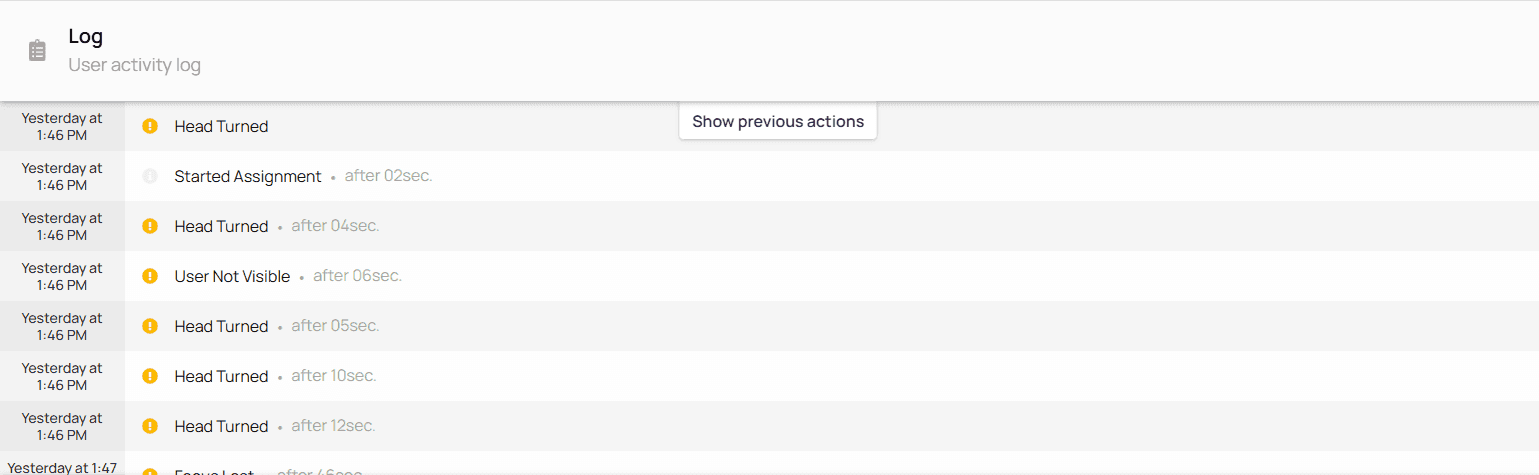
The “Log” section is an individual timeline of actions for the selected student.
For each event, the following is recorded:
exact time
event type (system, informational, violation)
action description
time interval relative to the previous event
The log is used for:
auditing
handling appeals
investigating disputed situations
7. Grade

The “Grade” section allows you to set a final grade for the assignment.
A grading scale (e.g., from 1 to 5) is supported.
8. Certificate
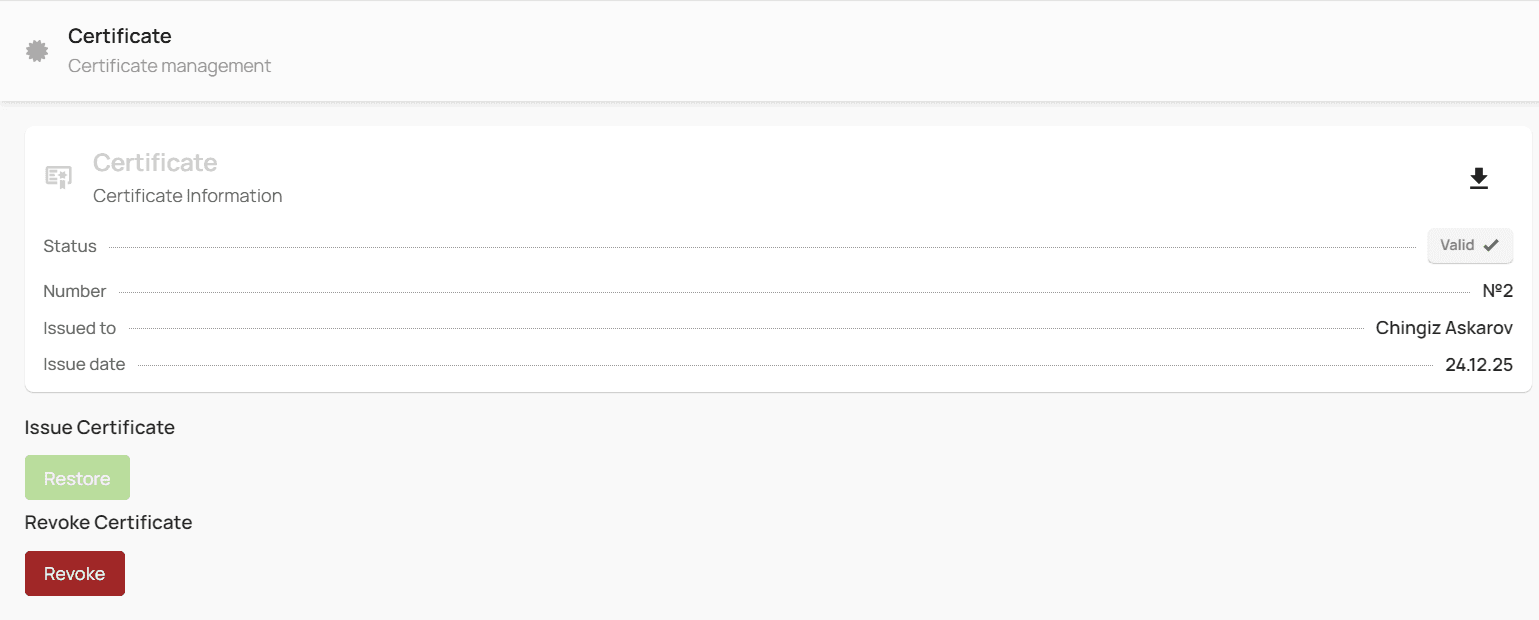
The “Certificate” section is designed for managing the student’s certificate.
Information displayed:
certificate status (valid / revoked)
certificate number
recipient name
issue date
Available actions:
download certificate
revoke certificate
reinstate certificate (where applicable)
9. AI Report

The “AI Report” section contains additional analytical information generated by the system.
Depending on settings and data availability:
an AI report is displayed
or a message is shown indicating the report is unavailable
10. Settings and Attempt Management
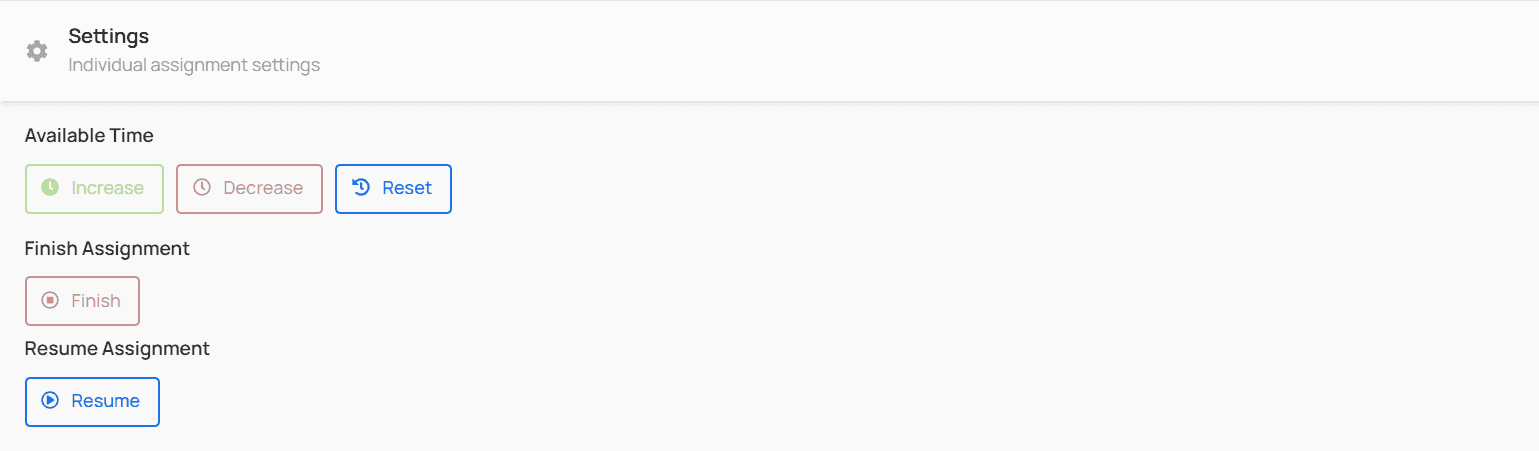
Administrative actions for the student’s attempt are available in the “Settings” section:
Time Management
increase available time
decrease time
reset student answers
Attempt Management
force complete assignment
resume attempt