Getting Started: Logging in to the System
To access your administratot account:
Go to the login page:
https://app.trustexam.ai
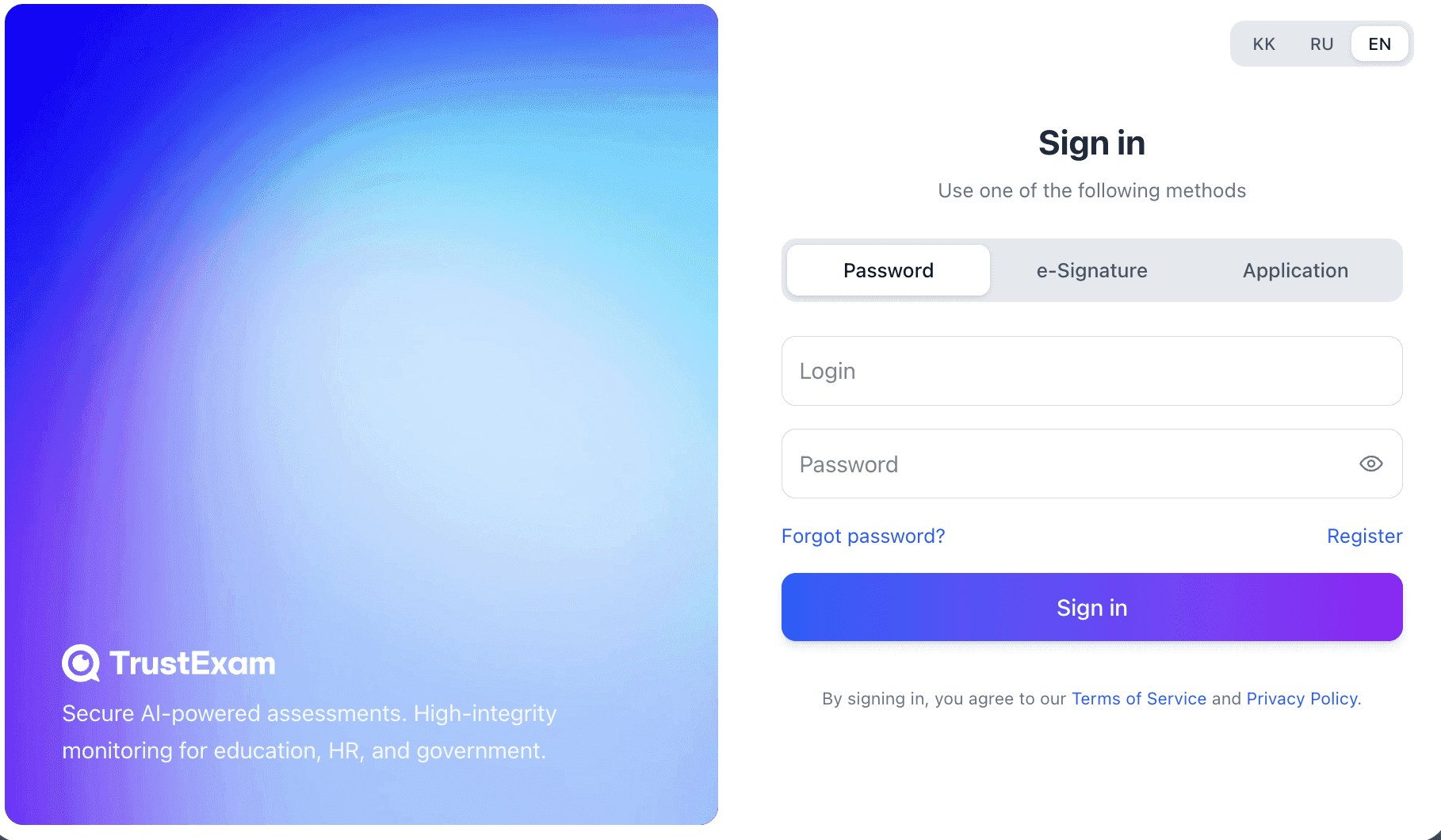
Enter the username and password provided by TrustExam team.
After logging in, you will be redirected to the “Main page”.
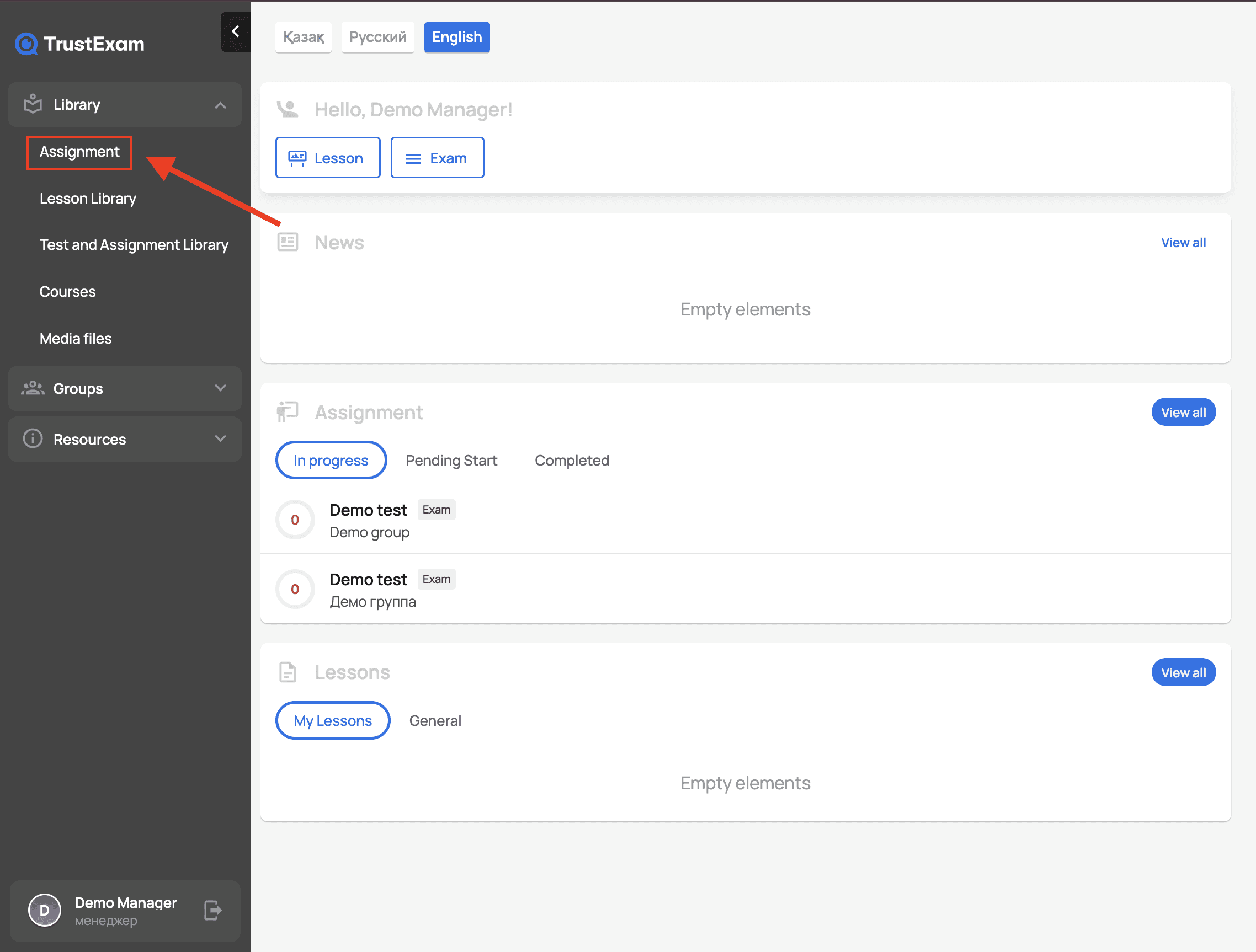
The main page provides general information about upcoming, active, and completed lessons in the Learning Management Portal, as well as assessments, exams, and organizational news. Most management actions, however, are performed on the “Assignments” page.
Assignments Page Overview
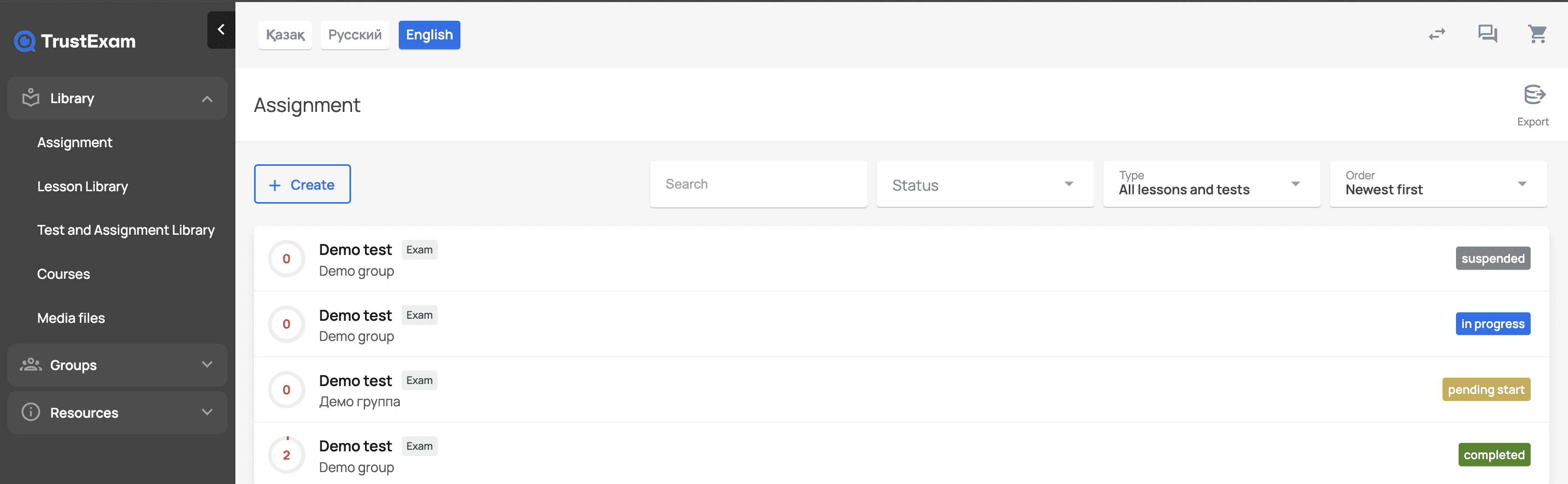
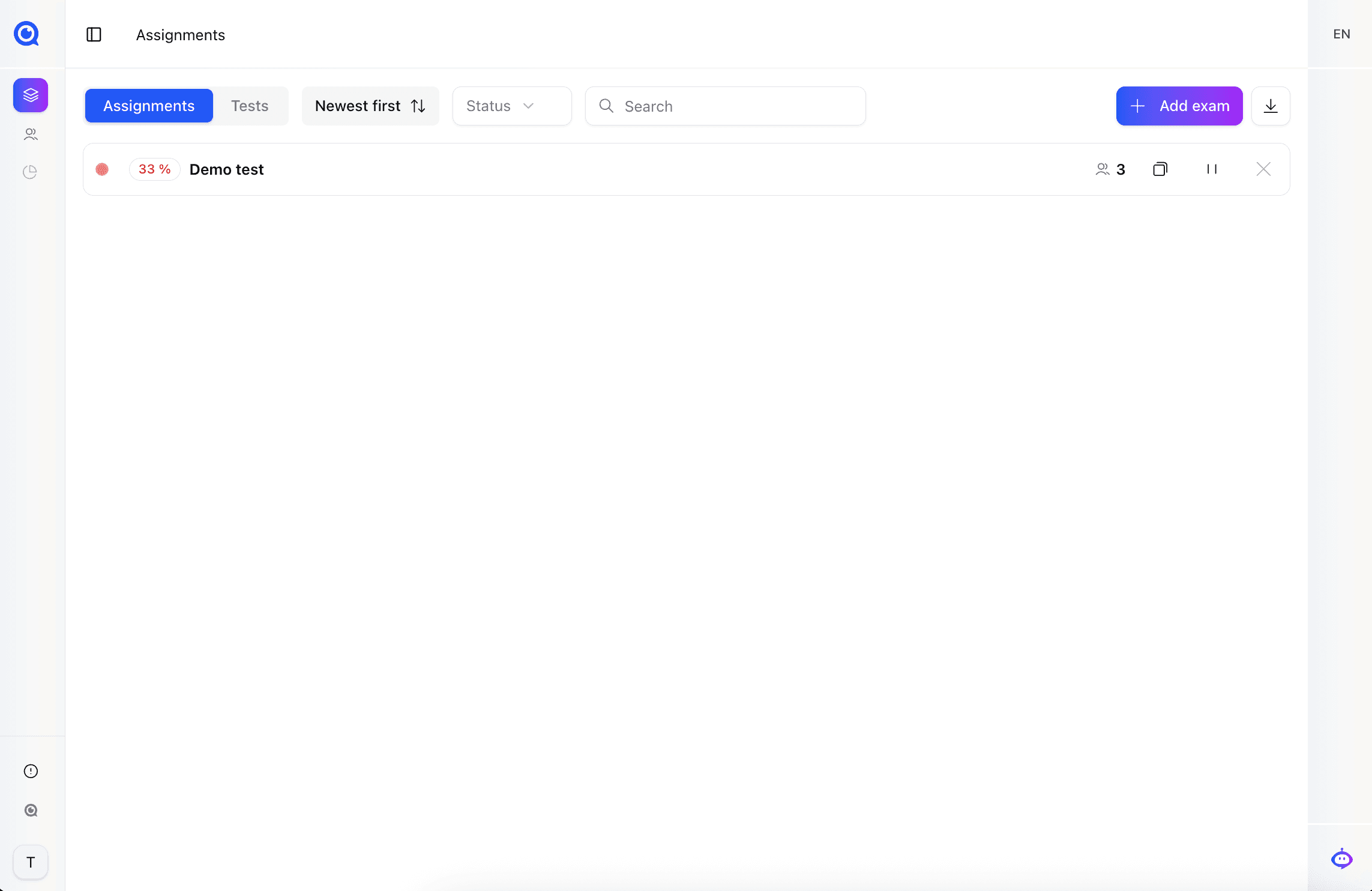
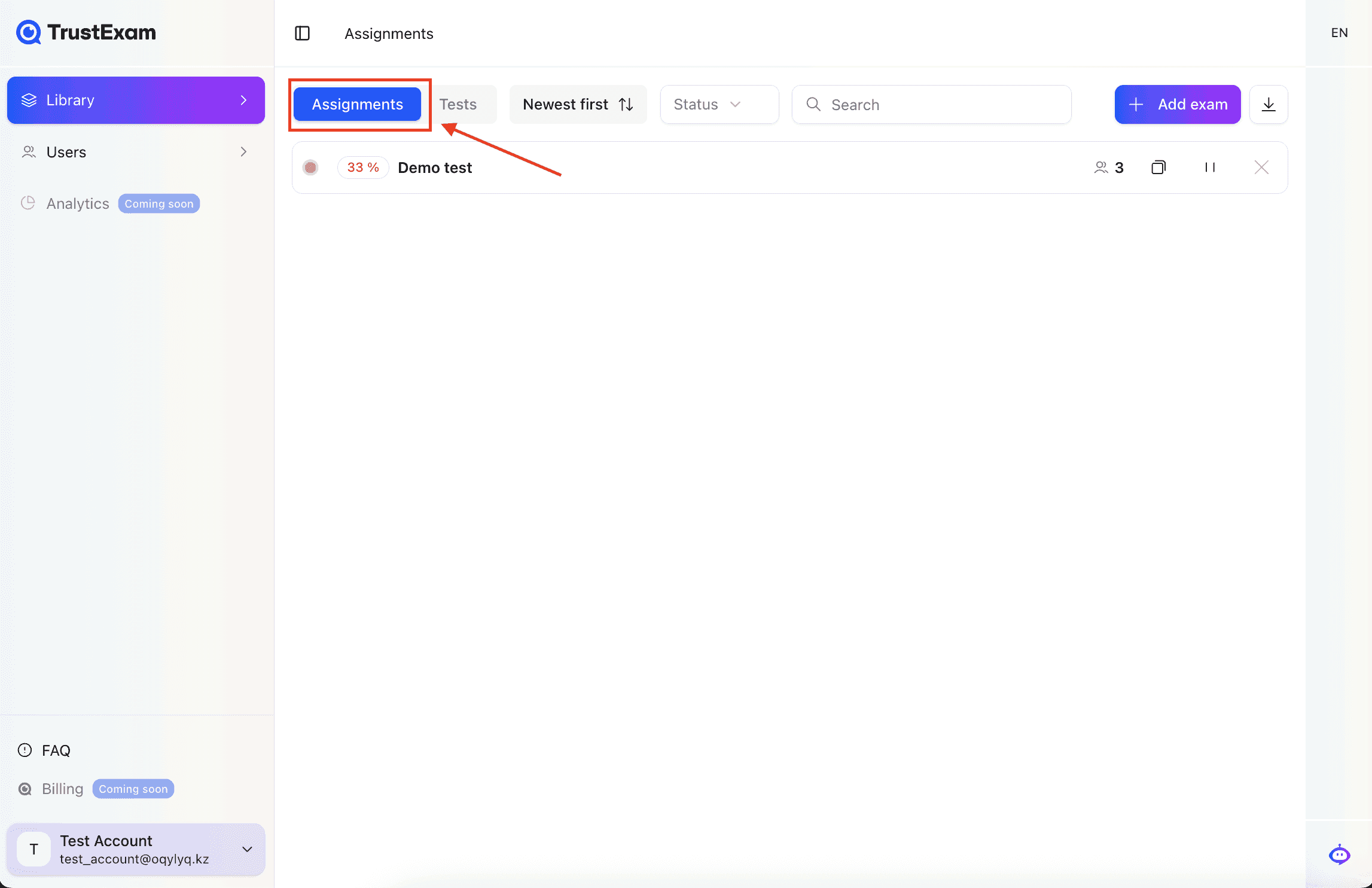
The Assignments page is used to create, manage, and monitor all tests, exams, assessments and interviews available on the platform for your organization.
On this page, you can:
View all created assignments in a single list
Search assignments by name using the Search field
Filter assignments by Status and Type
Change the display order using the Order option
Each assignment shows basic information such as name, group, type, and current status.
Each assignment has a status indicator:
Orange color and writing “Pending Start”
The exam is scheduled for a future time.
It will become available to students only at the date and time set by the administrator (you).
Blue color and writing “In Progress”
The exam is currently available for completion.
Test-takers may begin the test at any moment before the deadline.Green color and writing “Completed”
Test-takers have finished the assignment and used all available attempts.
The exam is no longer accessible.
Grey color and writing “Suspended”
The exam is temporarily unavailable.
This may occur if:the deadline has passed
the administrator(you) suspended/paused the test
access has been restricted
On app.trustexam.ai:
A grey indicator may mean that the Exam is scheduled for a future date or has been paused.

It will become available to test-takers strictly on the date and at the time set by the organizer, or after the organizer resumes it.
A red indicator means that the Exam is currently available for completion.

Test-takers may begin the Exam before the deadline.
A green check mark in the Exam status bar means that the test-takers have completed the assignment and used all available attempts.

The Exam is no longer available.
Managing Assignments
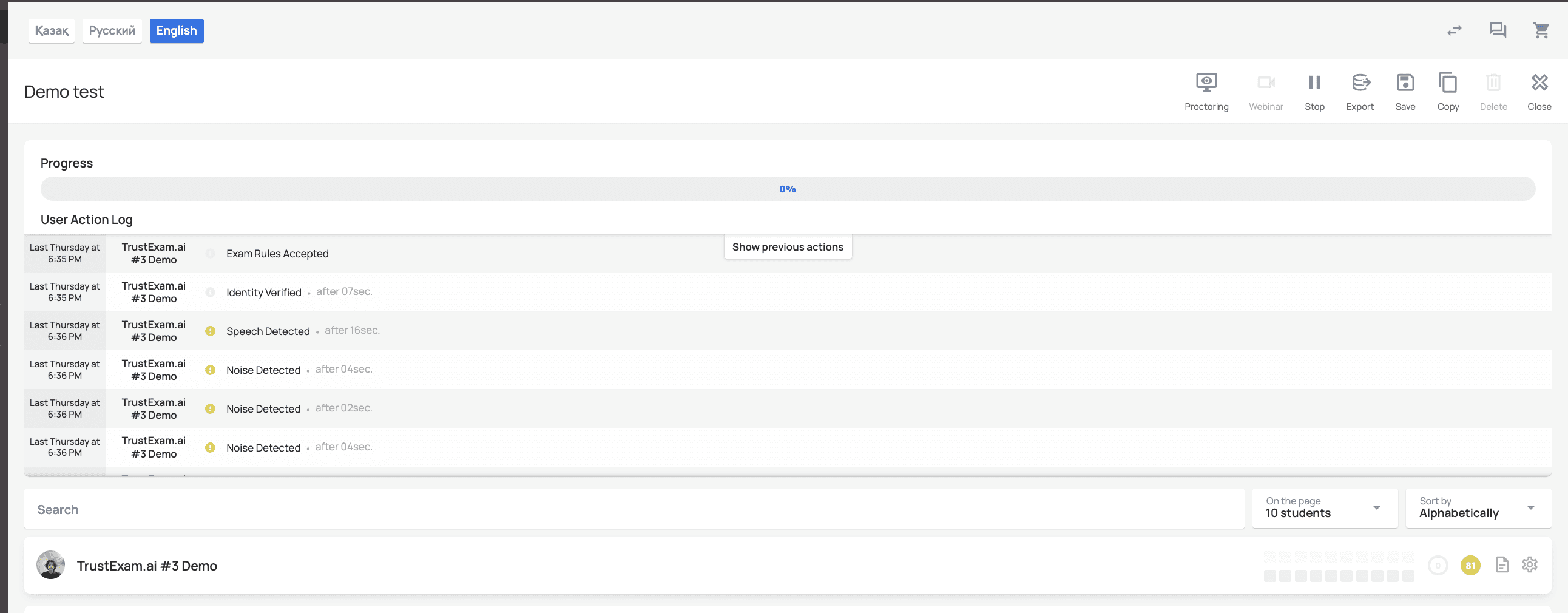
When clicked on an assignment, the new page provides detailed monitoring and control over an individual assignment or assessment. It allows managers to track participant progress in real time, review user activity, and manage assignment actions from a single interface.
On this page, you can:
View overall progress and completion status.
Review the User Action Log, including assessment violations.
View the list of students and their results.
Search and sort participants for easier navigation.
Access assignment controls such as Proctoring (used for real-time test-taker monitoring), Export results of the assignment, Save changes to the assignment, Copy or duplicate the assignment, Pause the assignment, or Stop the assignment.
Schedule or edit the assignment availability period.
Configure access controls, such as public access, private access for a specific group of users, or prepaid access available only after payment.
Review the testing materials used in the assignment.
Assign teachers and reviewers for grading and human proctoring.
Verify which test-taker group is assigned to the exam.
Set the number of available attempts for participants.
Configure the scoring and point system.
Define the number of questions or tasks assigned to each test-taker.
Add and configure completion certificates, if required.
Configure AI proctoring settings.
This page is primarily used for exam supervision, incident review, and final result analysis, helping ensure transparency and academic integrity throughout the testing process.
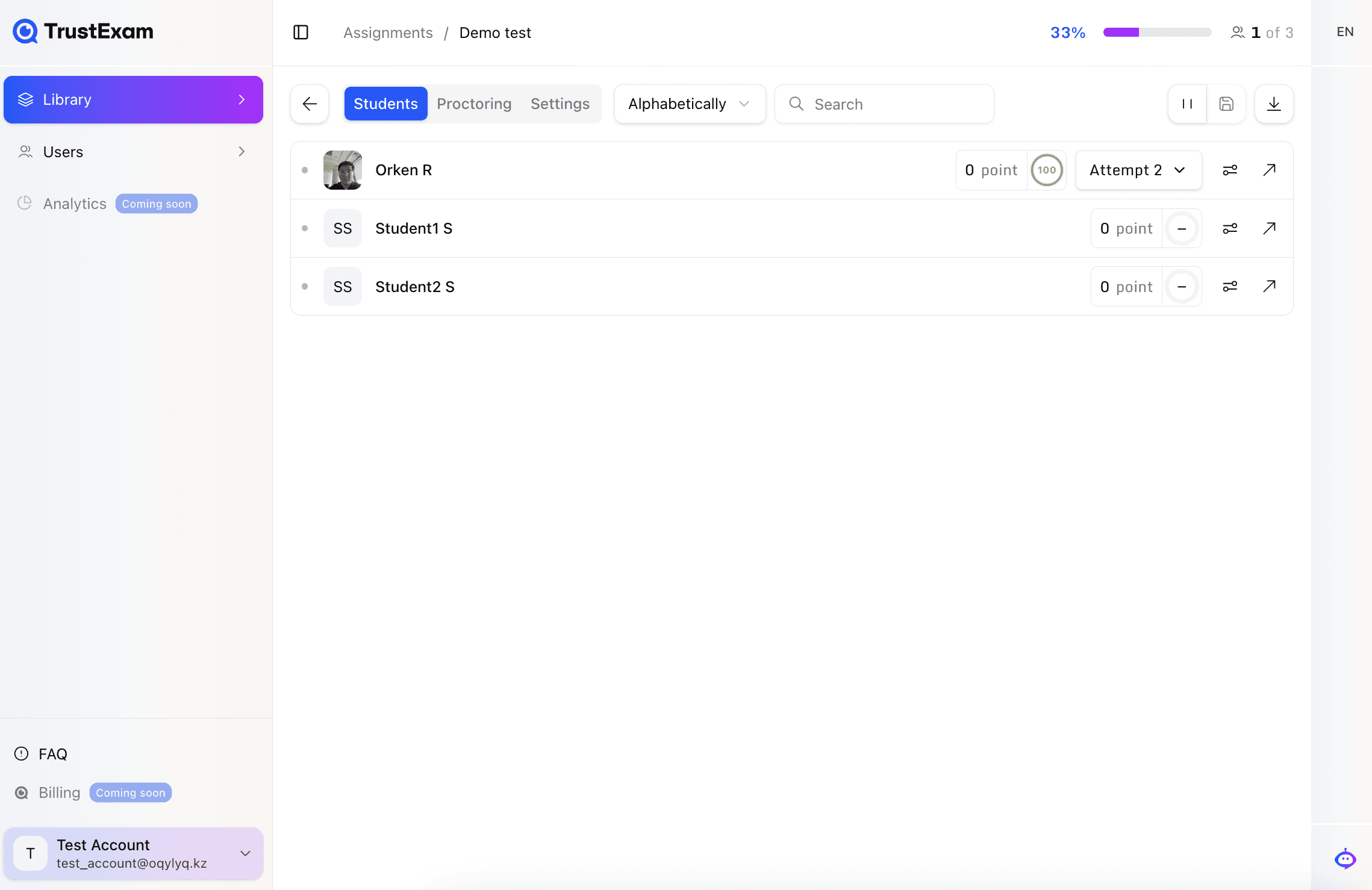
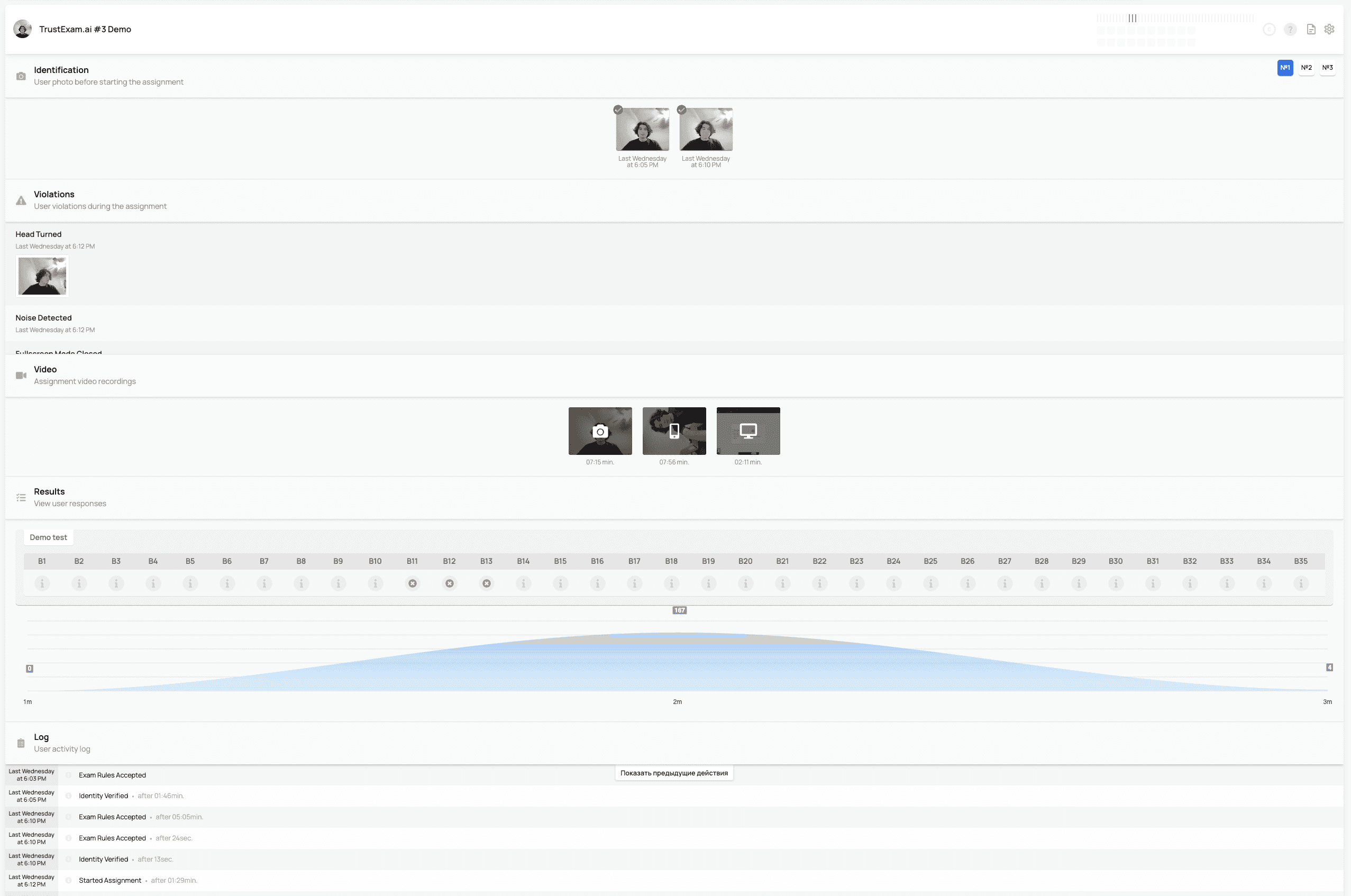
By selecting a student, you can view detailed information about detected violations and activity logs, access three recordings of the exam (webcam, external camera, and desktop recording), review test results, and analyze the student’s answering behavior. At the end of the page, an AI-generated report and conclusion are available to assist in evaluating exam integrity and making a final decision on the test result.
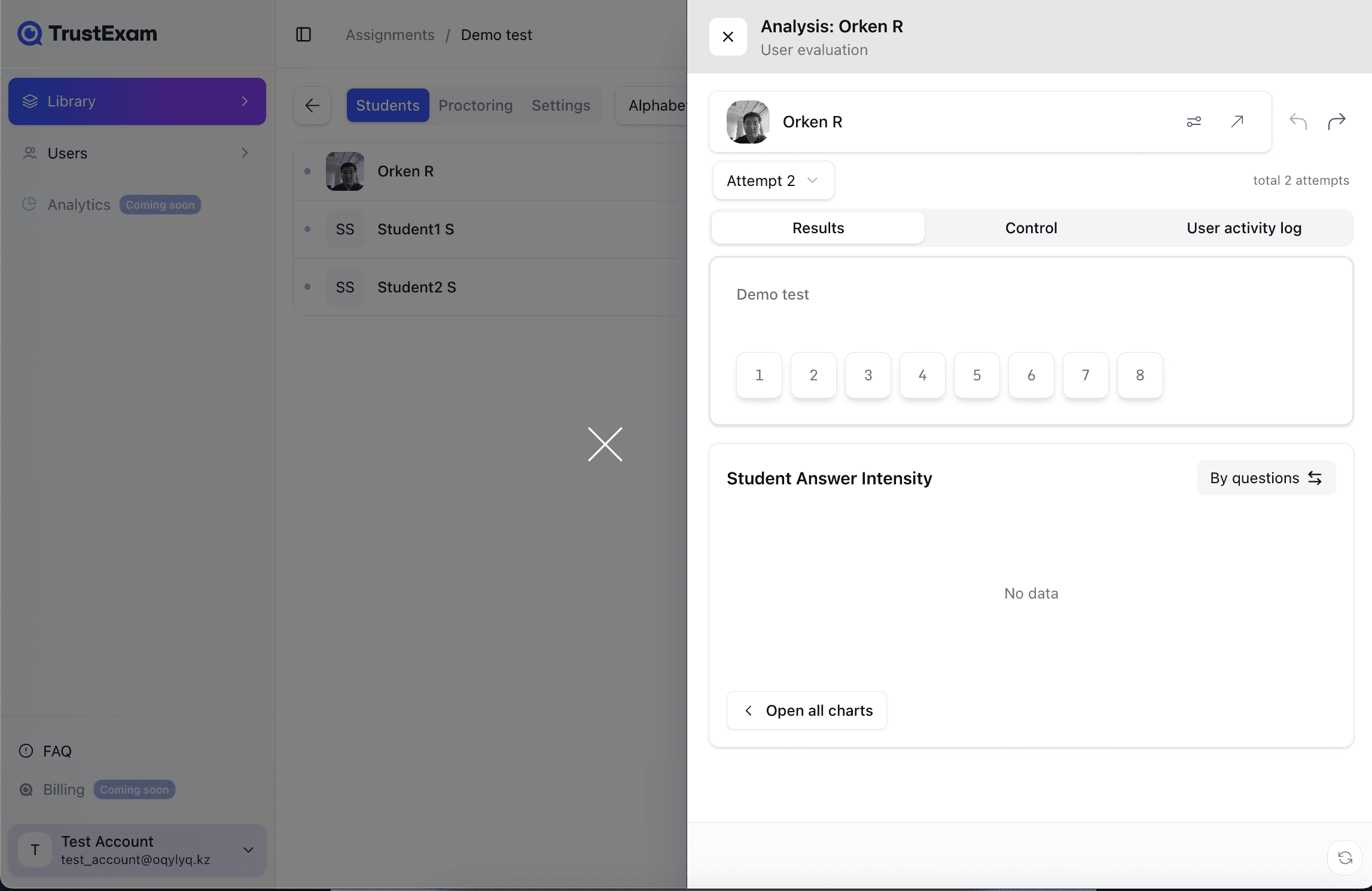
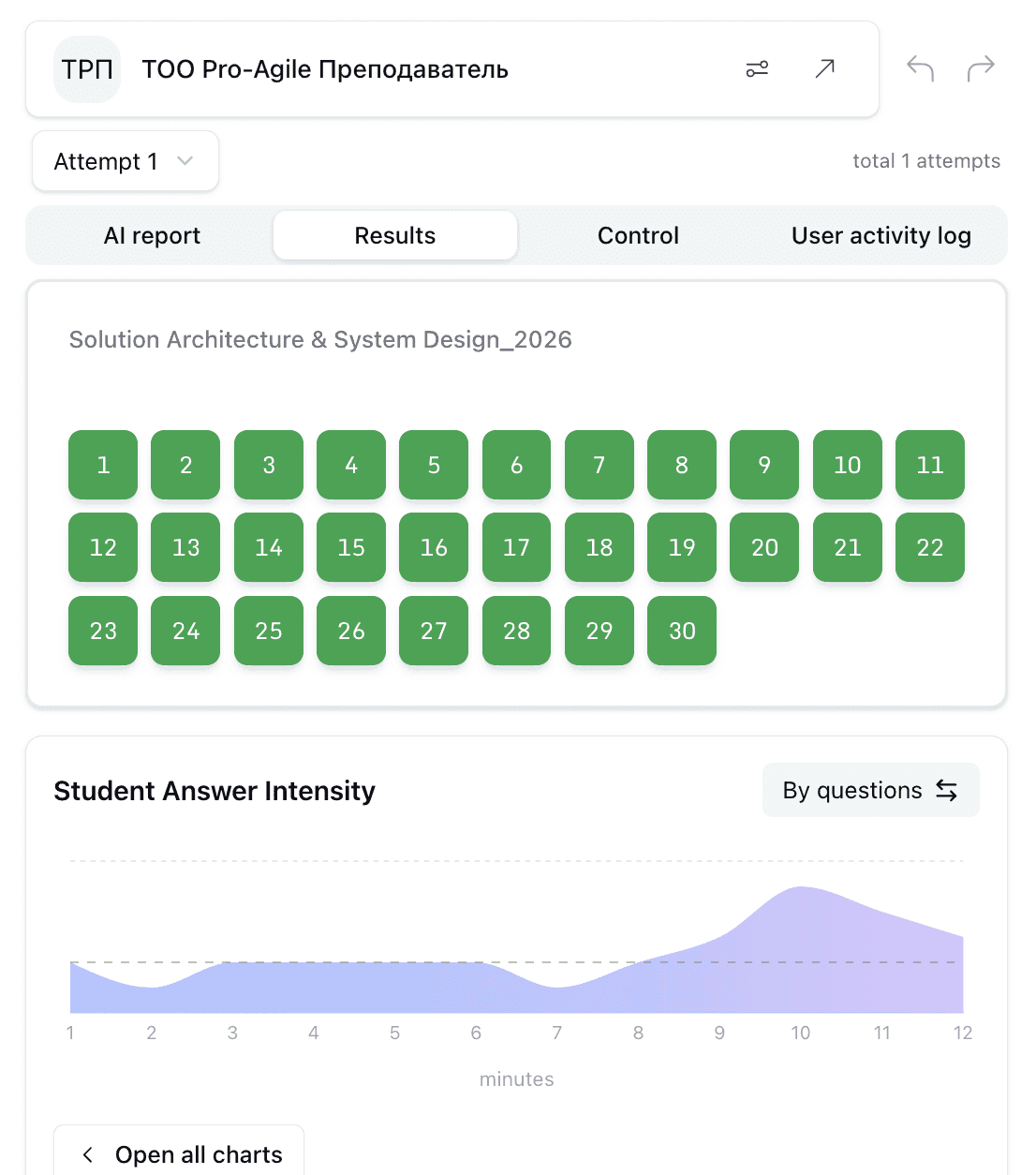
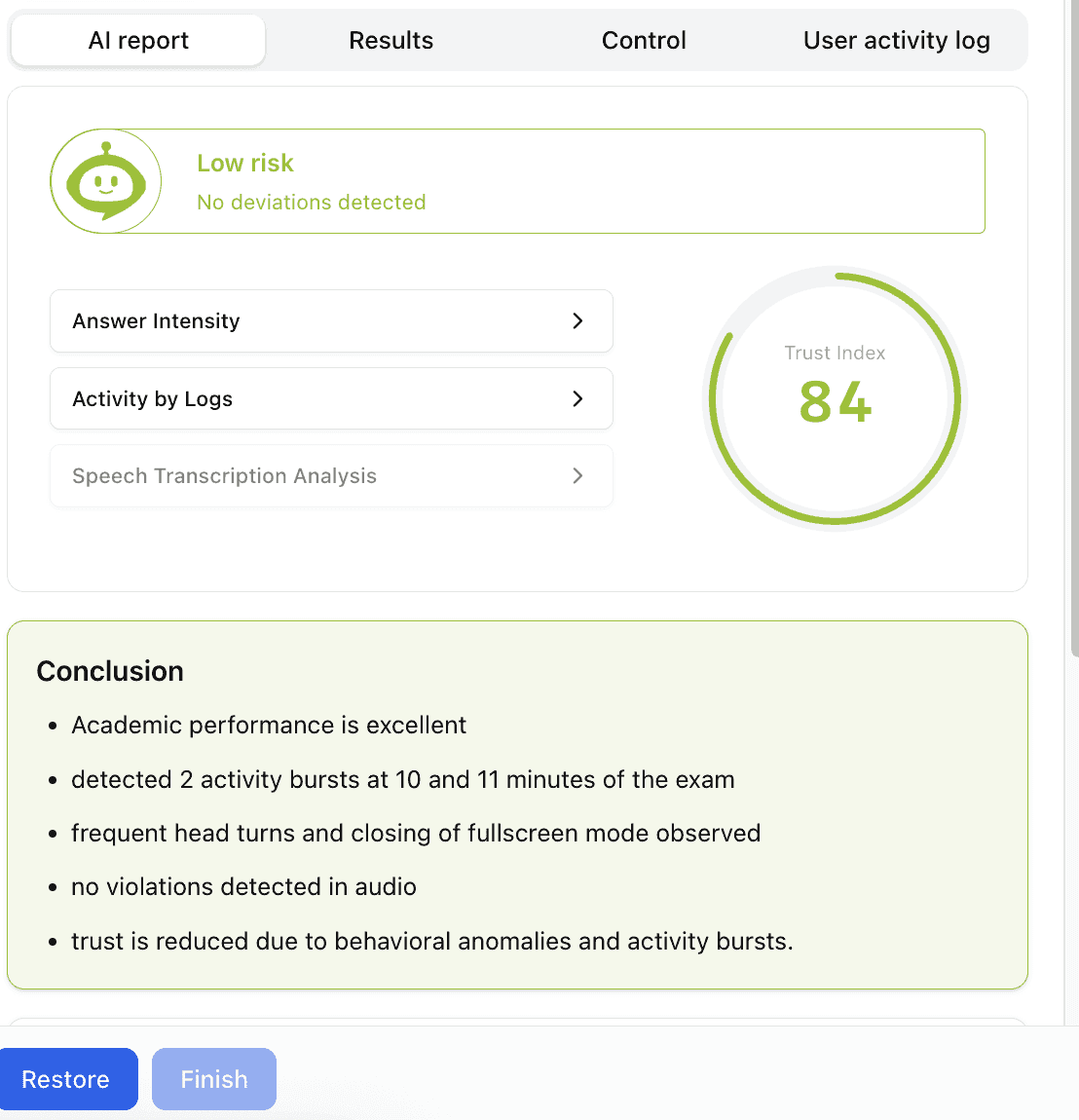
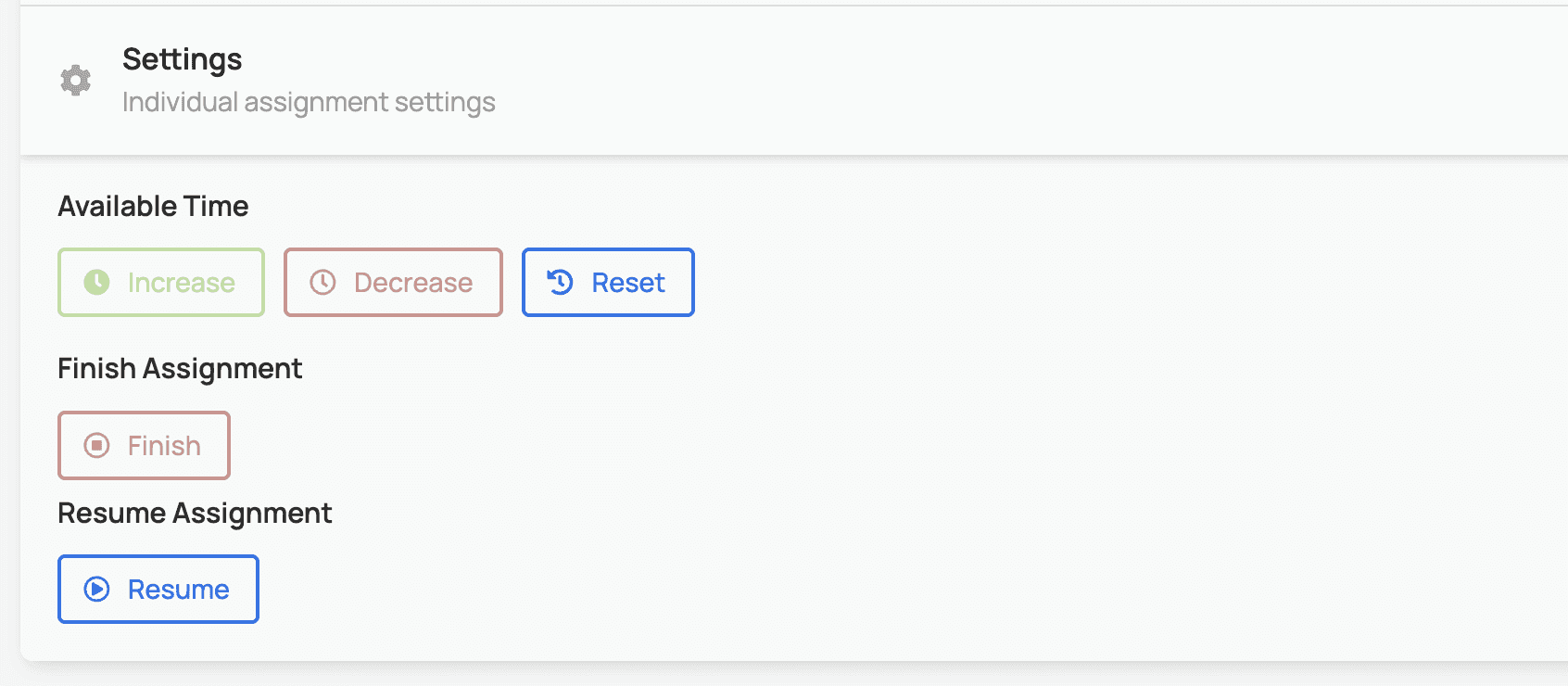
Additionally, if an assignment is in progress or suspended, you can manage an individual student’s remaining test time by extending, reducing, or resetting it. You can also manually finish or resume the test for that student.