
An Assignment is the process of assigning a created test or quiz to a specific group of test-takers with defined settings such as availability period, access rules, and proctoring configuration. This article explains how to create and manage assignments in TrustExam.
Creation Process
In the left sidebar, open the Library section and navigate to the Assignments page.
On the opened page, click the Create button.
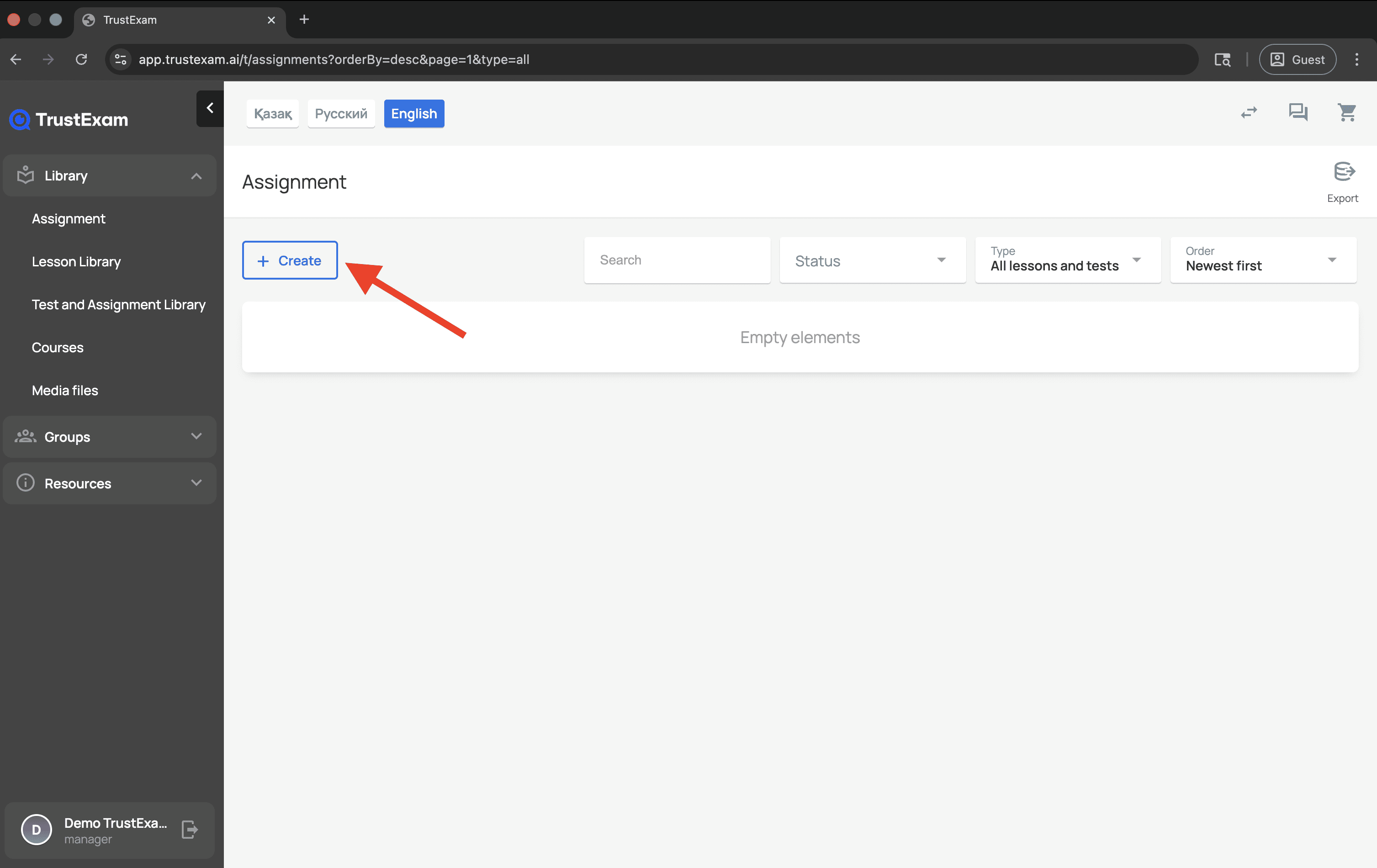
The assignment creation process consists of several sequential configuration steps, which are described below.
Access Control
Configure who will be able to access your test. Three access types are available:
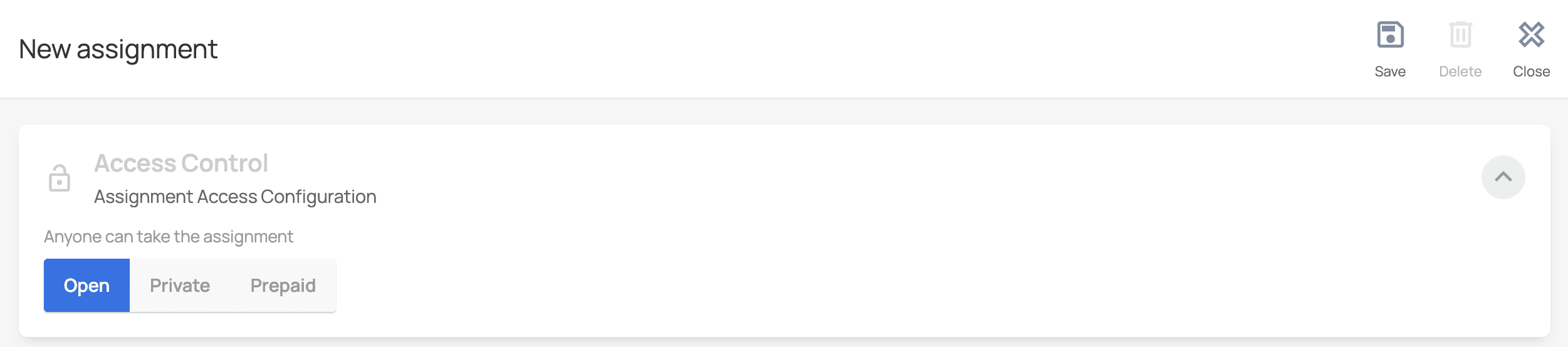
Public: Anyone with the link can take the test without additional restrictions.
Private: Access to the test is provided only via an invitation code.
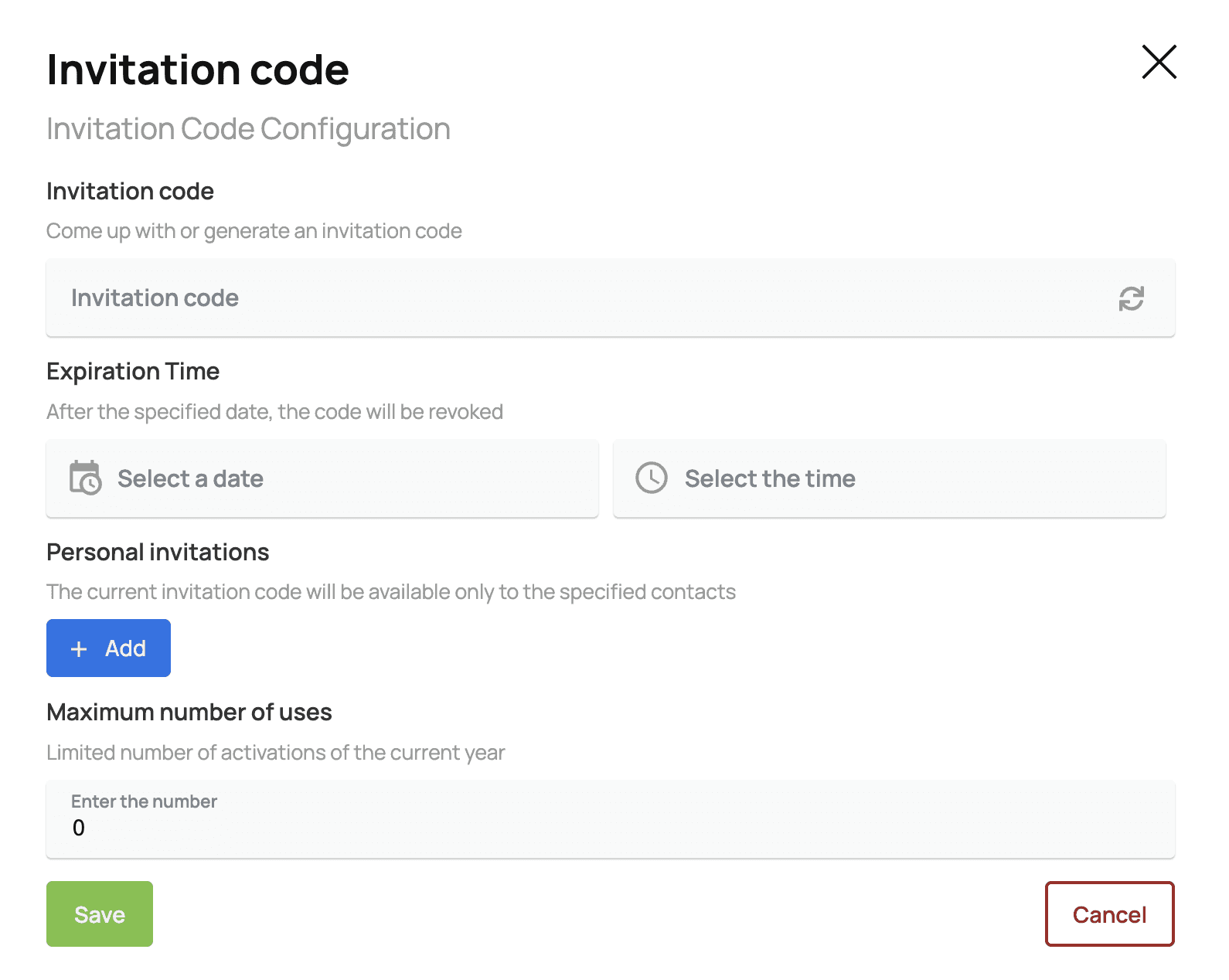
Invitation Code: Create or generate a unique code.
Expiration Period: Set the validity period of the code.
Number of Activations: Limit the number of times the code can be used.
Personal Invitations: Add participants by name and email or phone number.
Prepaid: Access to the test is granted only after payment.
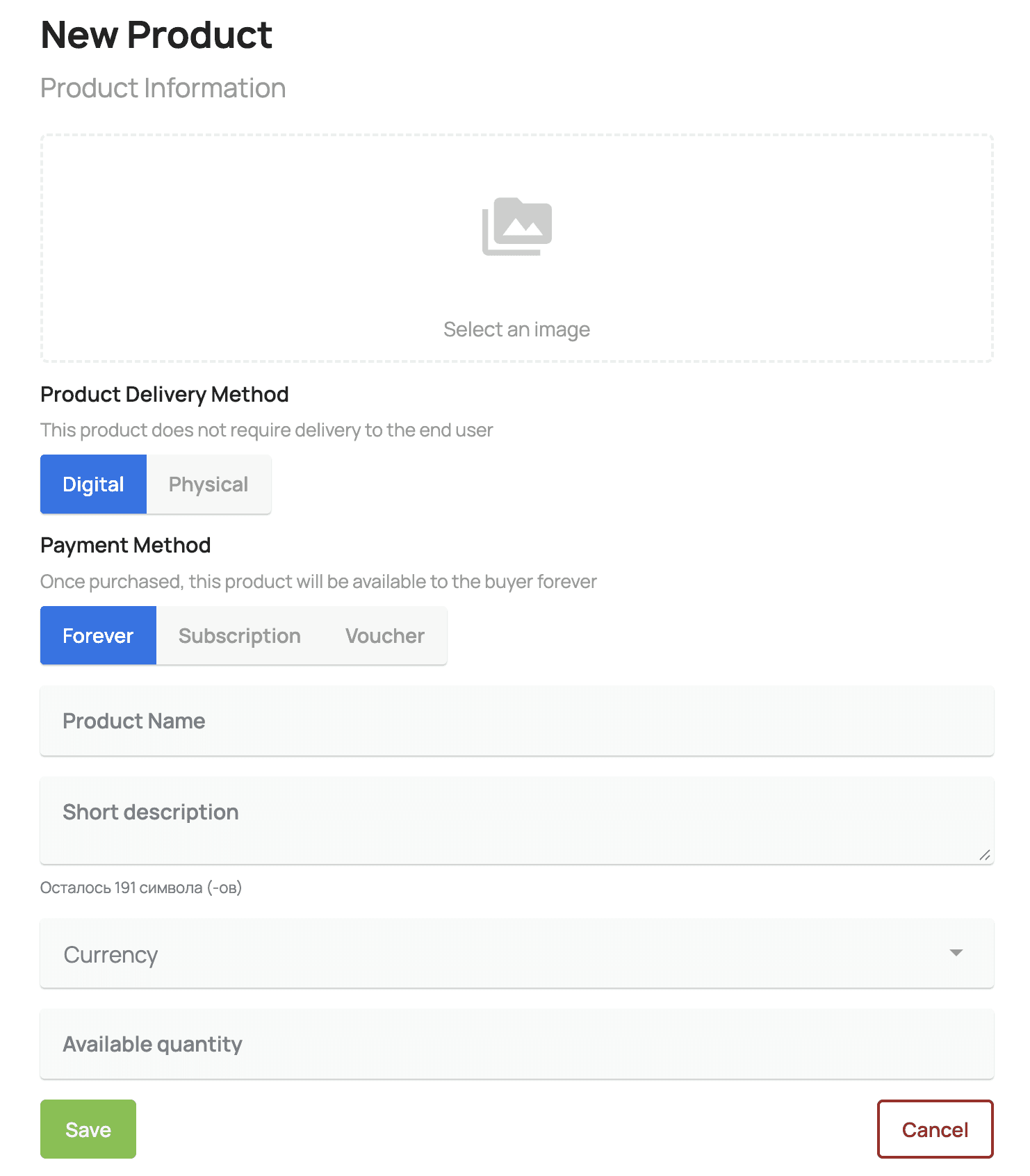
Paid Access Settings:
Product Image: Upload an image for your test.Delivery Method:
Digital: Instant access after payment
Physical: Requires delivery of materials
Payment Models (Digital only):Lifetime: The test is available to the purchaser indefinitely after a one-time payment
Subscription: Monthly recurring payment for access to the test
Voucher: The product can be activated at any time with permanent access after activation
Additional Settings:Product name and description: Provide product information
Currency: Select the payment currency
Quantity available: Limit the number of tests available for purchase
Material
Select the content type for your test and configure the corresponding settings:
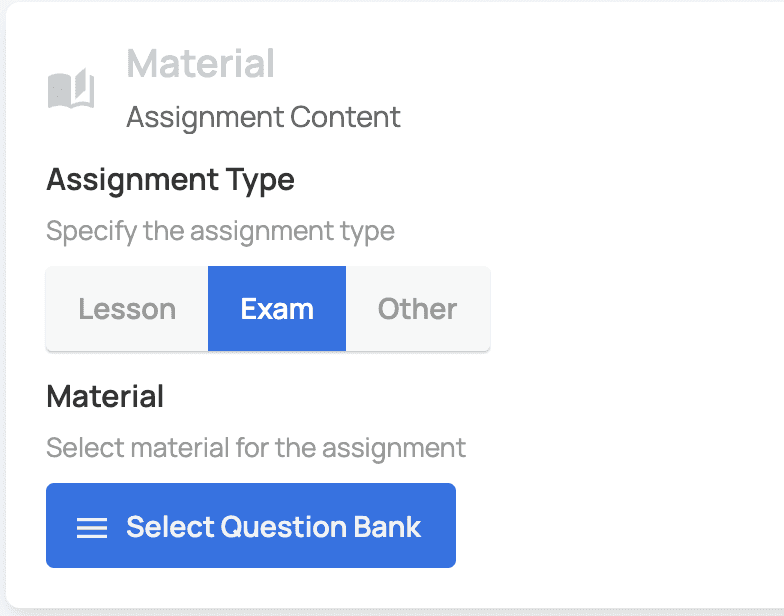
Assignment Type:
Lesson — learning material followed by an assessment
Exam — a questionnaire
Other — a custom content type
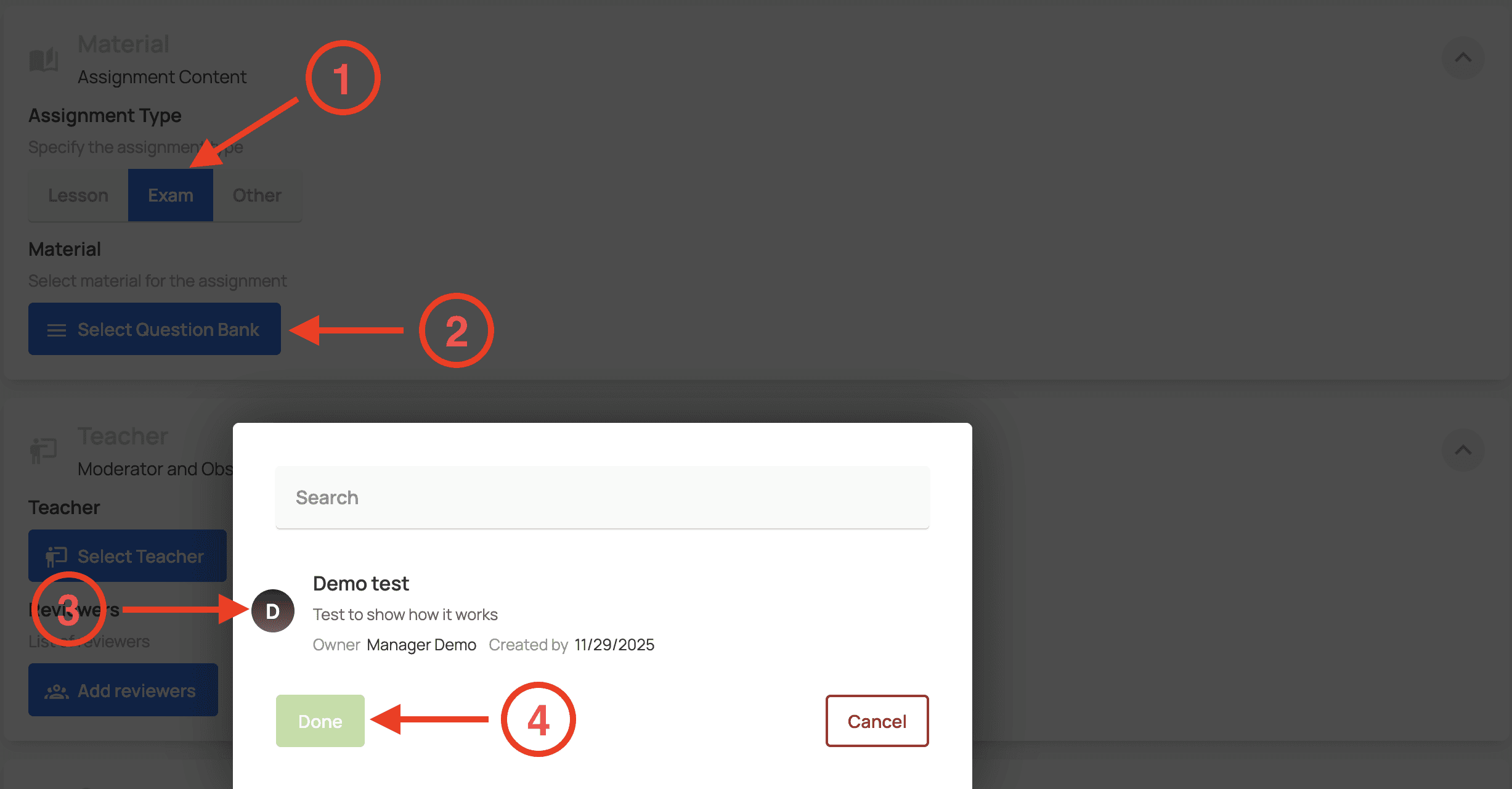
For the “Lesson” or “Exam” types:
You can select from existing materials in your library
Search and filtering are available for previously created lessons and assignments
A preview of the selected material is available
Для типа "Другое":
Название: укажите заголовок материала
Описание: добавьте подробное описание контента
URL ссылка: введите адрес внешнего ресурса
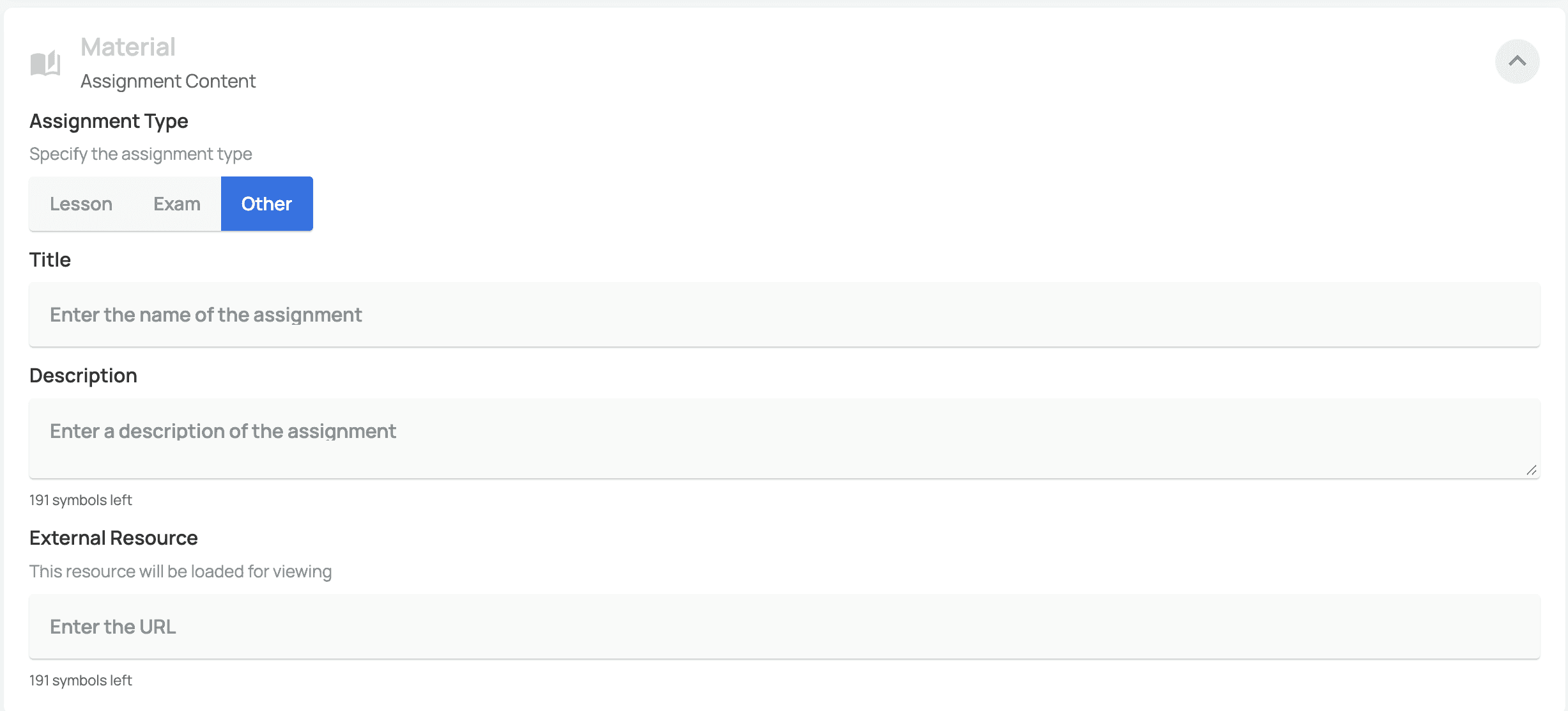
Note: The external resource will be loaded and displayed directly within the platform, providing a unified learning environment for students.
Teachers
Assign the responsible persons for conducting and reviewing the assessment:
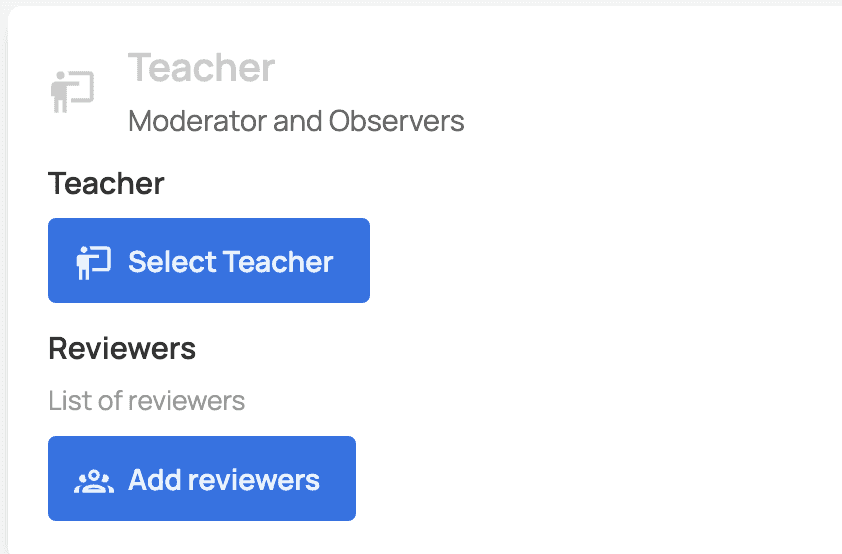
Primary Teacher:
Select one instructor from the list of available users
The primary instructor is responsible for conducting the assessment
Has full access to test settings and results
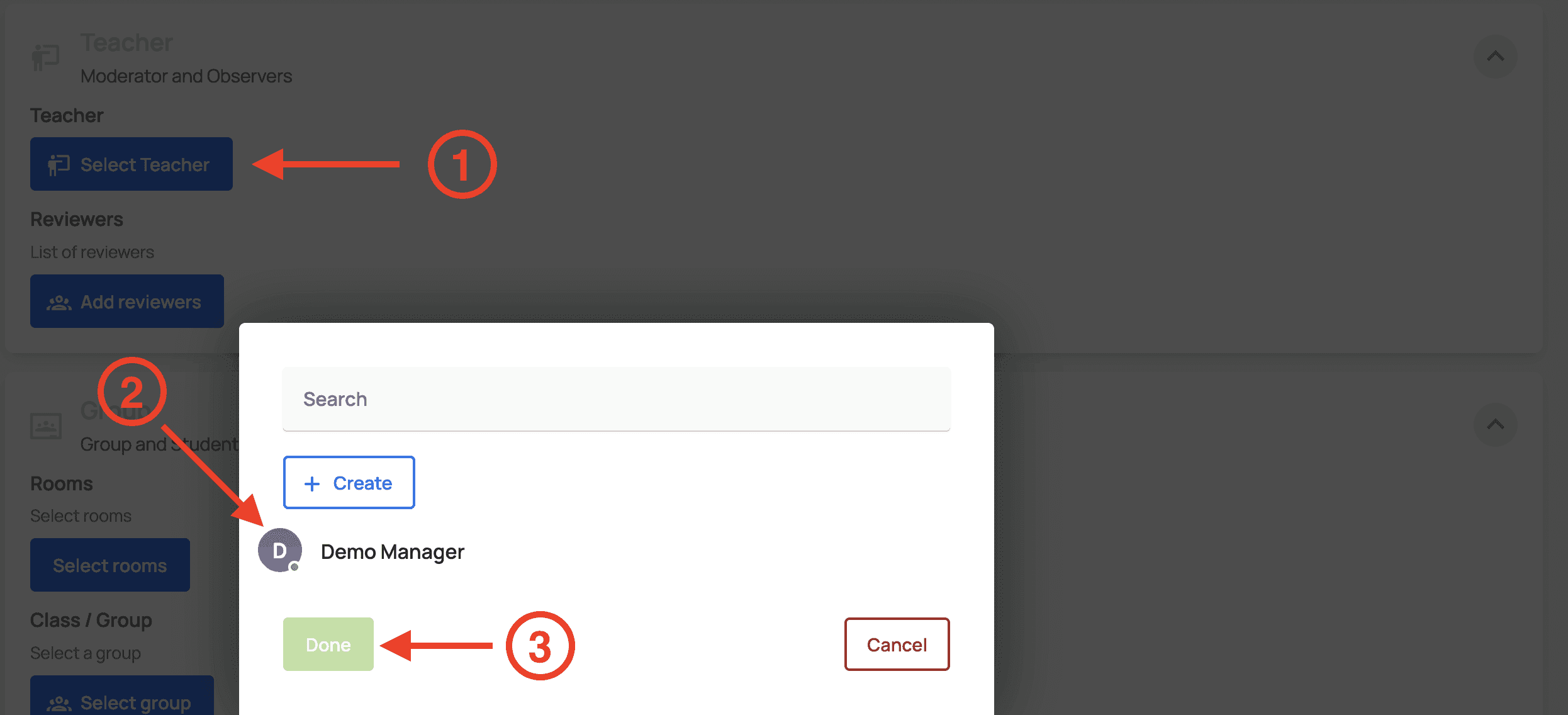
In the opened window, you can also create a new instructor. To do this, click the “Create” button below the search field.
The same option is available in the reviewer selection window.
Reviewers:
You can select multiple reviewers to evaluate submissions
Reviewers have access to grading and commenting on results
They can provide feedback to test participants
Group Selesction
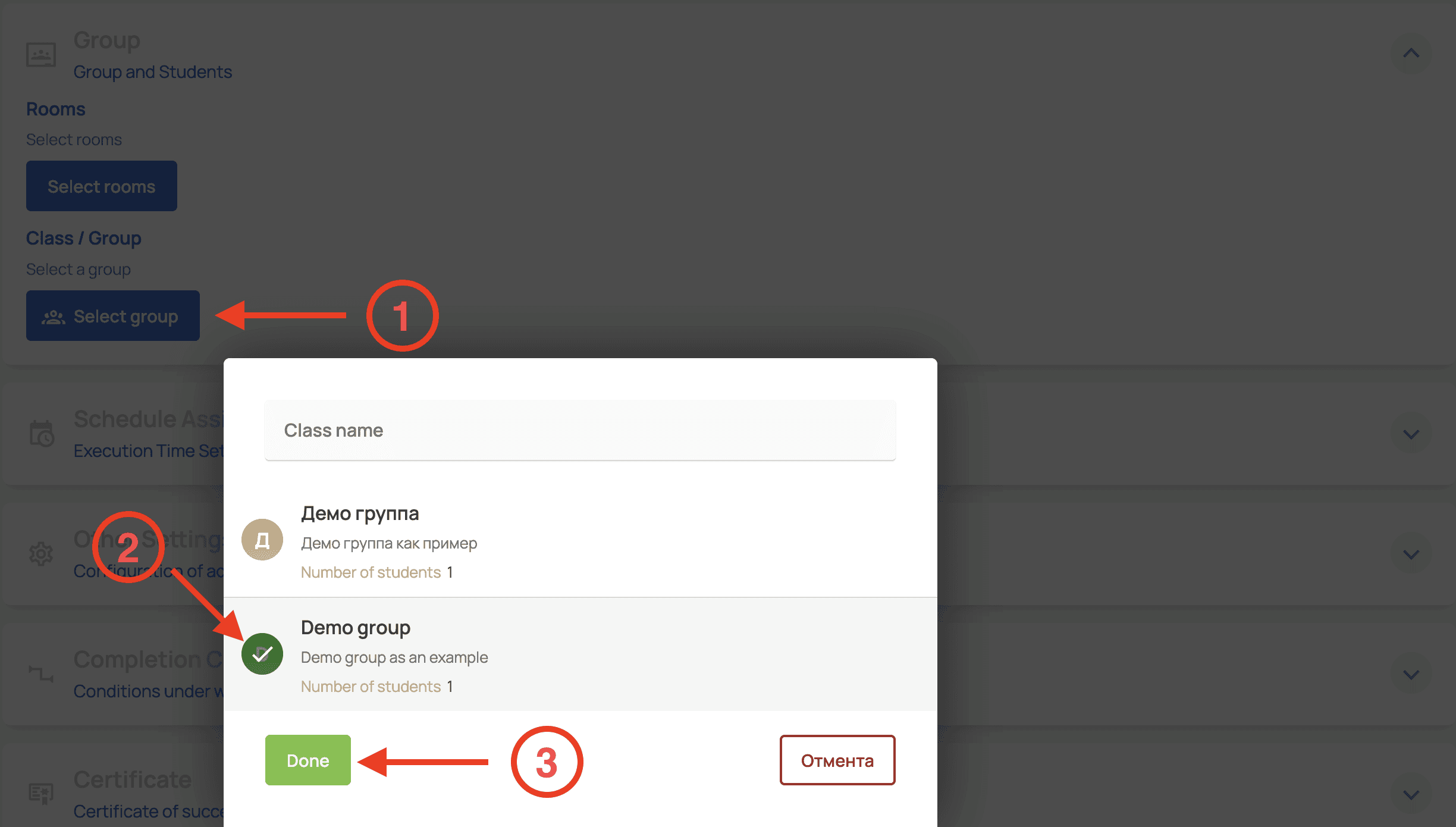
Assign the group for conducting the assessment:
Select a student group to take the assessment
Groups are created in advance in the system
You can view the group’s participant list and student progress
Schedule Assignment
Configure the time parameters for completing the assessment:
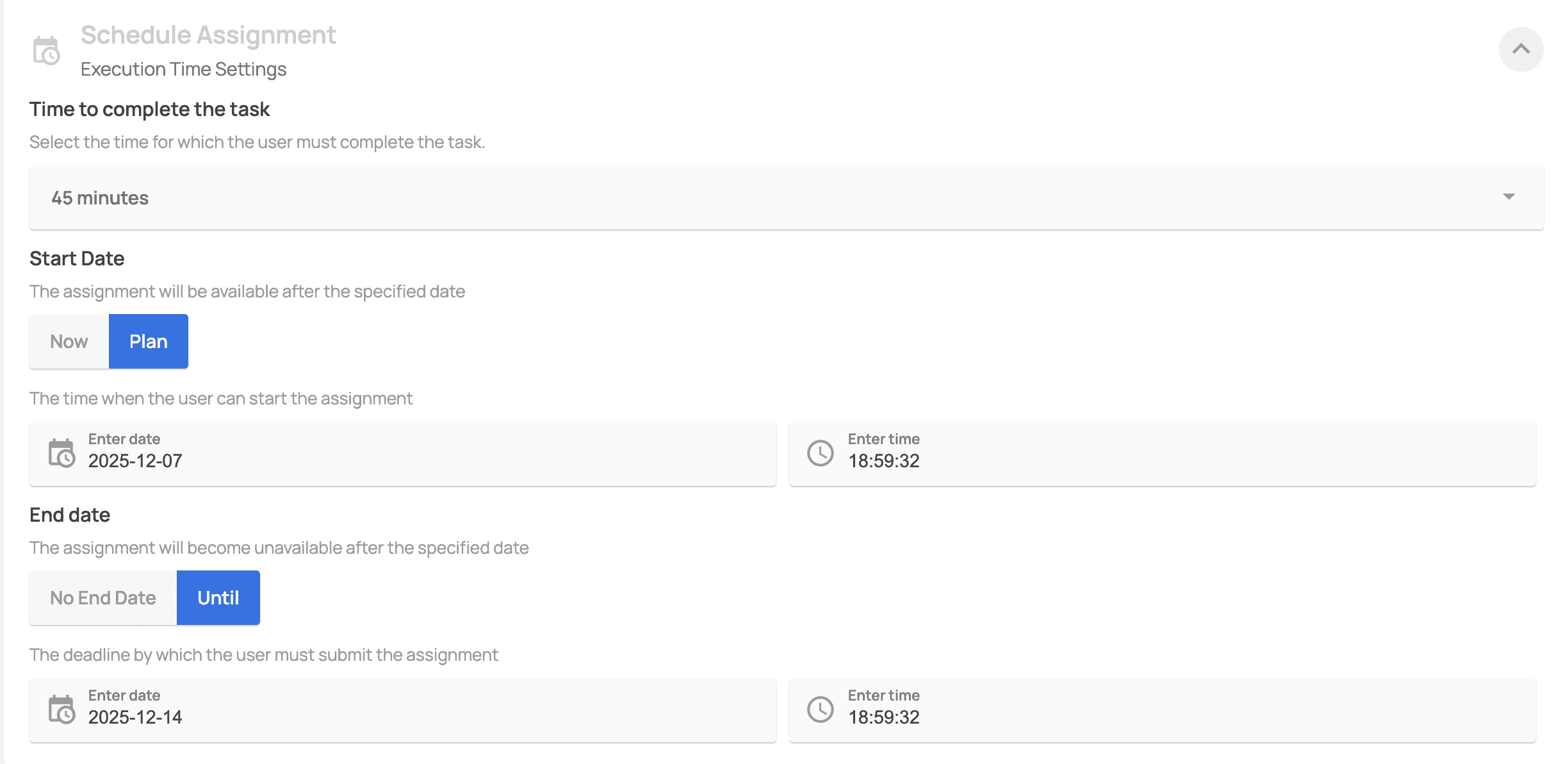
Time Limit:
Unlimited — participants can complete the assignment without time restrictions
Limited — set a specific time limit for completing the test
Start Date:
Now — the assignment becomes available immediately after publication
Scheduled — specify an exact date and time when access to the assessment starts
End Date:
No end date — the assignment remains available indefinitely
Scheduled — set a specific date and time when access to the assessment ends
Other Settings
Configure additional assessment parameters:
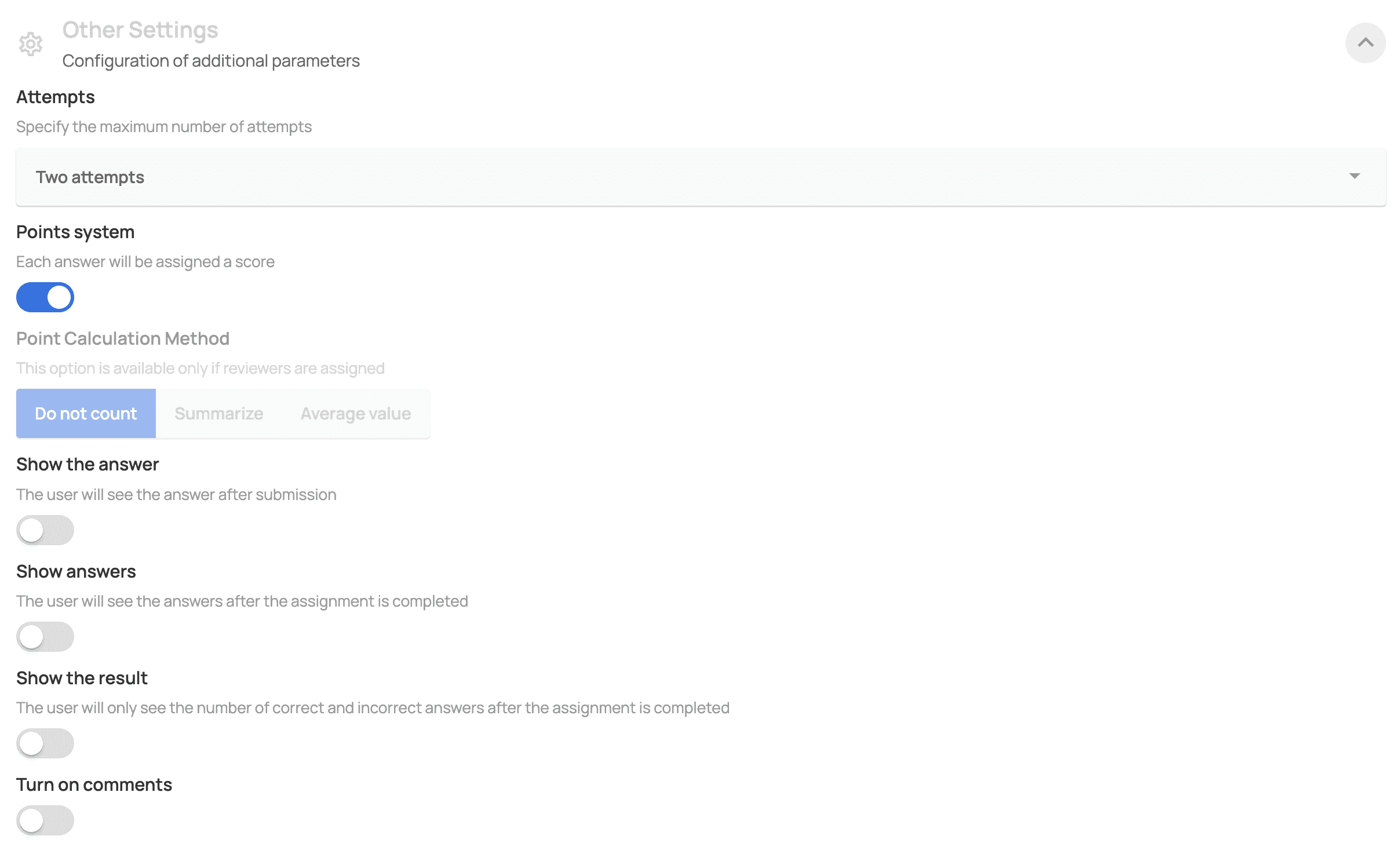
Attempts:
Specify the maximum number of attempts allowed to complete the test
Unlimited — no restriction on the number of attempts
Limited — set a specific number of attempts
Scoring System (available only when reviewers are assigned):
Do not calculate — scores are not calculated
Total — total score across all attempts
Average — average score across all attempts
Result Display Settings:
Show answer — the participant sees the correct answer after submitting each question
Show answers — the participant sees all correct answers after completing the assignment
Show results — the participant sees only the number of correct and incorrect answers after completing the test
Additional Options:
Enable comments — allow participants to leave comments on the assignment
Completion Conditions
Configure automatic grading and certificate issuance based on test results:
Set the conditions under which grades and certificates will be automatically assigned after the assignment is completed.
Condition Structure:
Criterion: select from the list:
By total score
By number of correct answers
Condition: choose a comparison operator:
Equal (=)
Greater than (>)
Less than (<)
Value: enter a numeric value for comparison
Action: select the outcome:
Grade: 1, 2, 3, 4, or 5
Assignment completed / Assignment not completed
Certificate: select the appropriate certificate from the list of available certificates
Note:
Certificate
Configure certificate issuance for successful completion of the assessment:
Certificate for Successful Completion: Select the certificate that will be automatically issued to participants once the assessment conditions are met.
Note:
In the opened window, you can also edit existing certificates or create a new one. To do this, click the “Create” button below the search field.
Proctoring
Configure the monitoring system for the assessment process:
Enable or disable the proctoring system to monitor participants during the test.
Toggle: activate to enable the proctoring system
Settings button opens detailed proctoring configuration options
Note: Since proctoring settings include many monitoring parameters (desktop recording, webcam recording, activity tracking, and others), they are configured in a separate section for detailed review: Proctoring Configuration.
Webinar
Configure live online sessions with test participants:
Real-time interaction with participants — enable this option to organize webinars as part of the assessment process