
To successfully pass the online exam, please follow the steps and recommendations provided in these instructions.
1. Getting Started
Logging into the System
To access tests and exams:
Go to the login page:
https://app.trustexam.ai/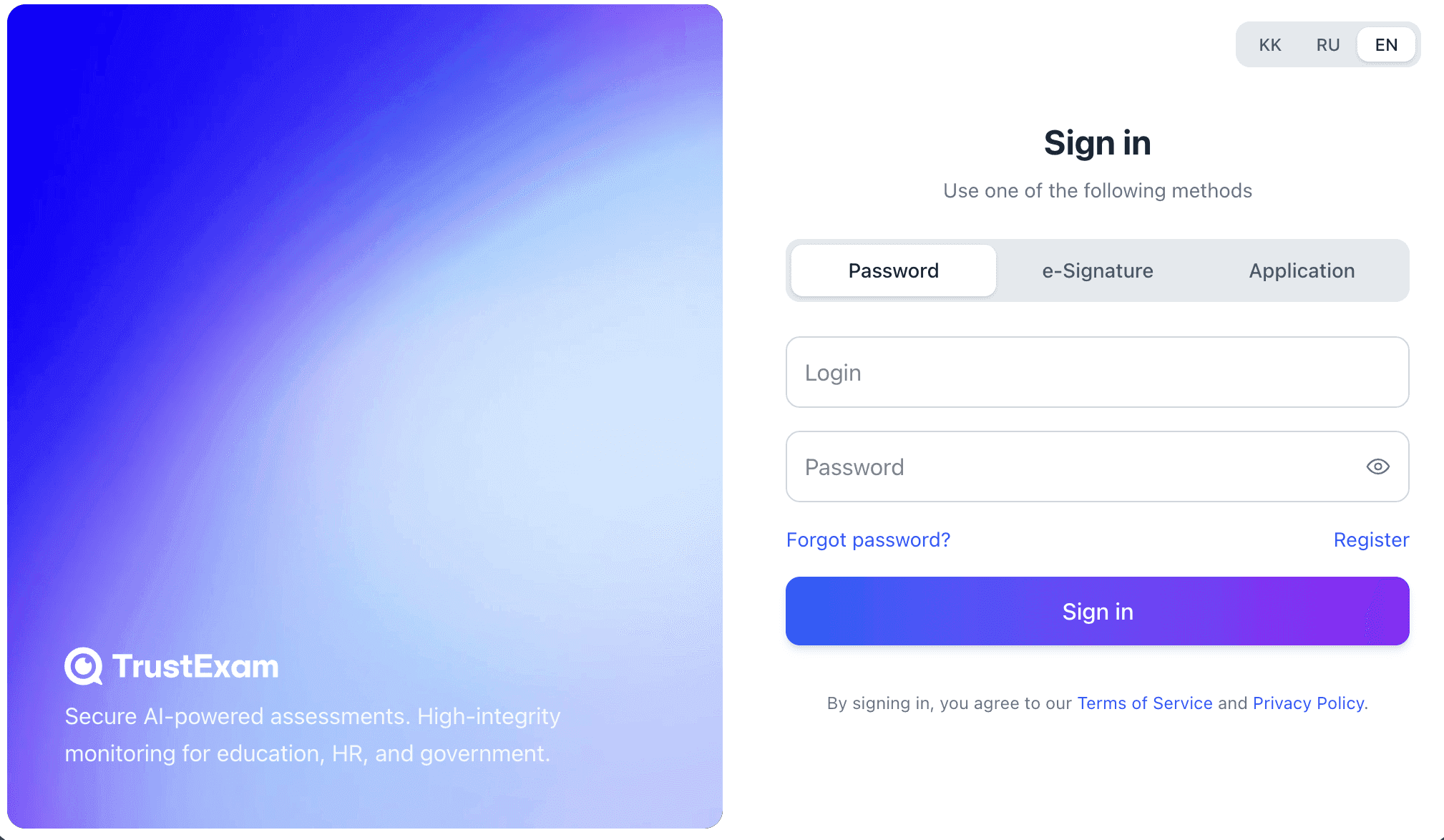
Enter the login and password provided by your teacher or exam organizer.
After logging in, you will be redirected to the "Assignments" page.
2. Preparing for the Exam
Before starting the exam, ensure that:
Your internet connection is stable
Your browser is updated to the latest version (Chrome recommended)
The webcam and microphone are connected and permitted for use
You are in a quiet, well-lit room without other people present
This will ensure the correct operation of AI proctoring and a stable exam experience.
3. Starting the Exam
Choosing an Exam
On the "Assignments" page:
Select your exam
Read the exam instructions carefully
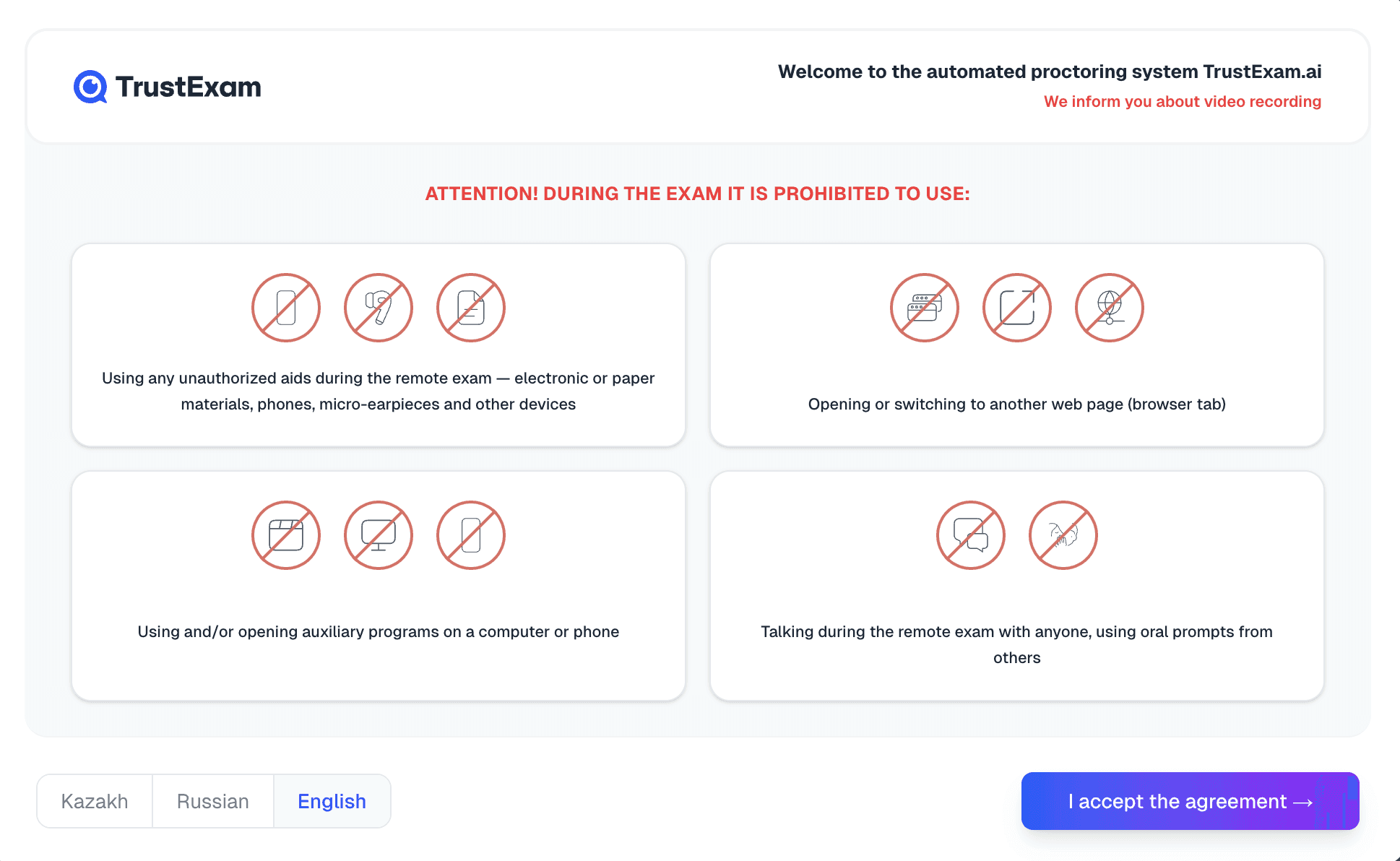
After accepting the user agreement, the proctoring system initialization will begin in the browser, the Tray application, or the system will prompt you to switch to the Desktop application if the exam is only available via the client app.
Detailed instructions for each method of taking the exam:
Testing in the Browser
Testing in the Desktop Application
Testing in the Tray Application
Identification
Depending on the organizer's settings, the system may request:
Webcam photo
ID photo
Biometric verification
Follow the on-screen prompts to complete the identification.
4. Taking the Exam
During the exam:
The remaining time will be displayed on the screen
You can skip questions and return to them later
Check all answers before submitting
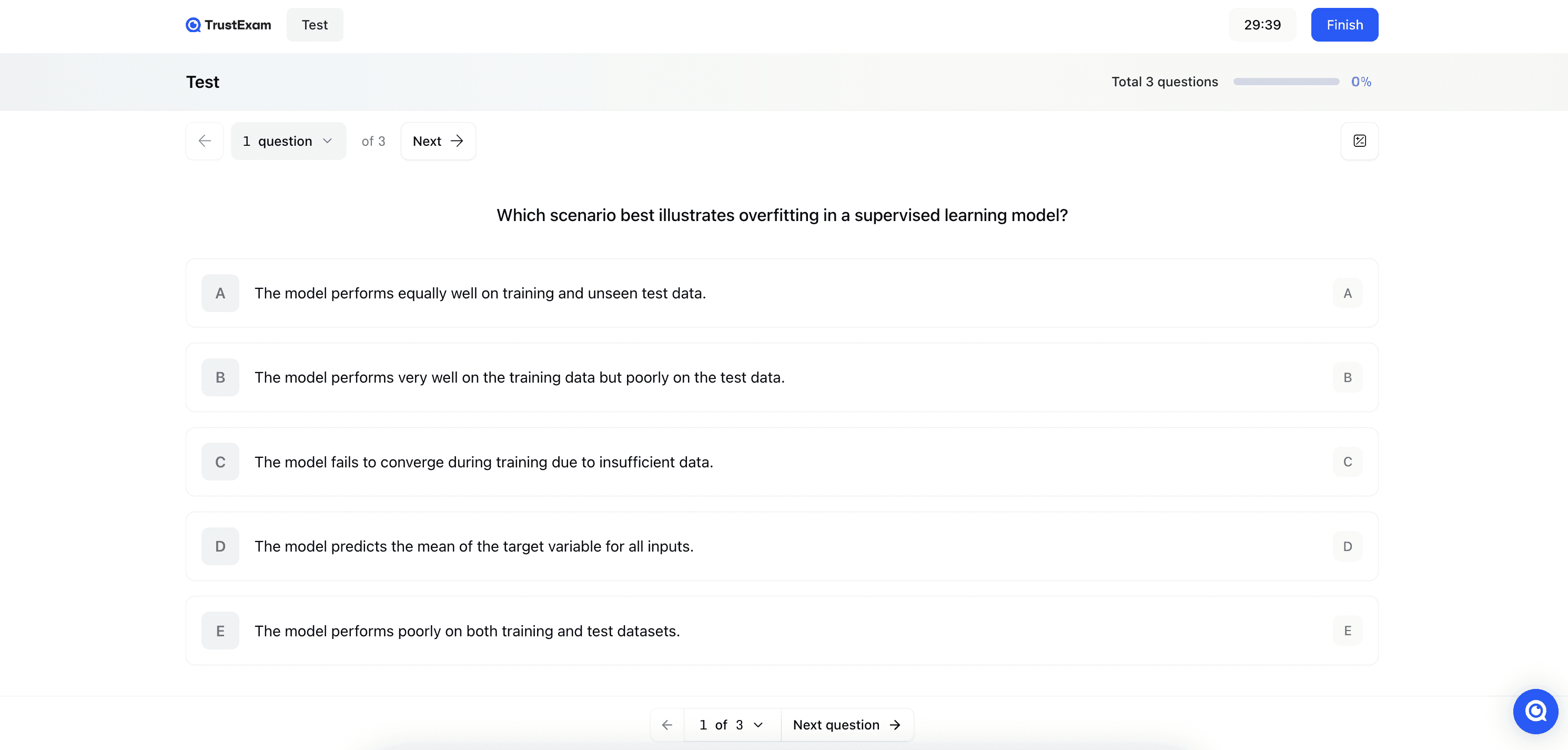
Ensure your webcam is active and your face is visible throughout the test
5. Types of Questions You May Encounter
The system supports various task formats, including:
1. Free Question (Multiple Choice)
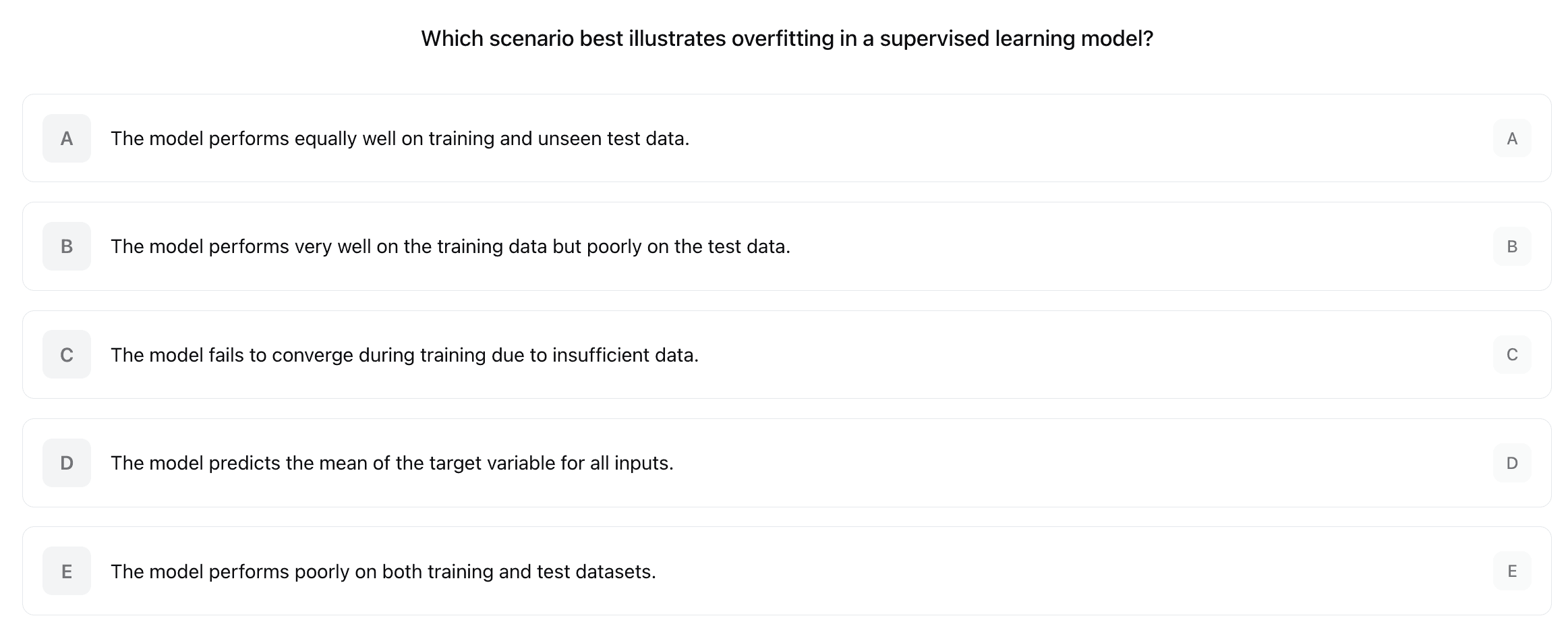
Choose one correct option from several.
2. Open Question (Open-Ended Response)
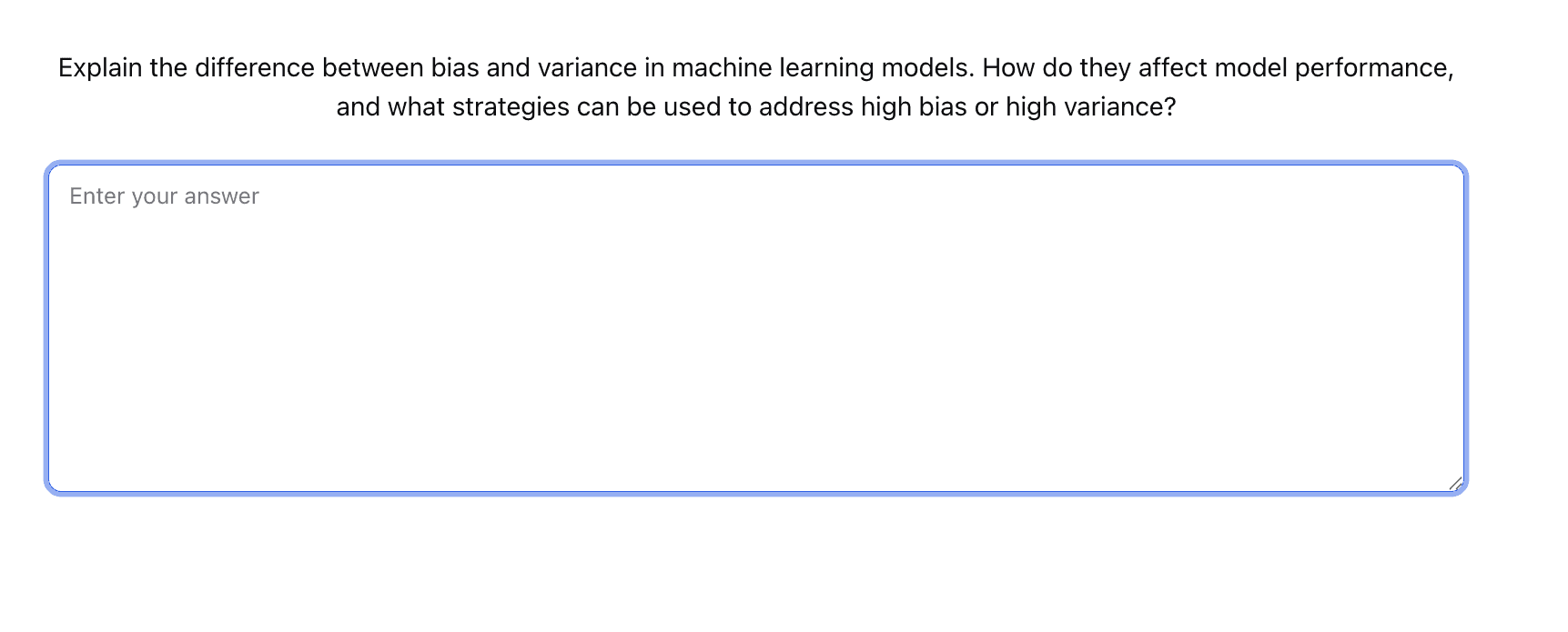
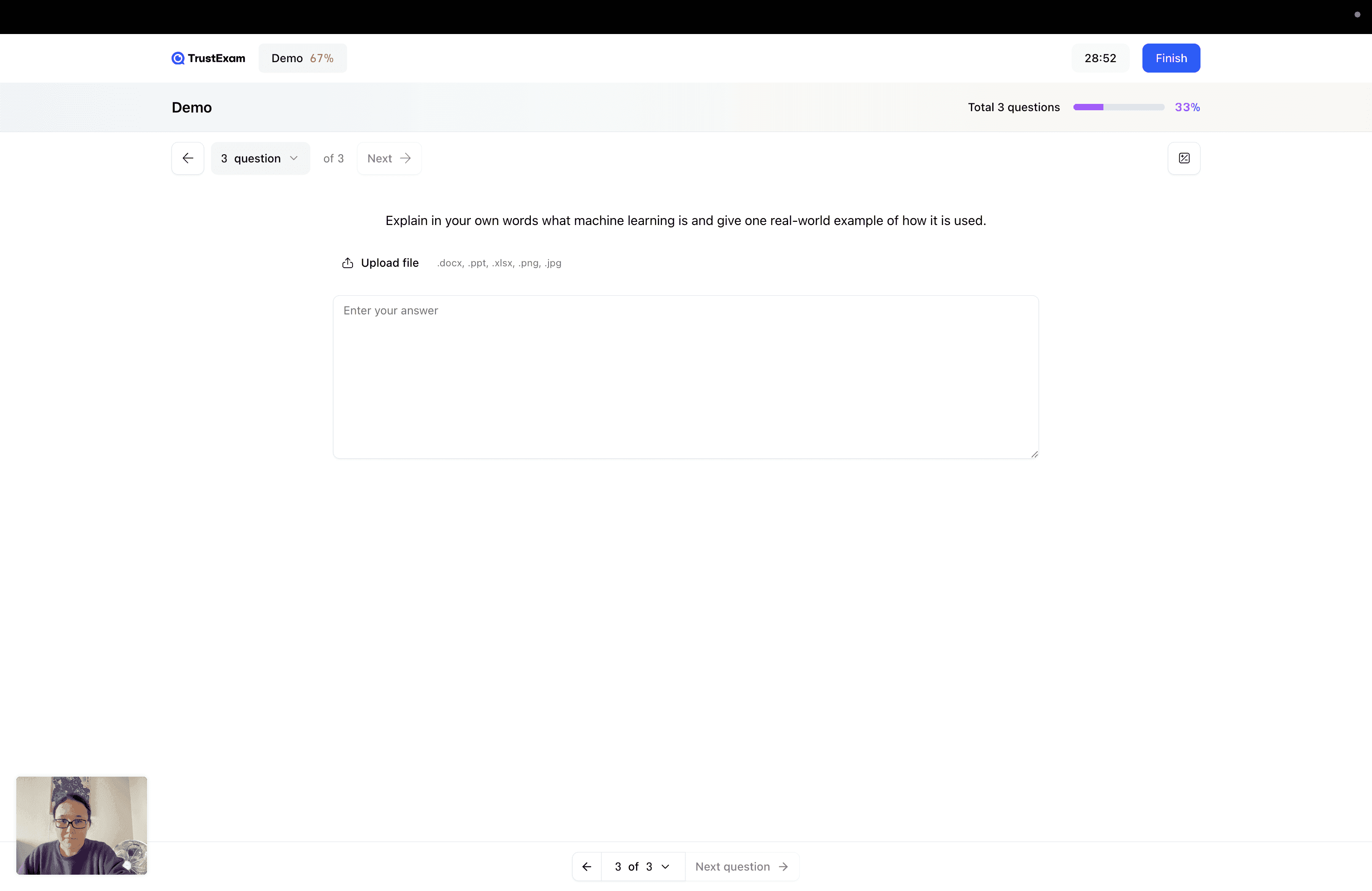
Write a free-form response.
Some tasks may require a file upload.
3. Code Question (Embedded Compiler Task)
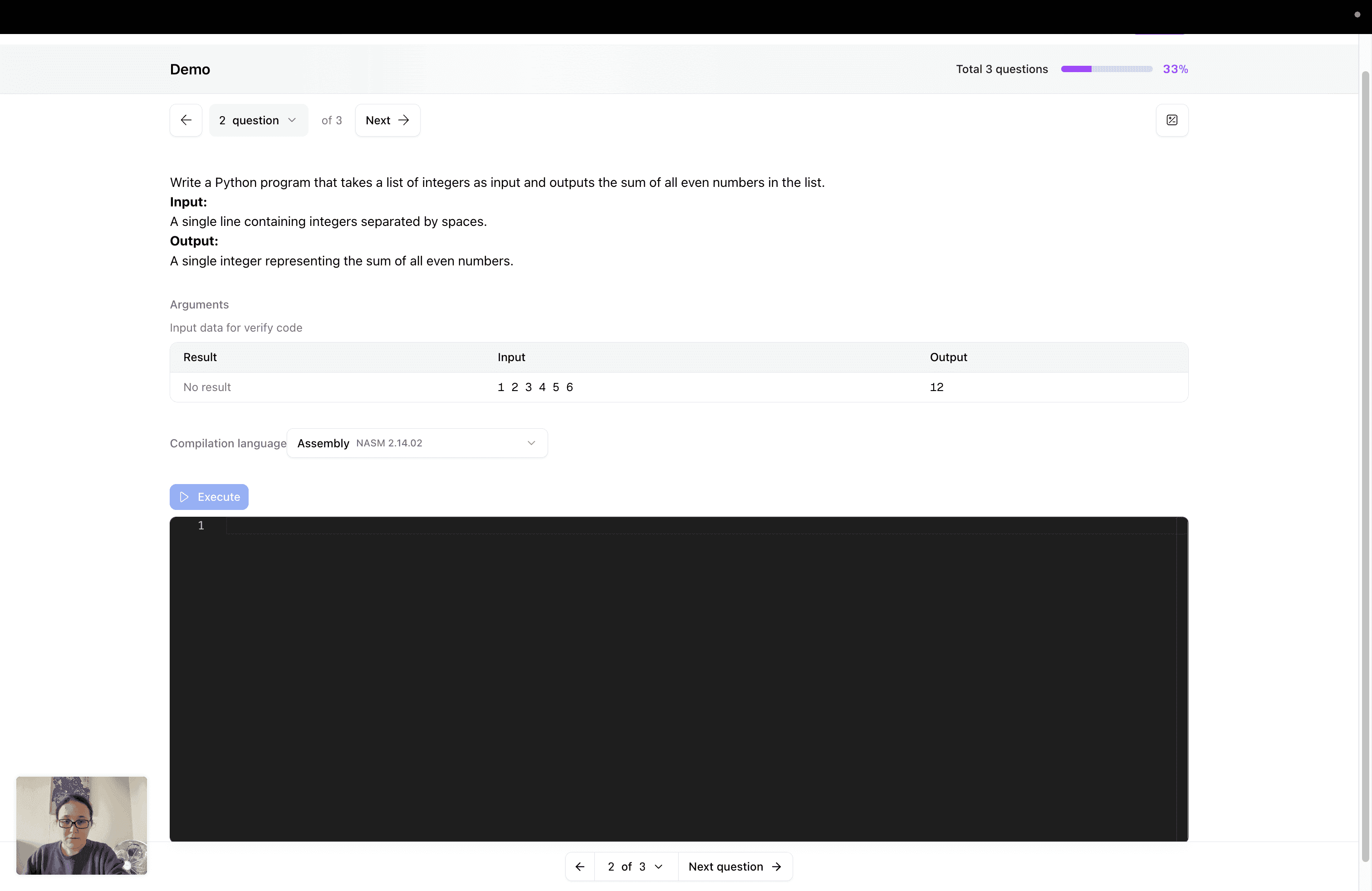
Code Compiler - write software code to solve the task. Before execution, select the compilation language from the list of available ones. After entering, click the "Execute" button - the code will be automatically compiled and launched. Solution correctness is verified using test input data (Input); the execution result is compared with the expected output (Output). The answer is considered correct if the result matches exactly.
4. Fill Space
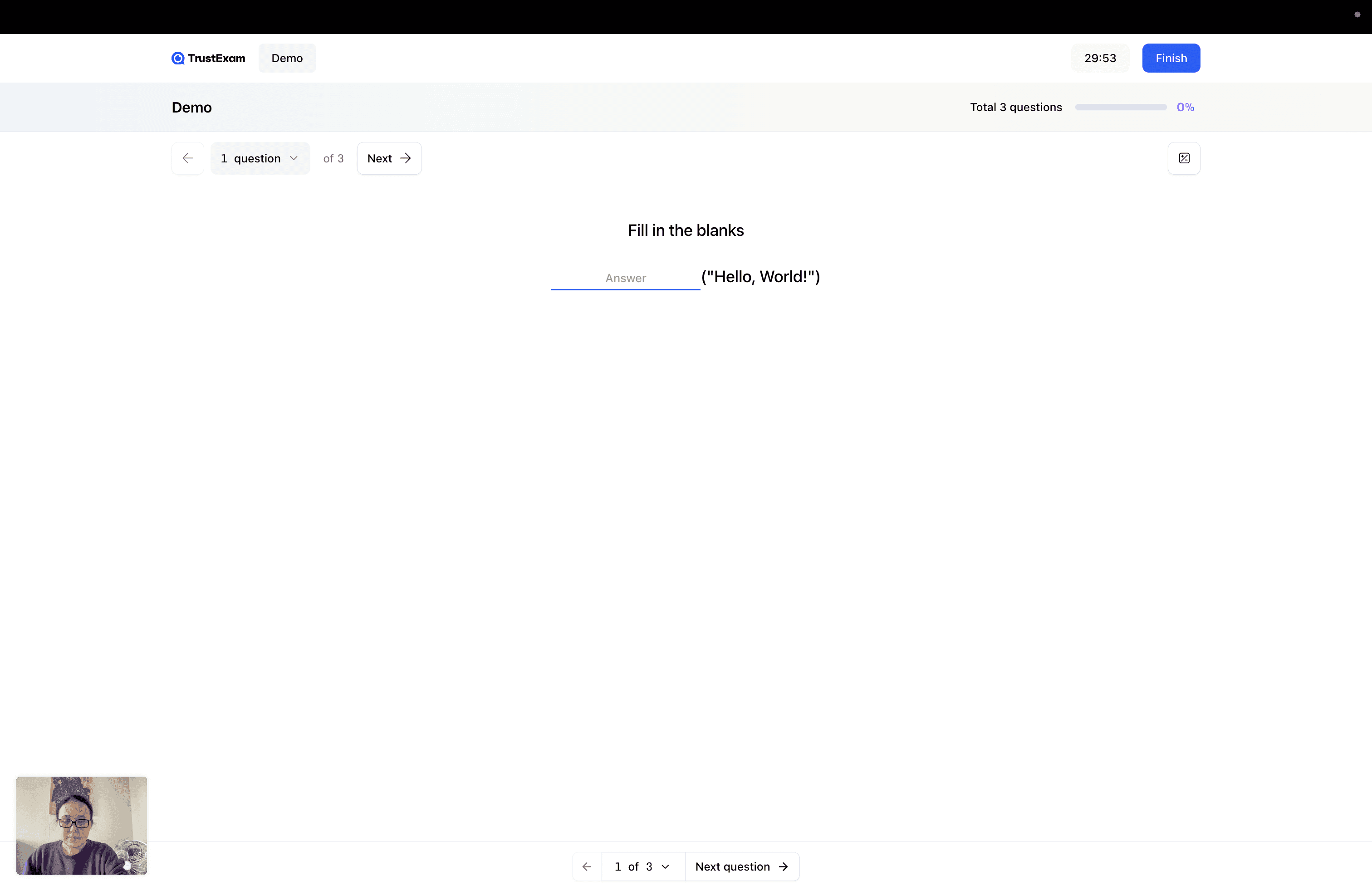
Insert missing words or phrases into the text.
5. Drag & Drop
Drag elements into the correct areas.
Instructions for each question type are displayed directly in the test interface.