To successfully participate in an online exam with AI-proctoring, your device and connection must meet the following system requirements. Please read this information carefully before starting the exam.
1. Device Requirements
You must use a laptop or a desktop computer to take an AI-proctored exam.
Supported operating systems:
Windows (versions 7, 8, 8.1, 10, 11)
macOS (Intel and M chip versions)
Required equipment:
A fully functioning webcam (built-in or external)
A functioning microphone (built-in or external)
Your device must be in good working condition and allow access to the browser’s camera and microphone settings.
2. Internet and Browser Requirements
Internet connection:
A stable connection with an upload speed of at least 1 Mbps
(For the best experience, a wired or high-quality Wi-Fi connection is recommended.)
Supported browsers:
Google Chrome
Safari
Mozilla Firefox
Edge
Please ensure your browser is updated to the latest version. We recommend Google Chrome.
3. Important Restrictions
⚠️ Please note the following rules.
Not Allowed to take the test:
Tablets
Mobile phones
Any portable or hybrid device
Taking the exam through a mobile browser
Allowed:
Only laptops and desktop computers
Using prohibited devices will result in the inability to start or continue the exam.
4. AI-proctoring and Academic Integrity
During the exam, the system will use AI-based monitoring and, in some cases, manual proctor review to ensure academic integrity.
Any unauthorized assistance, suspicious activity, or attempts to bypass monitoring systems will be considered a violation of examination rules.
Violations may lead to:
Immediate termination of the exam
Disqualification of results
Reporting the incident to your organization
Please ensure you take the exam honestly and independently.
5. Permission Checks
To successfully participate in this online assessment make sure that your browser has the necessary permissions from your OS for:
Webcam access
Microphone access
Desktop screen recording access
If you have taken virtual calls through your browser before, most likely you already have the necessary permissions.
Here is the article to make sure your browser has the necessary permissions.
6. Getting Started
Logging into the System
To access tests and exams:
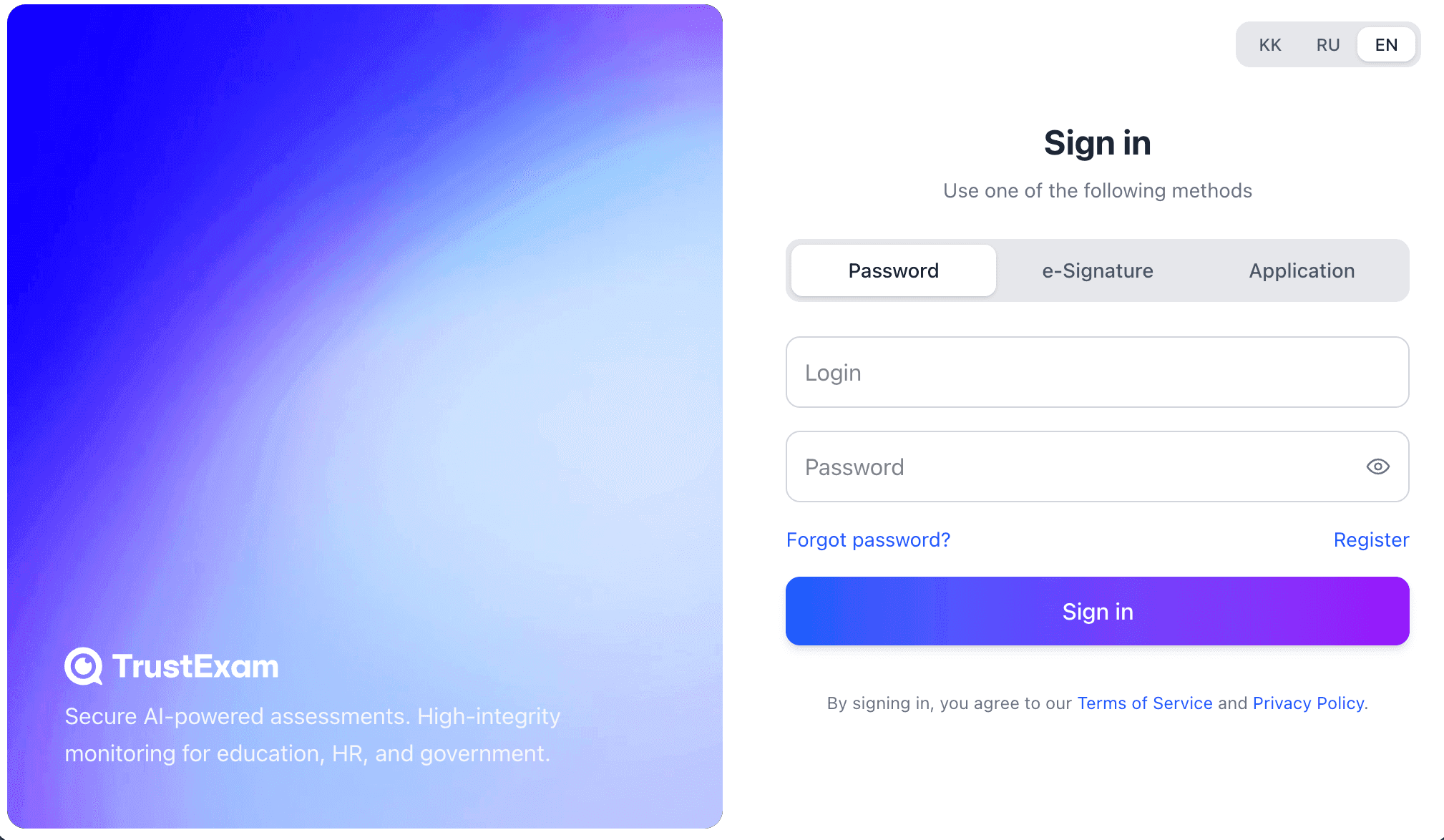
Go to the login page:https://app.trustexam.ai/
Enter your login (the email address provided to your organisation) and the password supplied by your teacher or exam organiser.
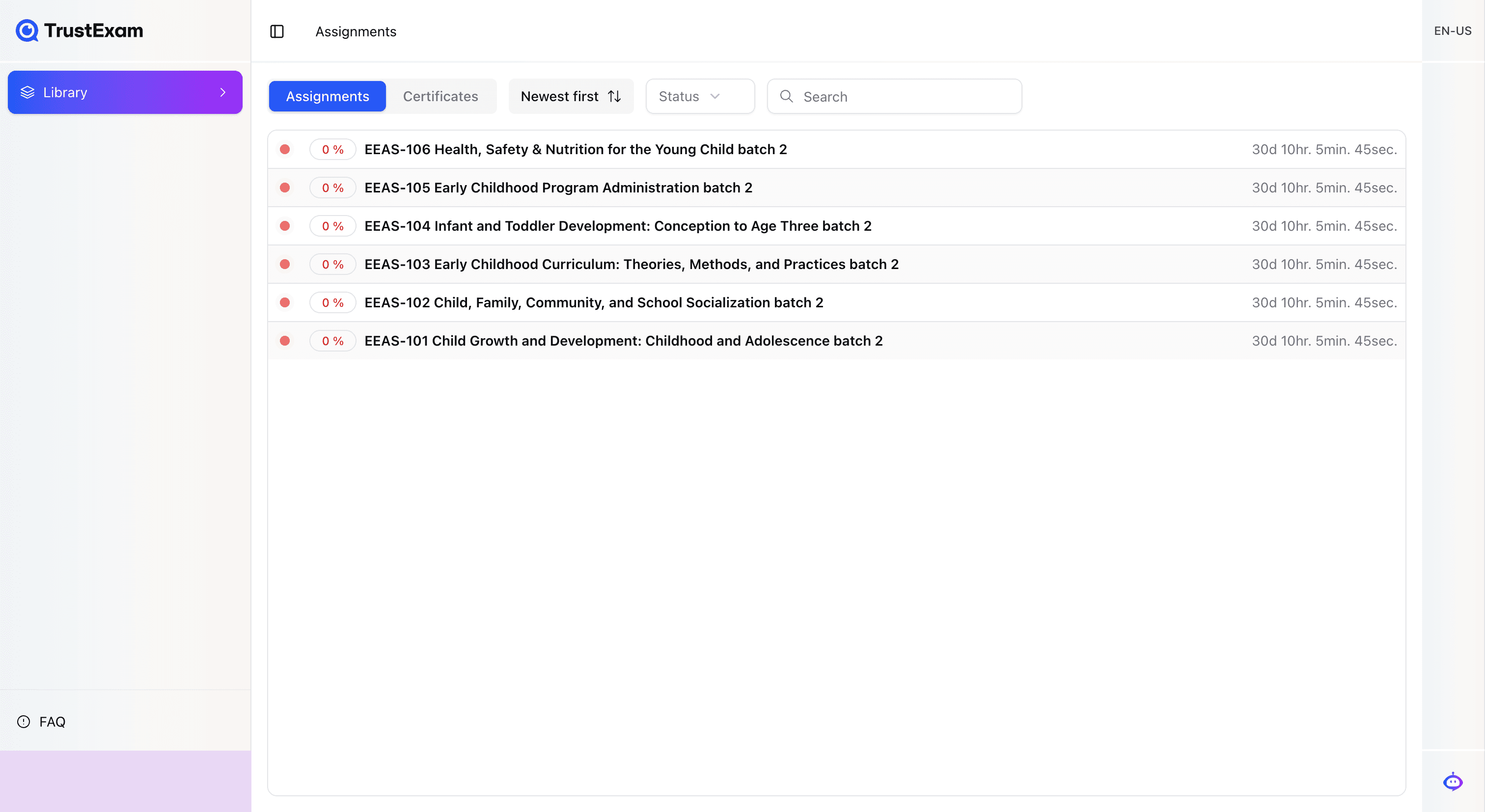
After logging in, you will be redirected to the "Assignments" page with the available tests for you.
7. Preparing for the Exam
Before starting the exam, ensure that:
Your internet connection is stable
Your browser is updated to the latest version (Chrome recommended)
The webcam and microphone are connected and permitted for use
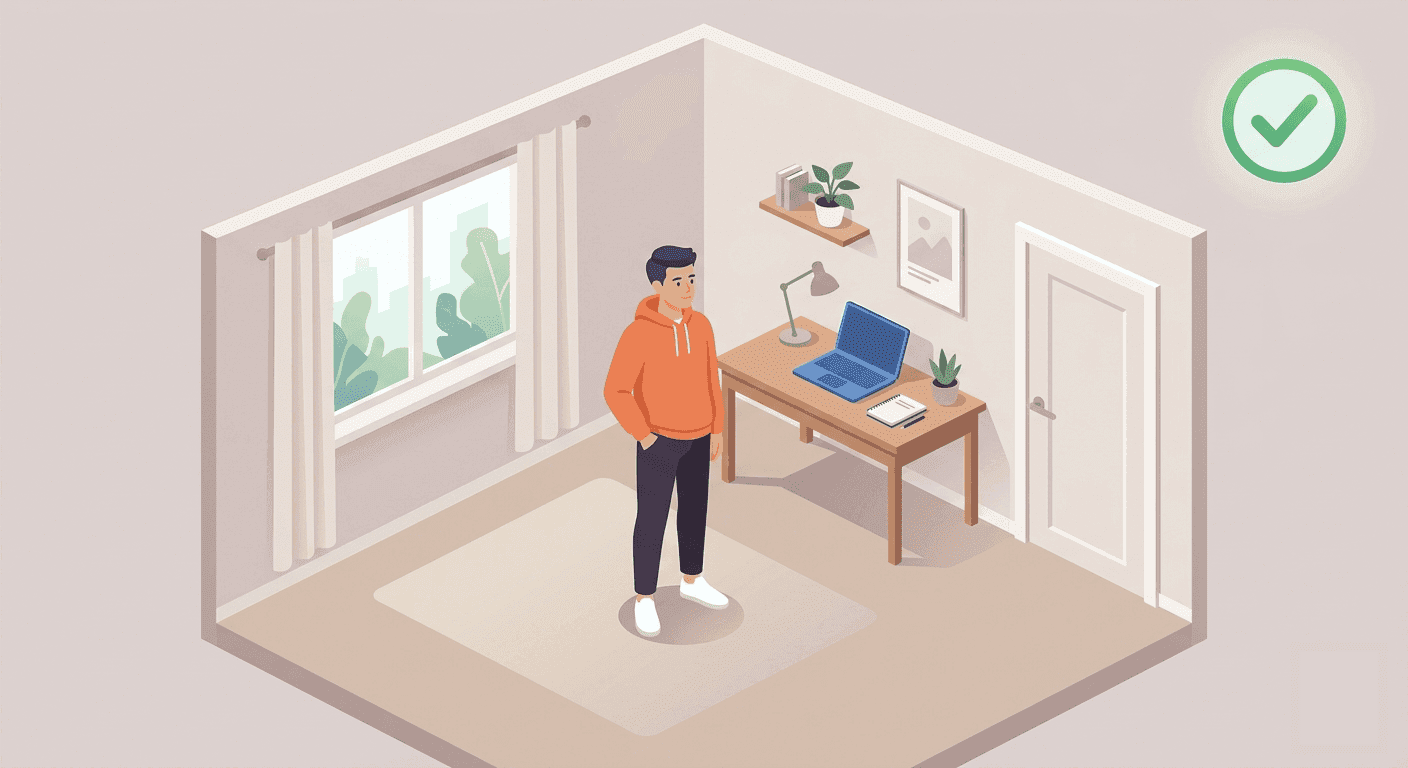
You are in a quiet, well-lit room without other people present
8. Starting the Exam
Choosing an Exam
On the "Assignments" page:
Select your exam
Read the exam instructions carefully
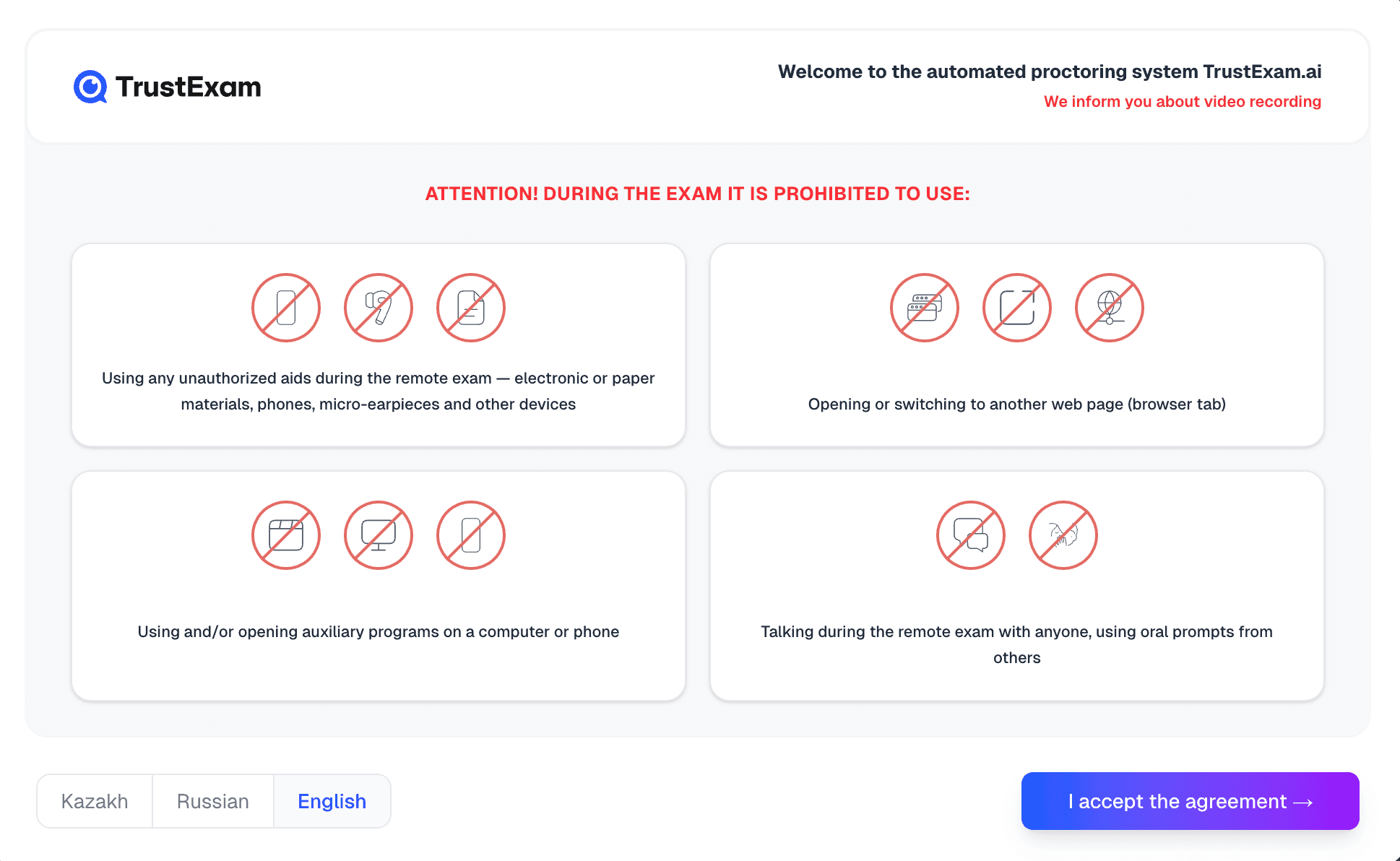
After accepting the user agreement, the proctoring system initialization will begin in the browser.
Identification
Your exam requests 2 things:
Webcam photo
government issued ID photo
Follow the on-screen prompts to complete the identification.
Starting test setup
After accepting the agreement, our system will begin initialization. This process includes:
Automatic equipment check: the system will verify that your device meets the technical requirements.
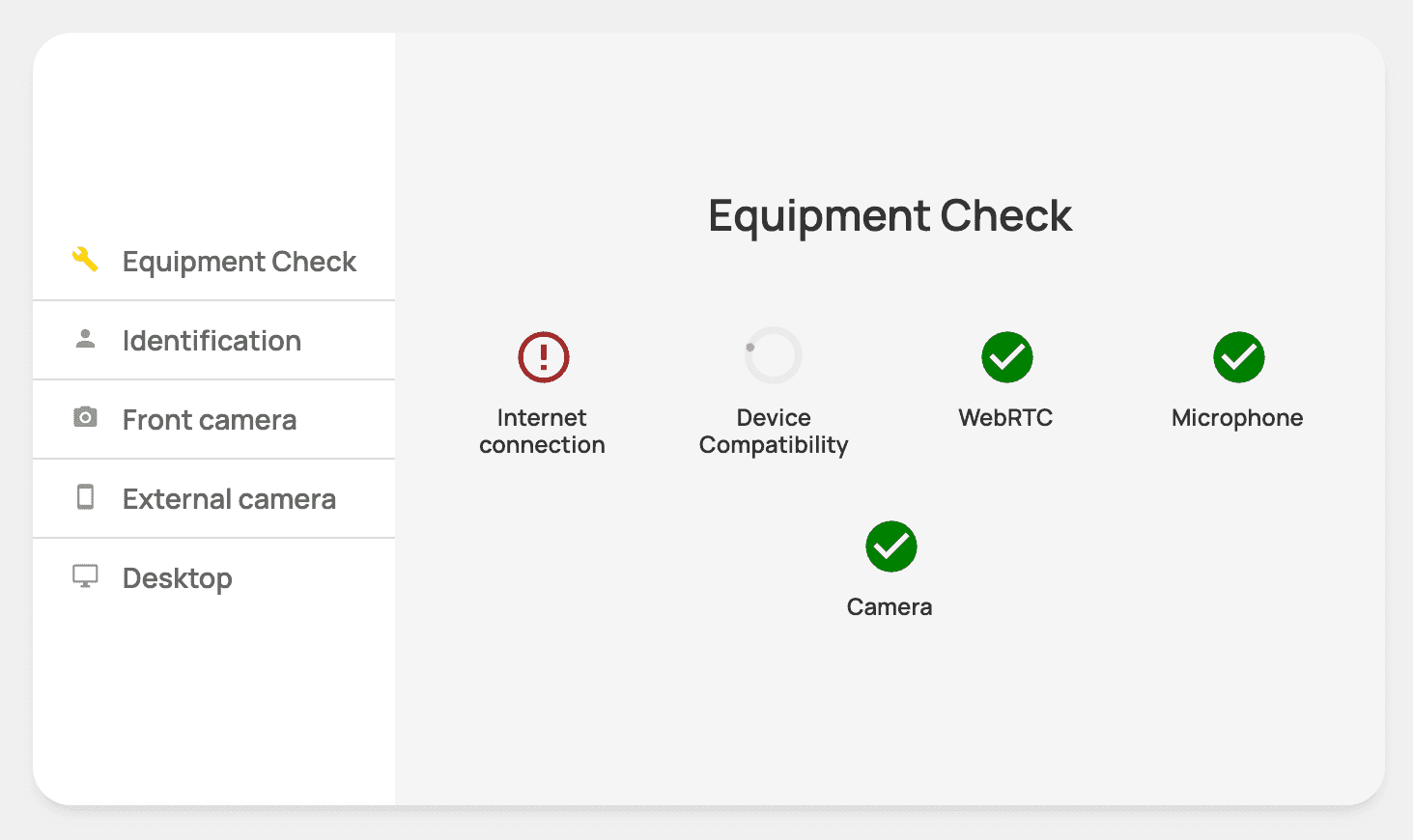
Your browser will prompt you to allow app.trustexam.ai access to your webcam, microphone, and desktop. Follow the system prompts. Here are the instructions.
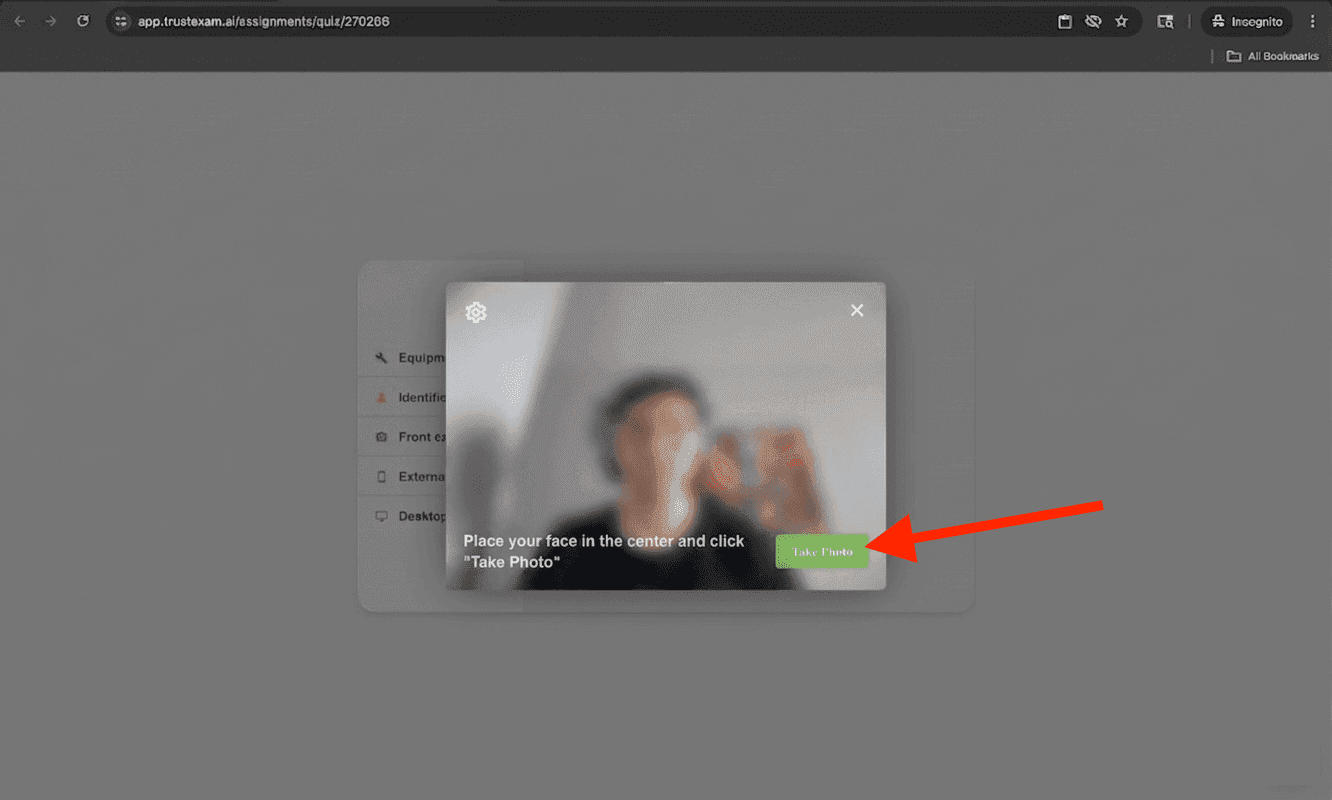
User identification: identity confirmation through the webcam. Depending on your network speed it may load longer, please wait patiently until system processes your requests.
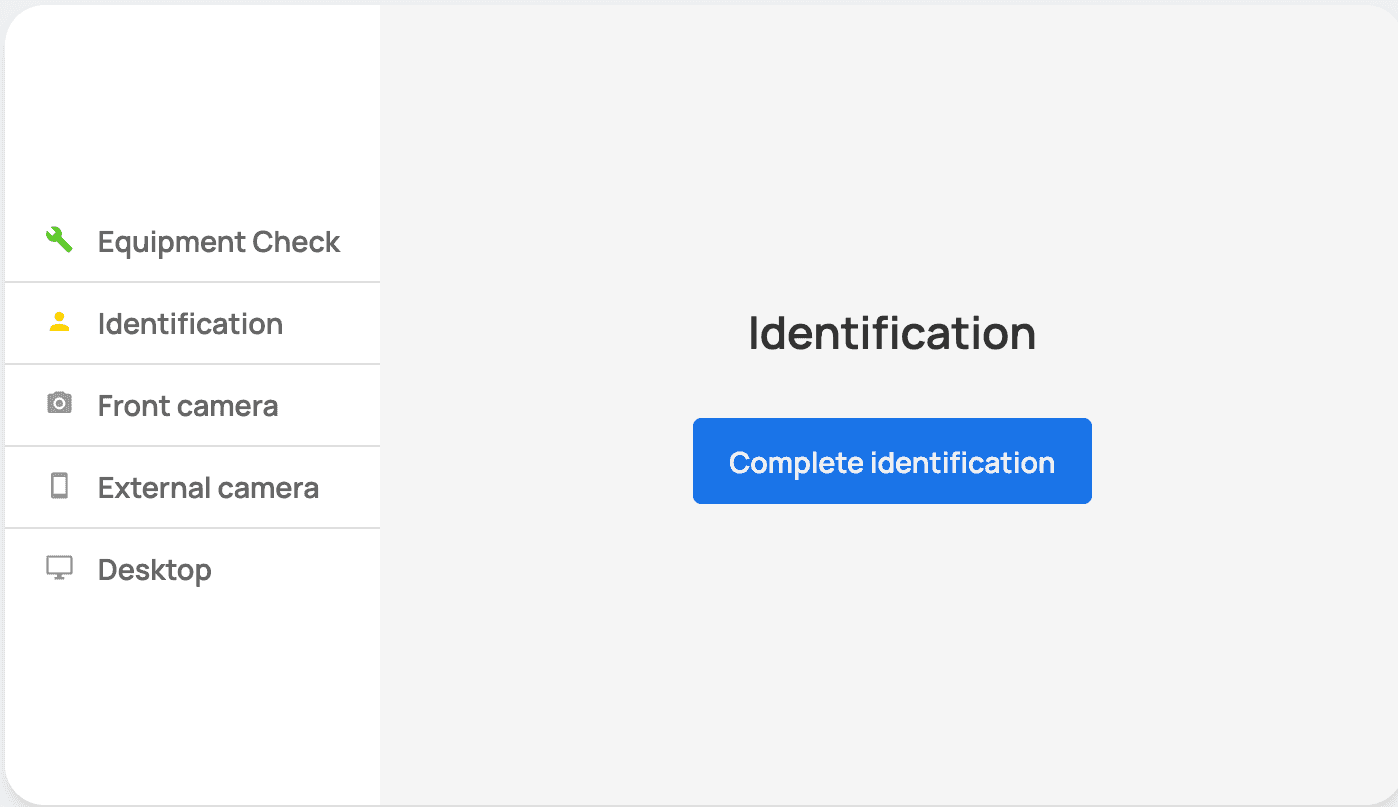
You can take a photo of your document through your webcam.
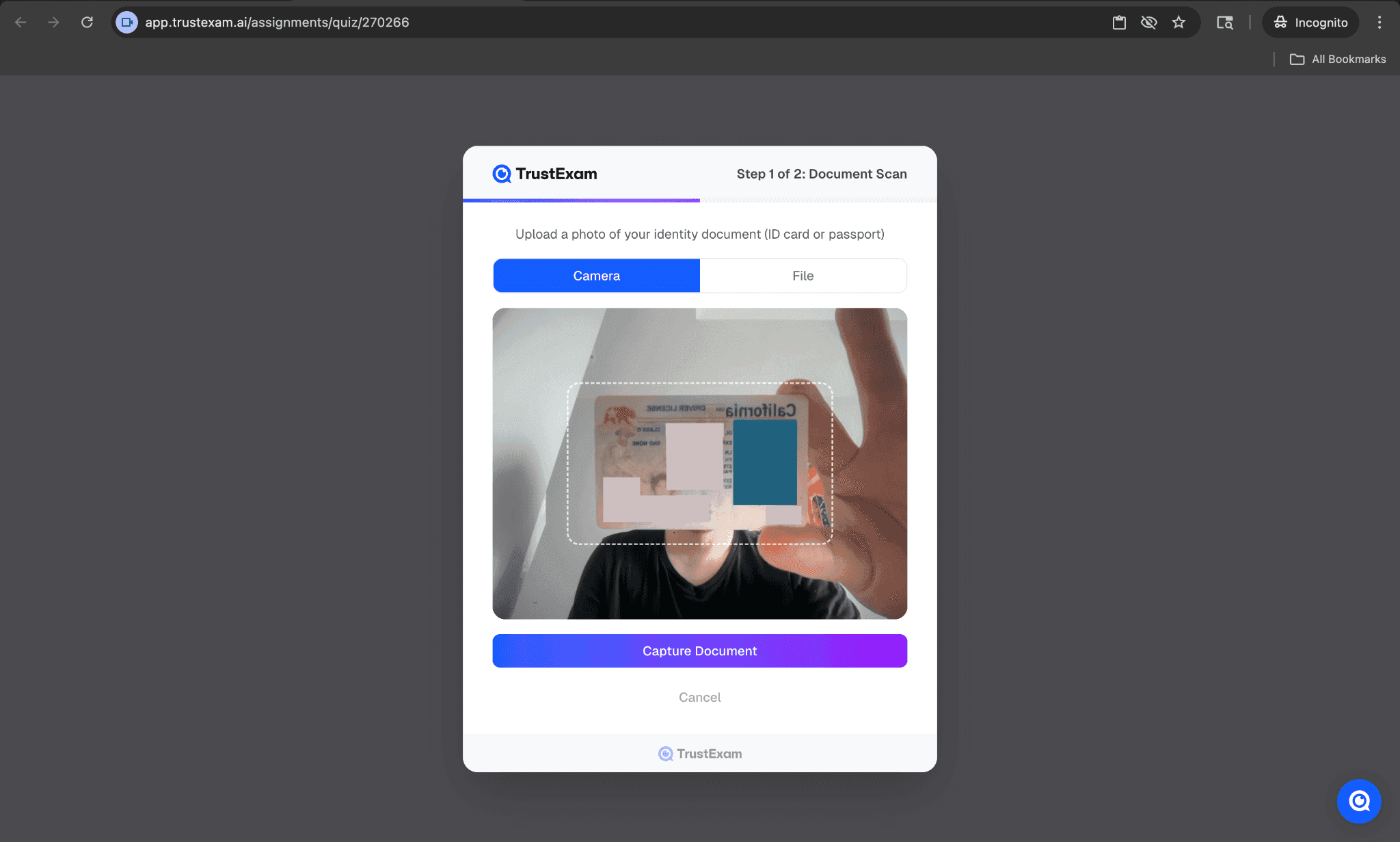
Or use a file upload of your photo:

Then take a photo of yourself 2 times:
First:
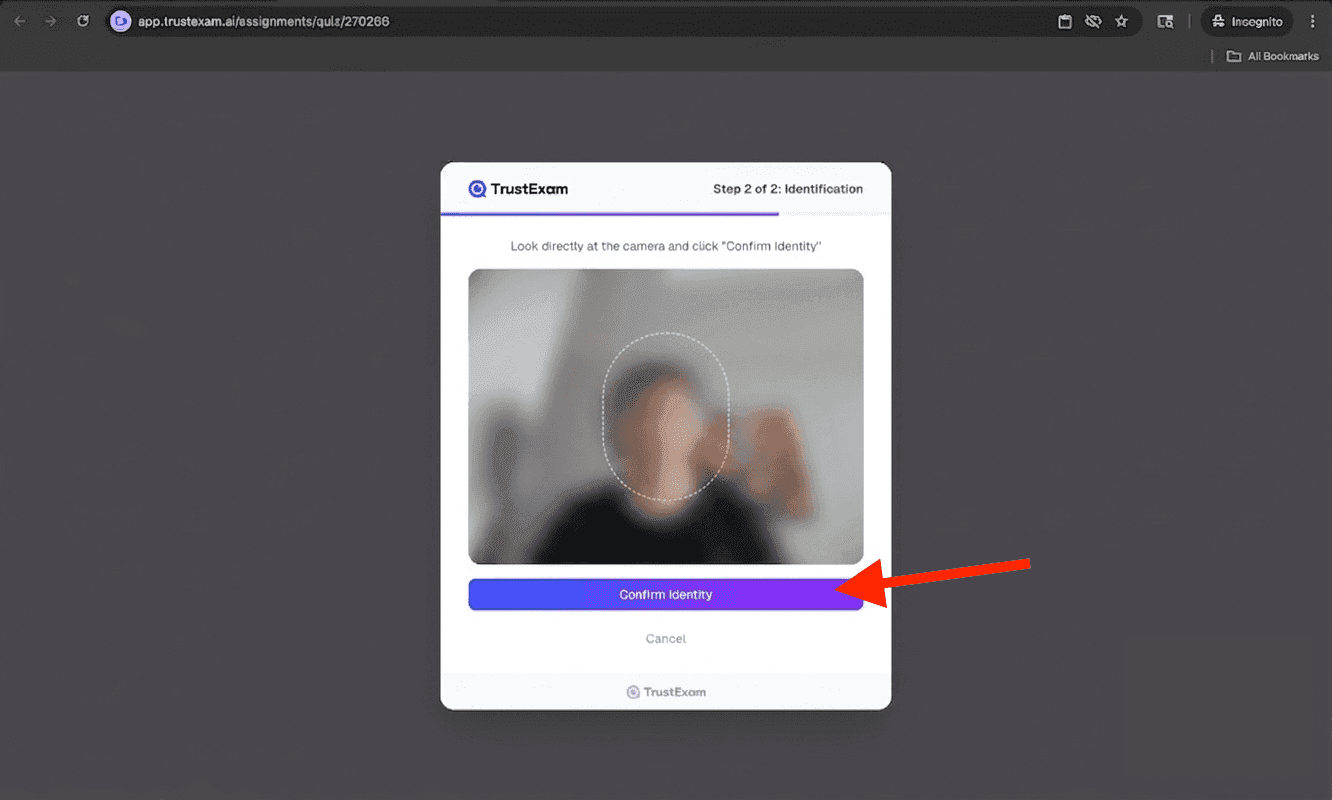
Second:
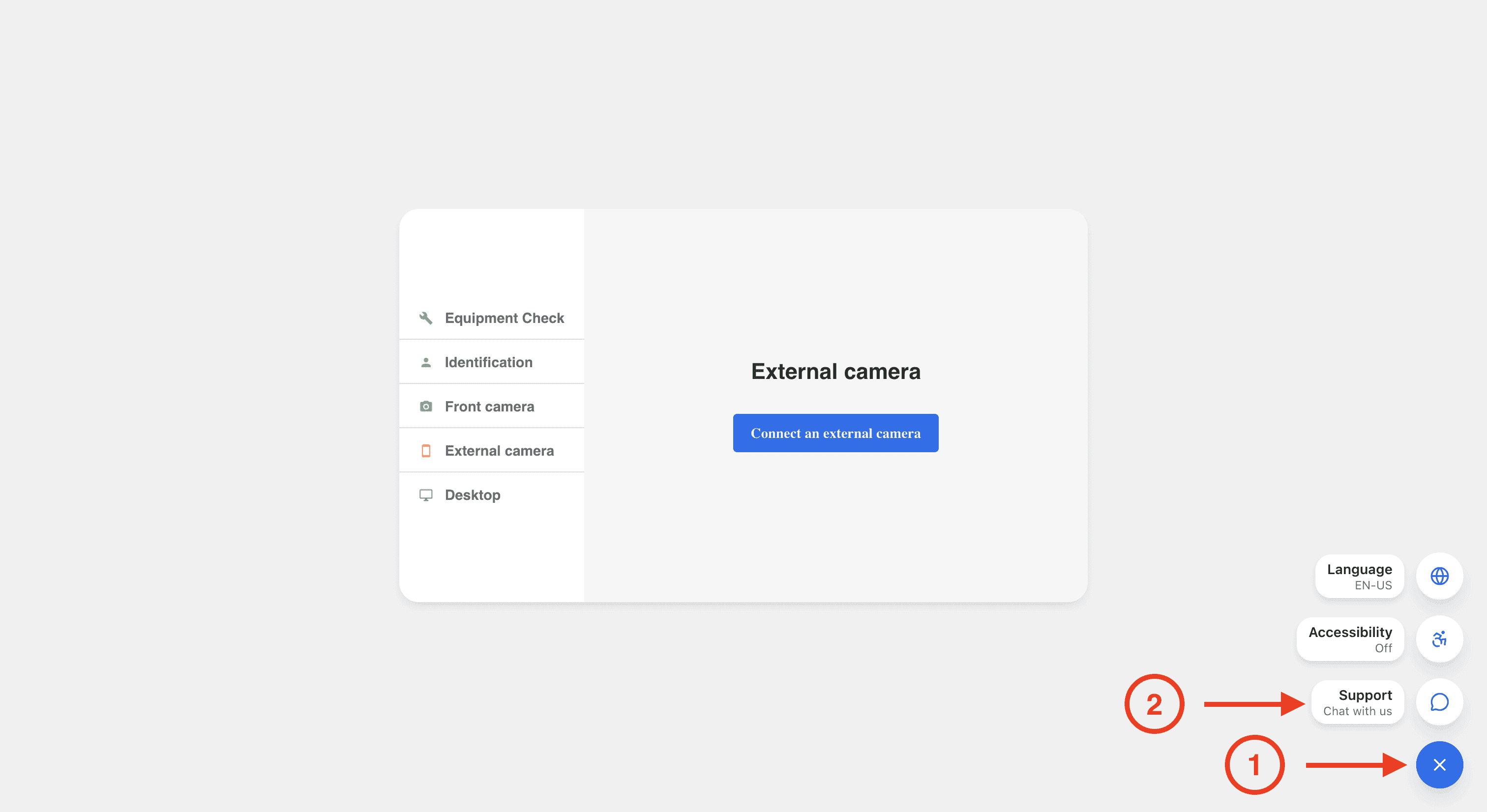
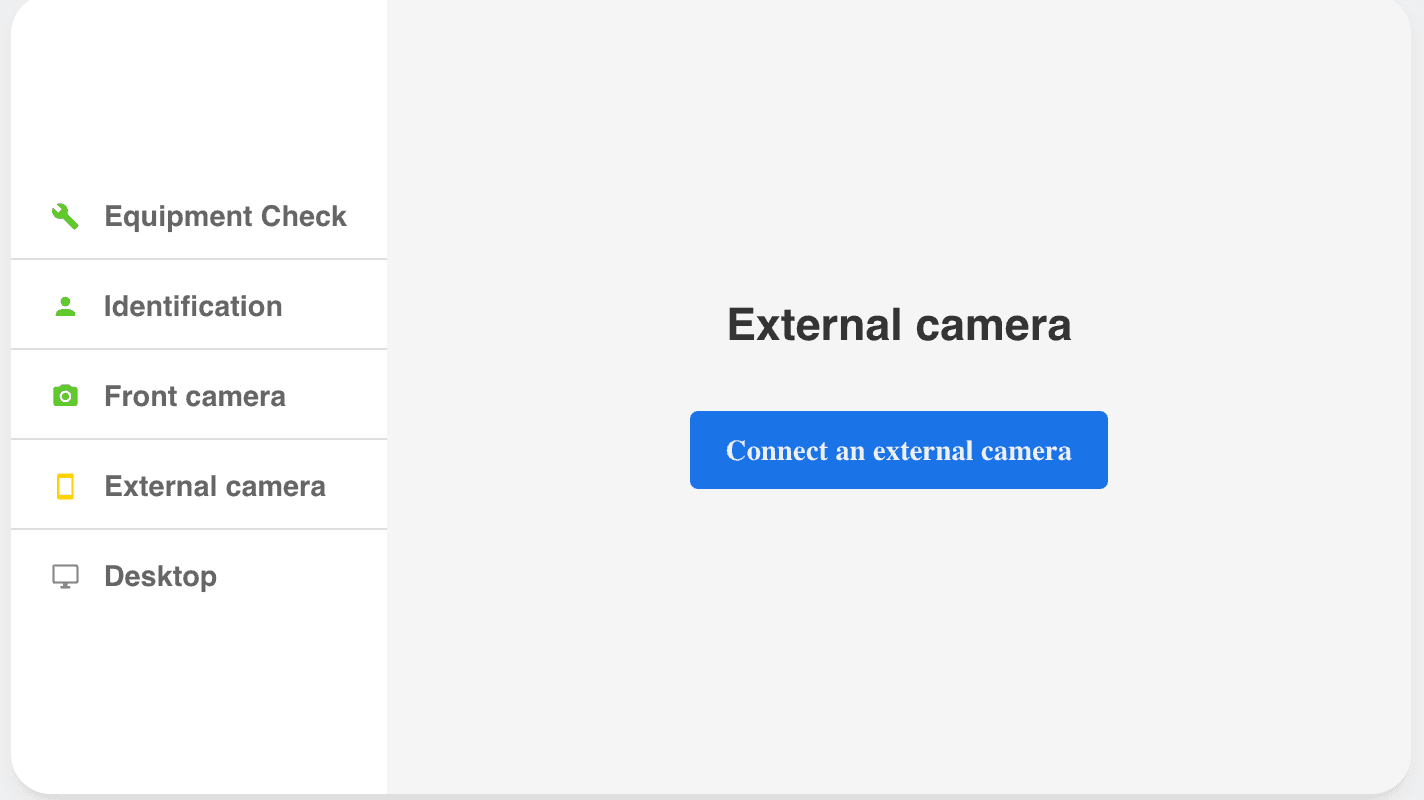
Connecting an external camera
Follow these steps to connect an additional camera using your mobile device:
1. Open the External Camera Setup Window
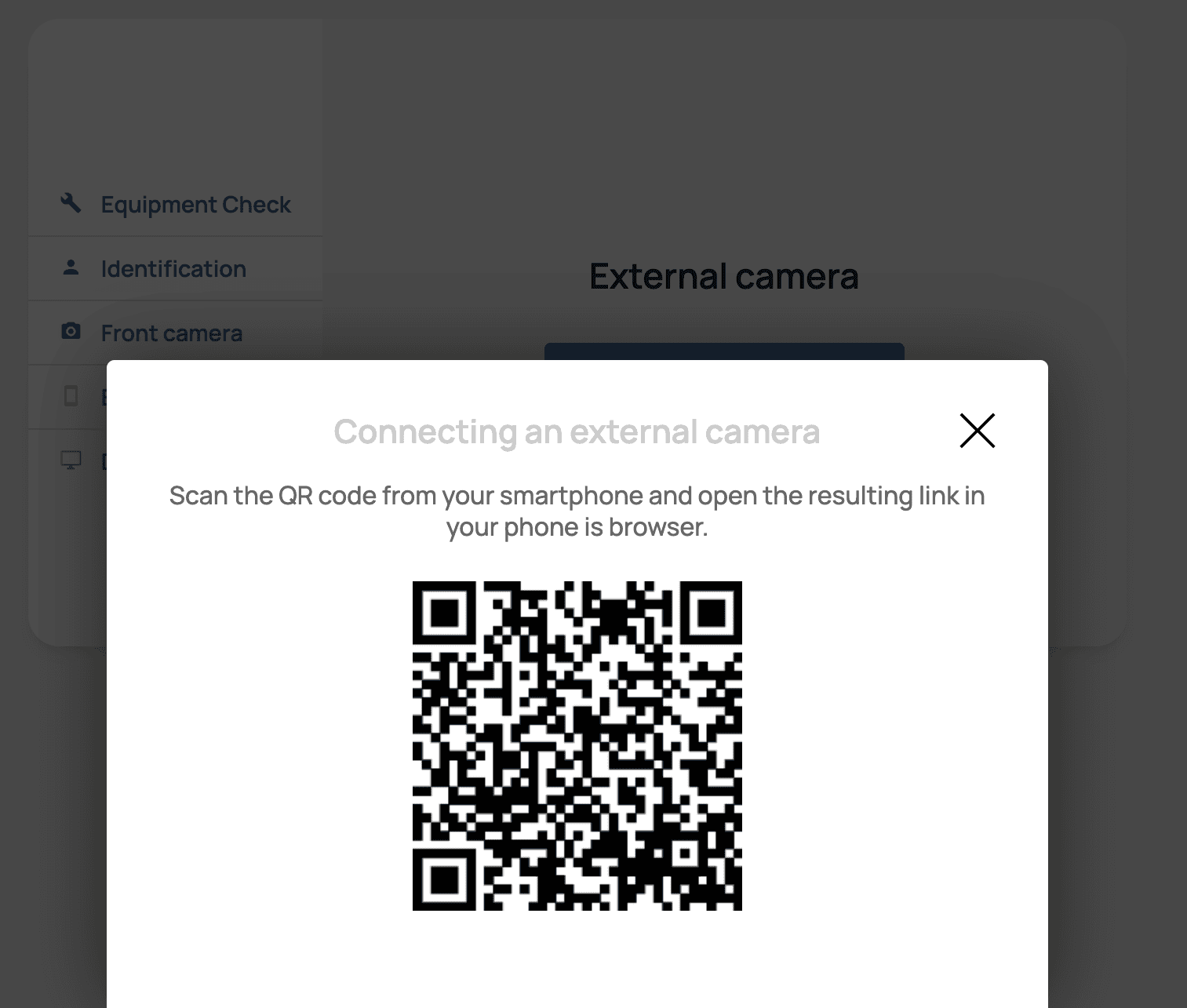
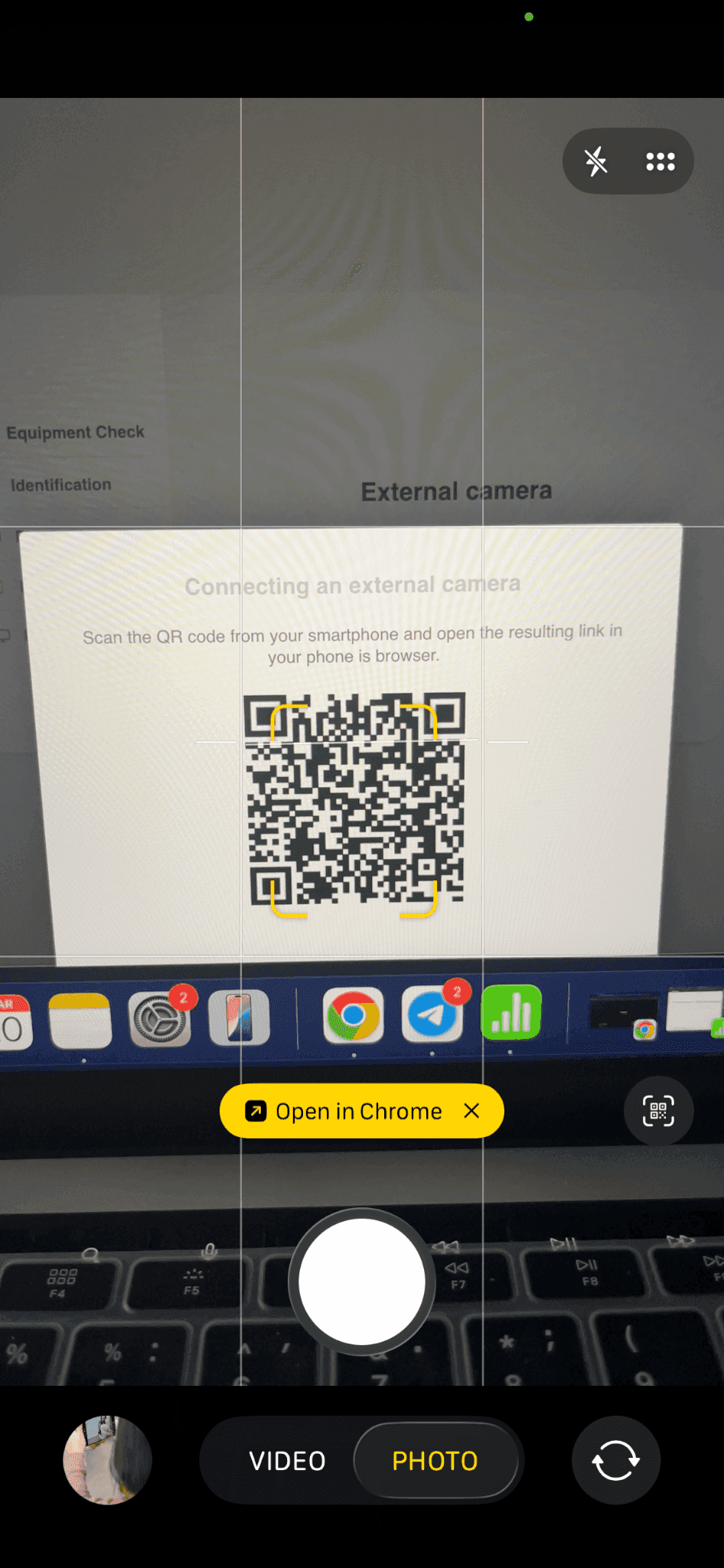
A button labeled “Connecting an external camera” will appear. After clicking it, a special section with a QR code will be displayed on your screen.
Depending on your network speed it may load longer, please wait patiently.
2. Scan the QR Code
Use your smartphone’s camera to scan the QR code.
Your phone will automatically open the external camera connection page in the mobile browser.
3. Follow the On-Screen Instructions
Complete the setup by following the prompts on your mobile device.
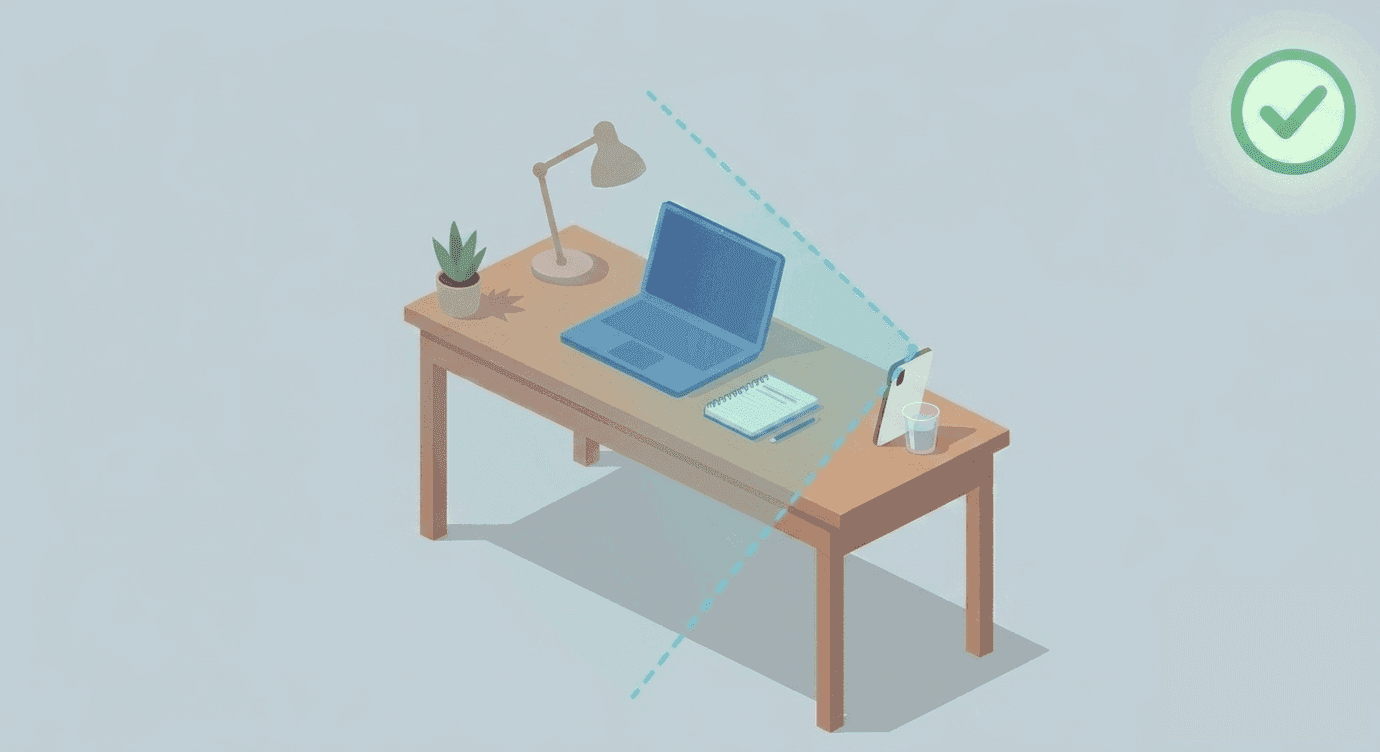
Make sure your phone remains stable and positioned correctly throughout the exam.
4. Position your secondary camera so that your workstation could be fully visible:
Desktop access
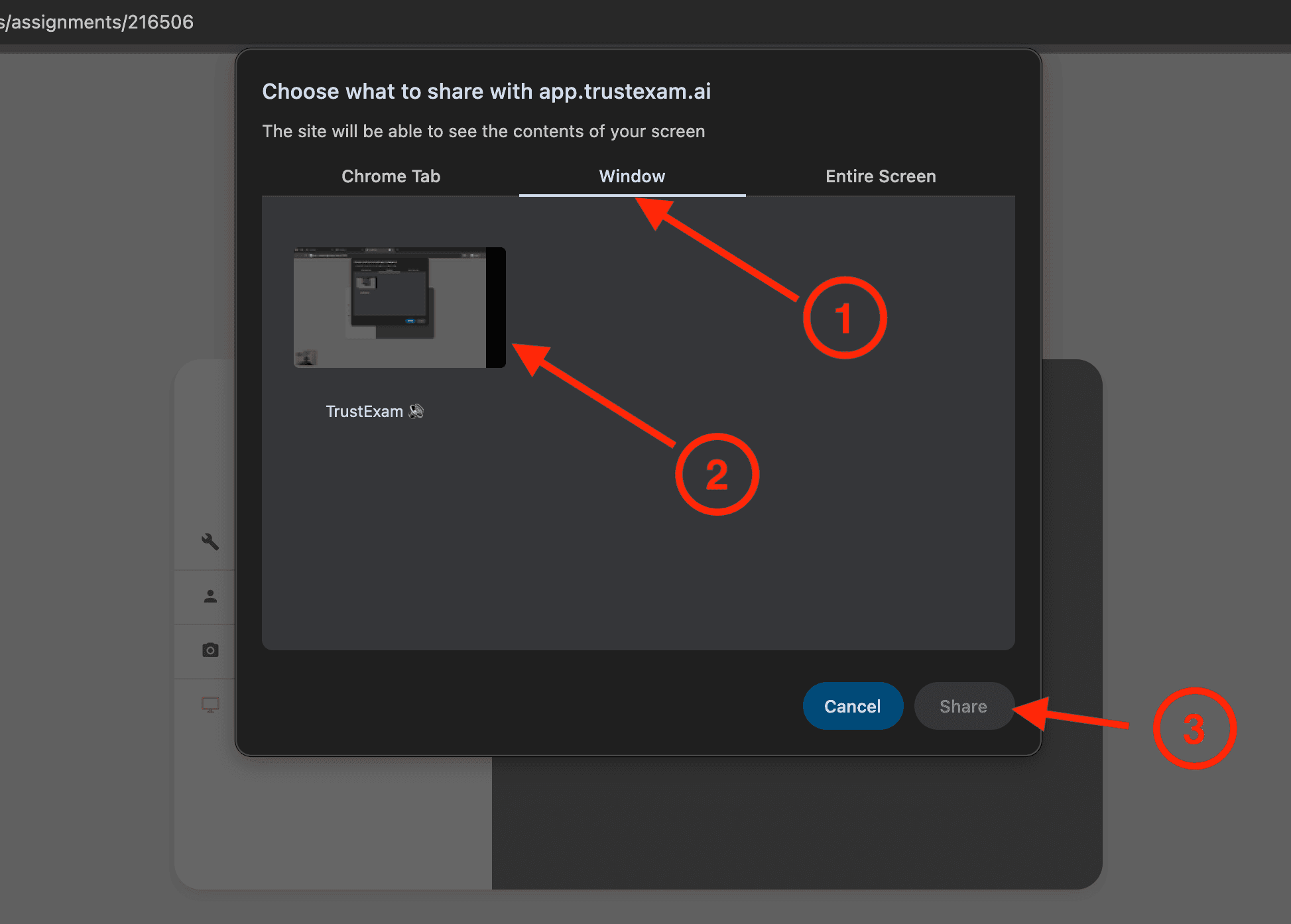
Next you have to connect or share your desktop with the browser, follow the prompts on screen:
Starting and Finishing your test
After the system completes all checks, you will be allowed to begin your assessment.
Click the “Start Test” or “Continue” button.
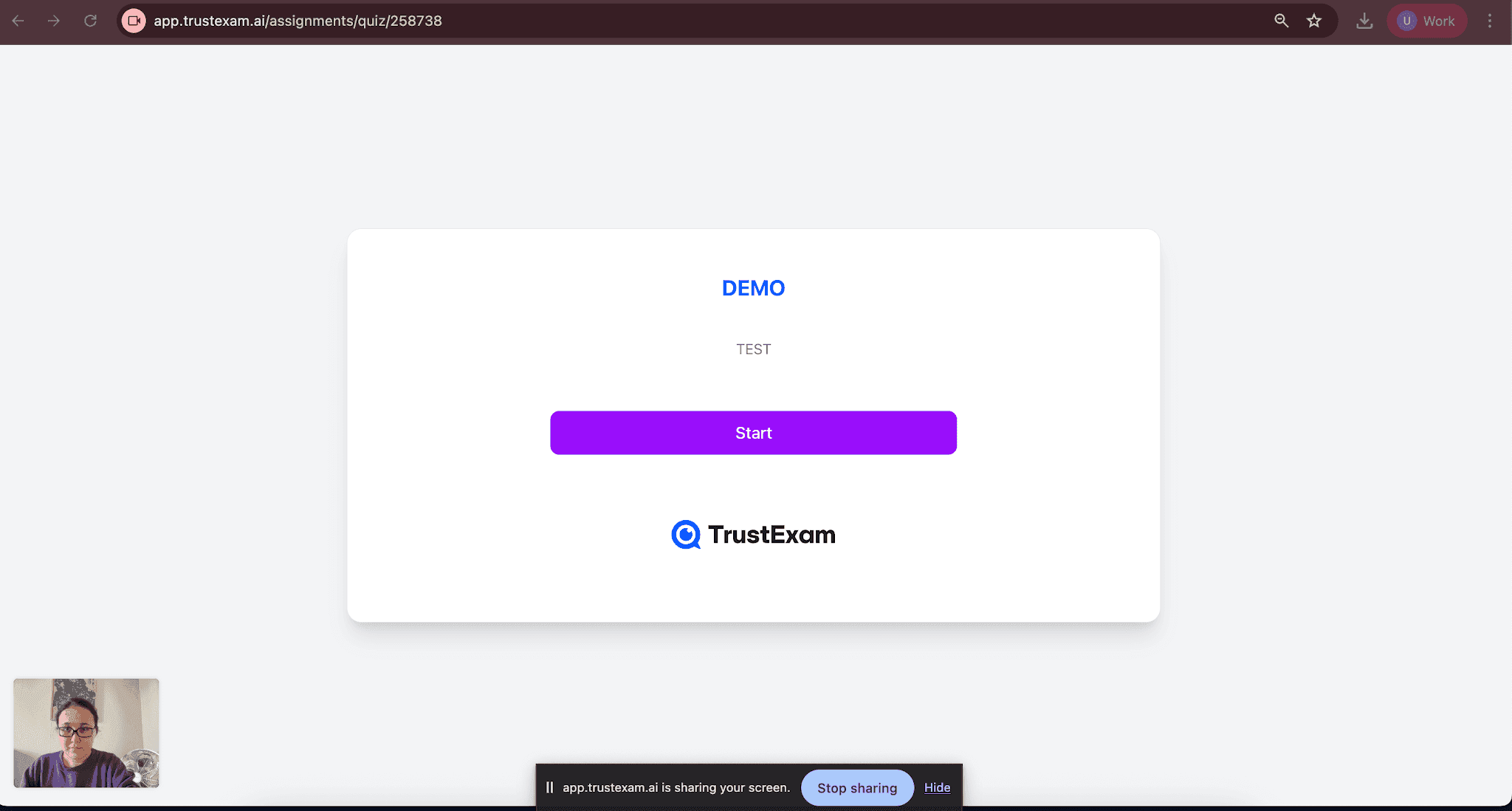
If you are prompted, allow the requests from our website.
You will then see the test questions. You can navigate through the exam using Next and Previous buttons, skip questions, or return to earlier ones if allowed by the exam settings.
During the exam:
The remaining time will be displayed on the screen
You can skip questions and return to them later
Check all answers before submitting
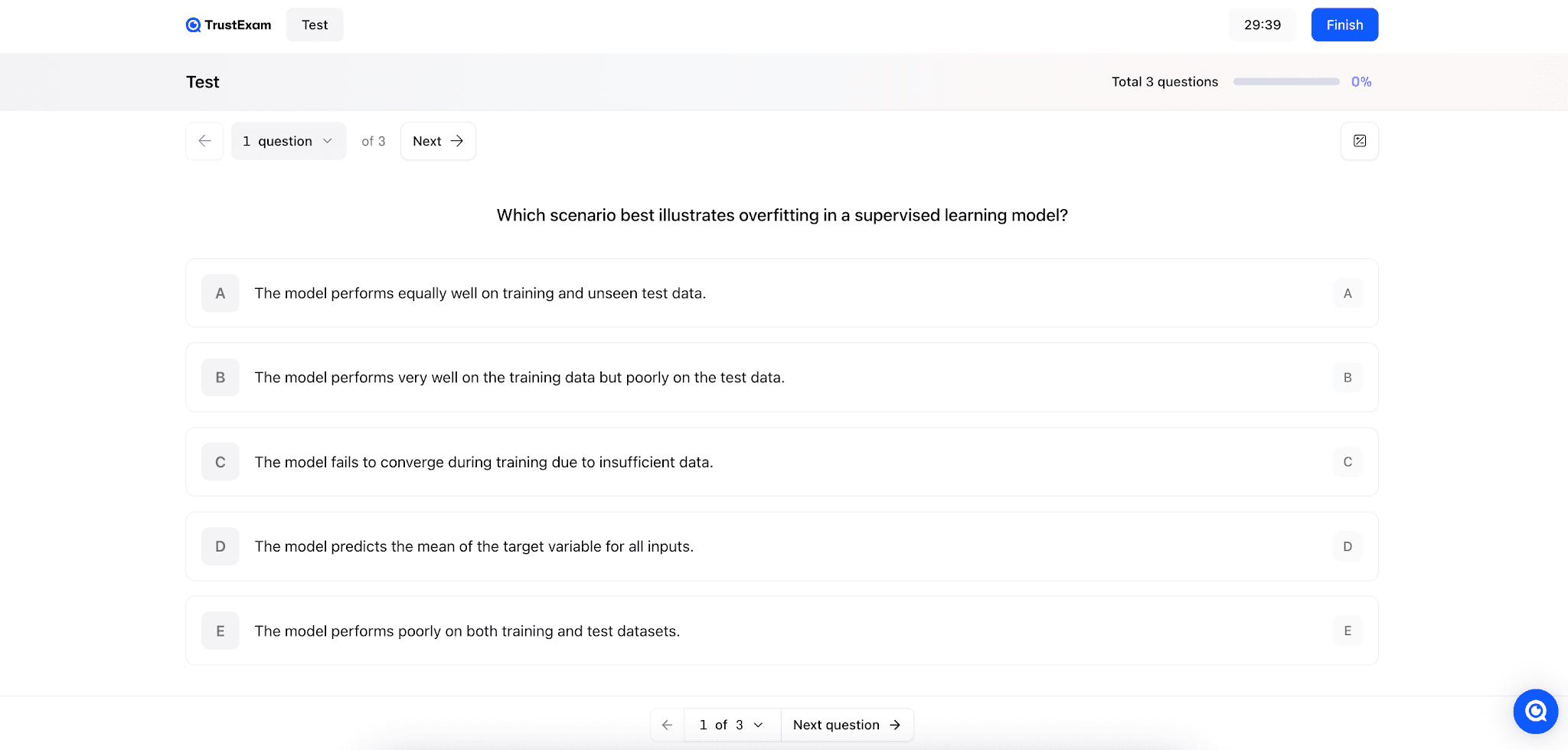
Ensure your webcam is active and your face is visible throughout the test
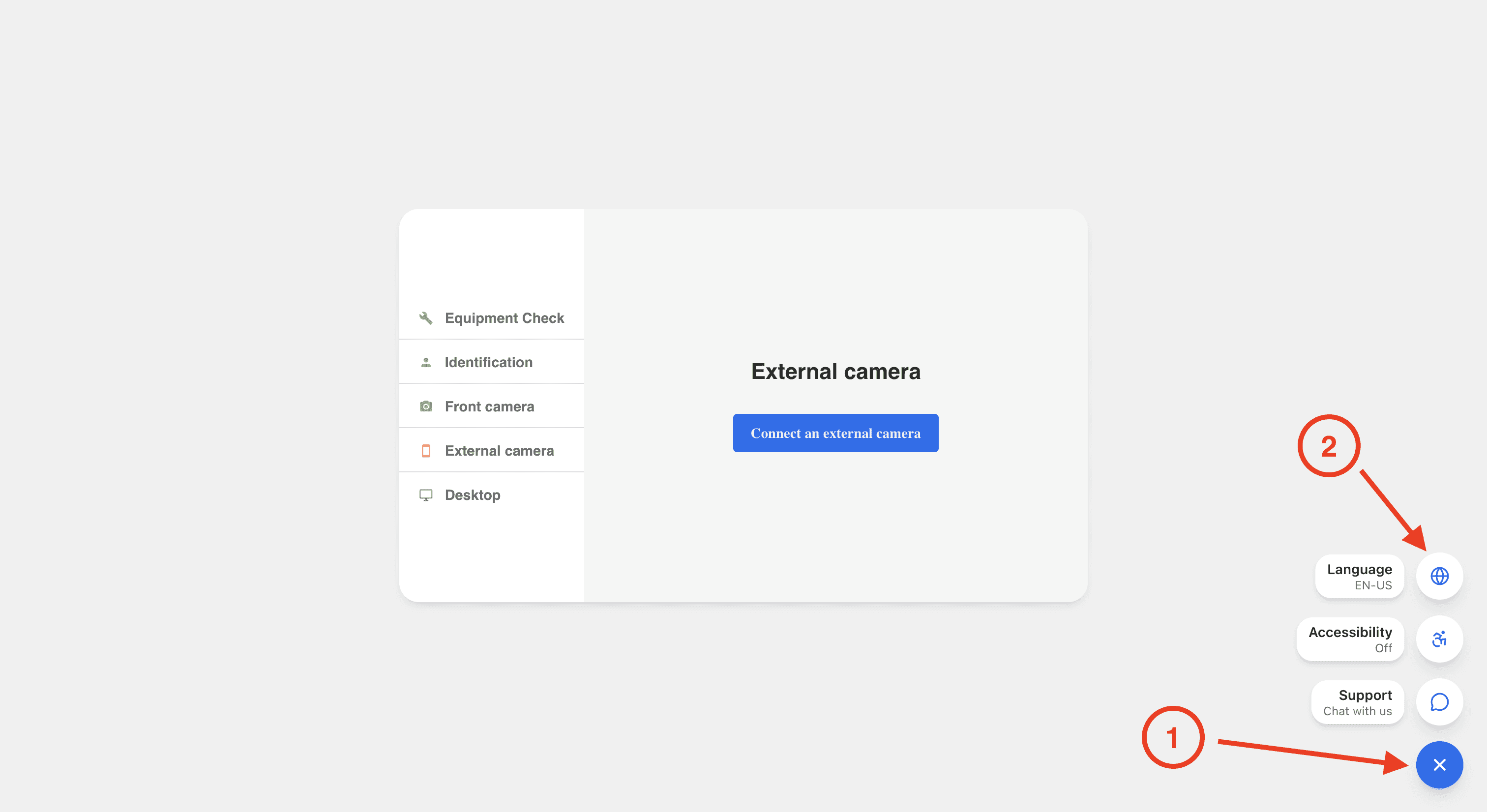
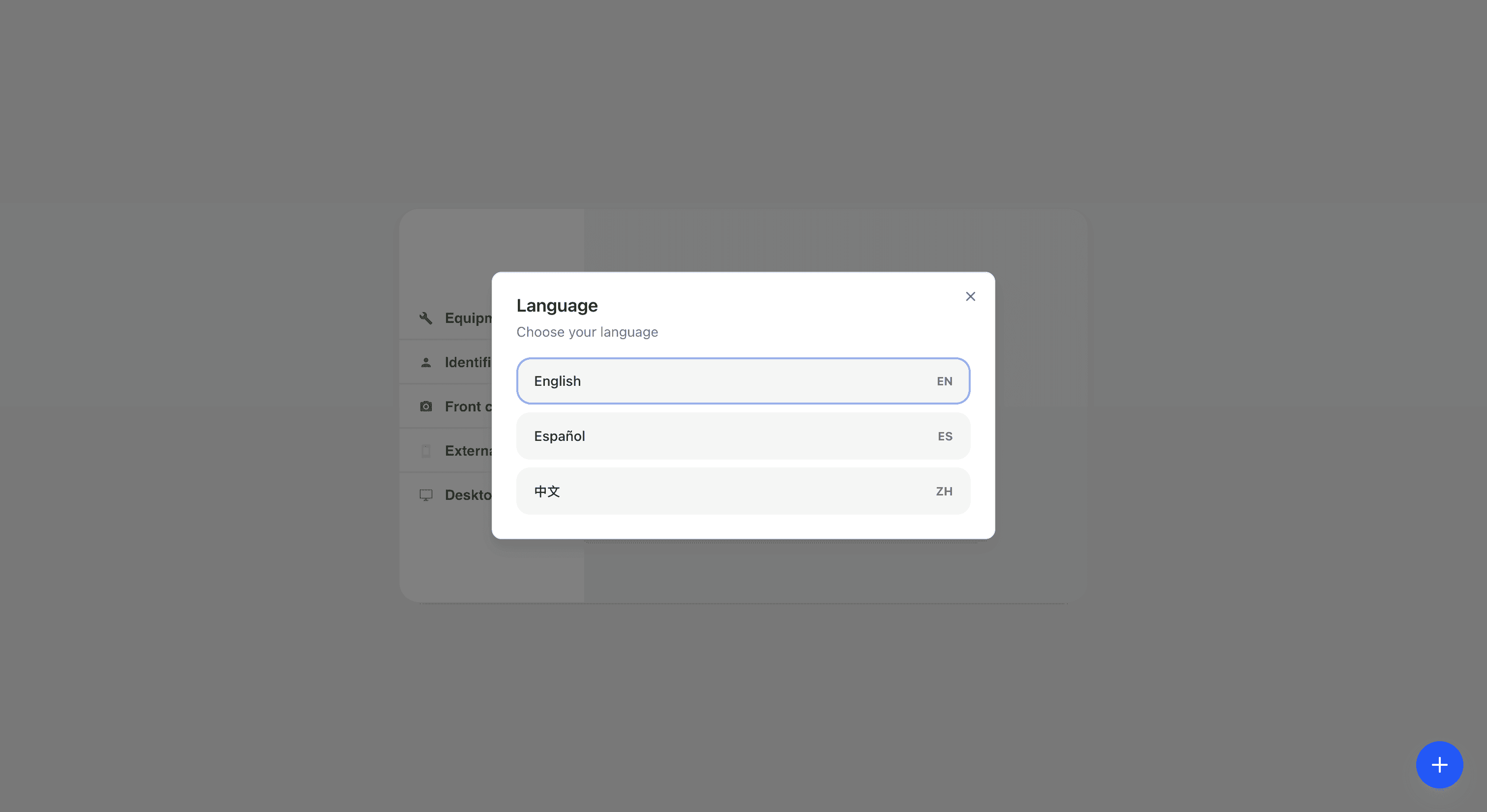
How to change your exam questions language:
On the right bottom corner you will see a plus sign, click it and you will see a language selector. You can select between languages anytime during the test. Your test is available in English, Chinese, and Spanish.
Exam completion
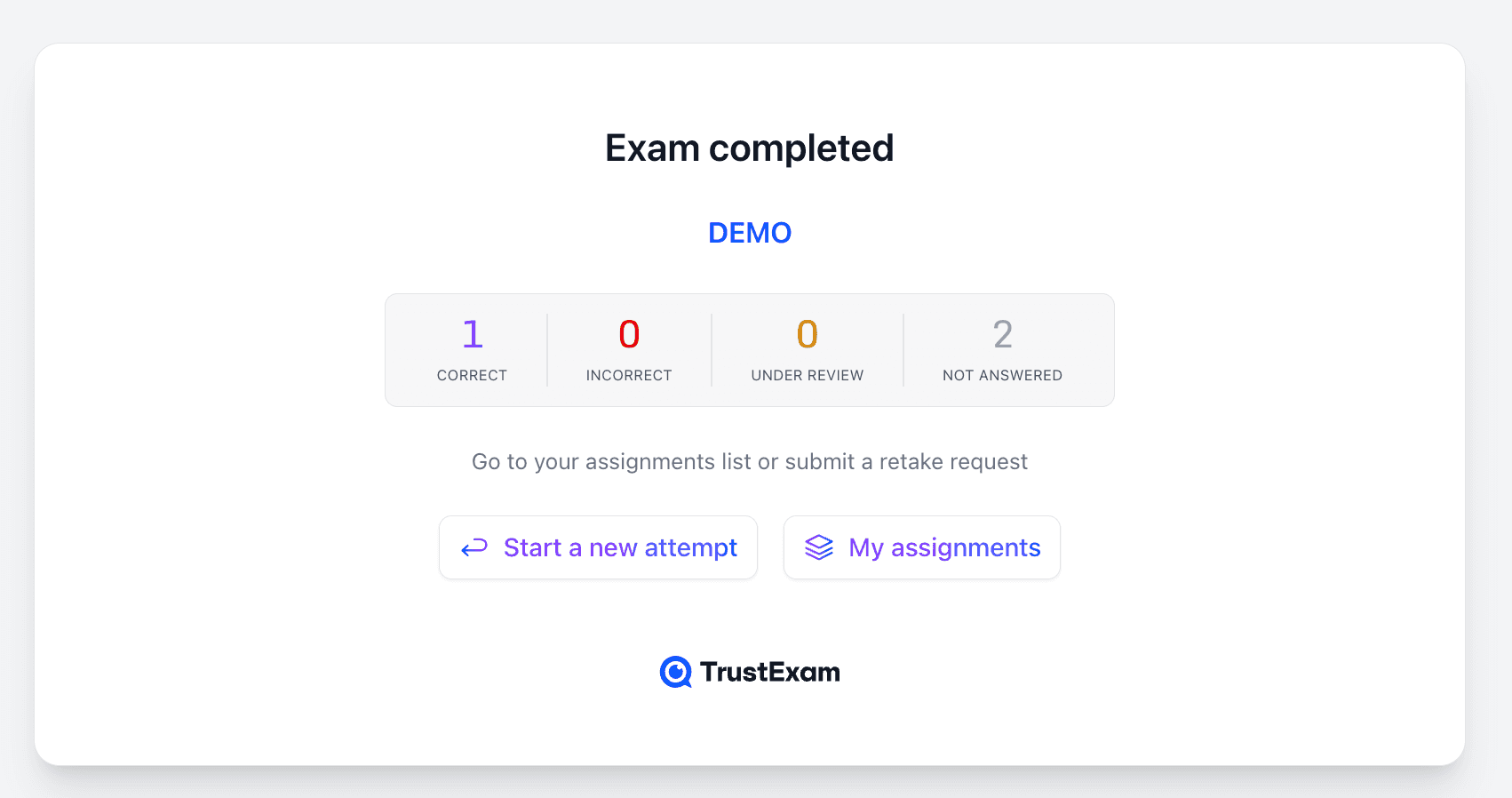
Once you have completed all questions, click the “Finish” button.
After submission, your test results will be displayed.
Certificates
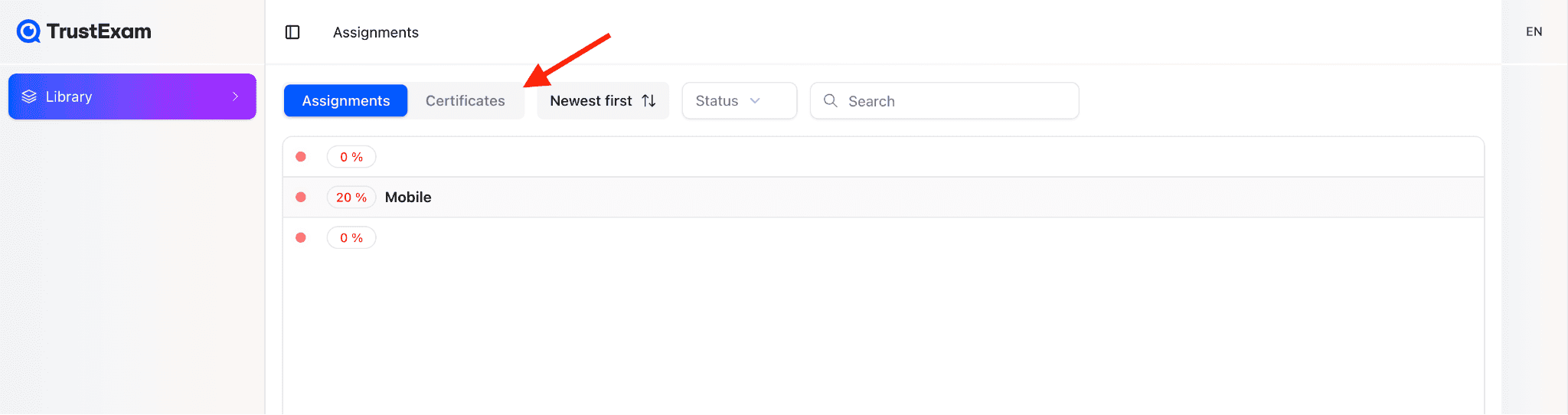
After invigilator reviews and approves the certificate issuance, you will be able to view and download your certificate here:
Support
In case of technical difficulties, you may message our support team members anytime, before, during, and after the exam, through our email info@trustexam.ai or a chatbot on our portal: