
Core Settings
Application
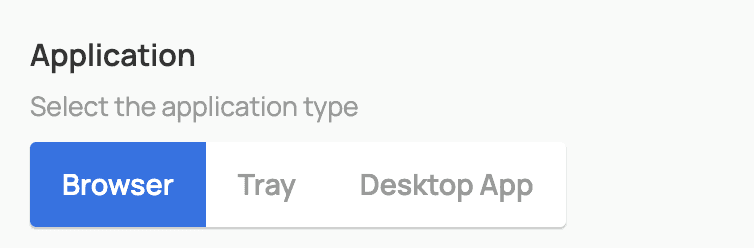
Application Configuration
Select the type of client application through which participants will take the assessment:
Browser: The test is taken directly in a web browser. Suitable for most use cases.
Tray: A lightweight desktop application that provides more reliable environment control.
Desktop: A full-featured desktop application with advanced monitoring capabilities and OS-level integration.
Recommendation:
Use Browser mode for training and practice tasks, and Tray or Desktop for official exams and certifications.
Browser
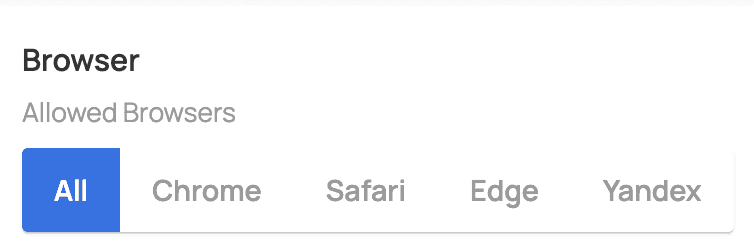
Browser Configuration
Defines which browsers are allowed for taking the assessment:
All: All modern browsers are allowed.
Chrome, Safari, Edge, Yandex: One or more specific browsers can be selected.
Front Camera
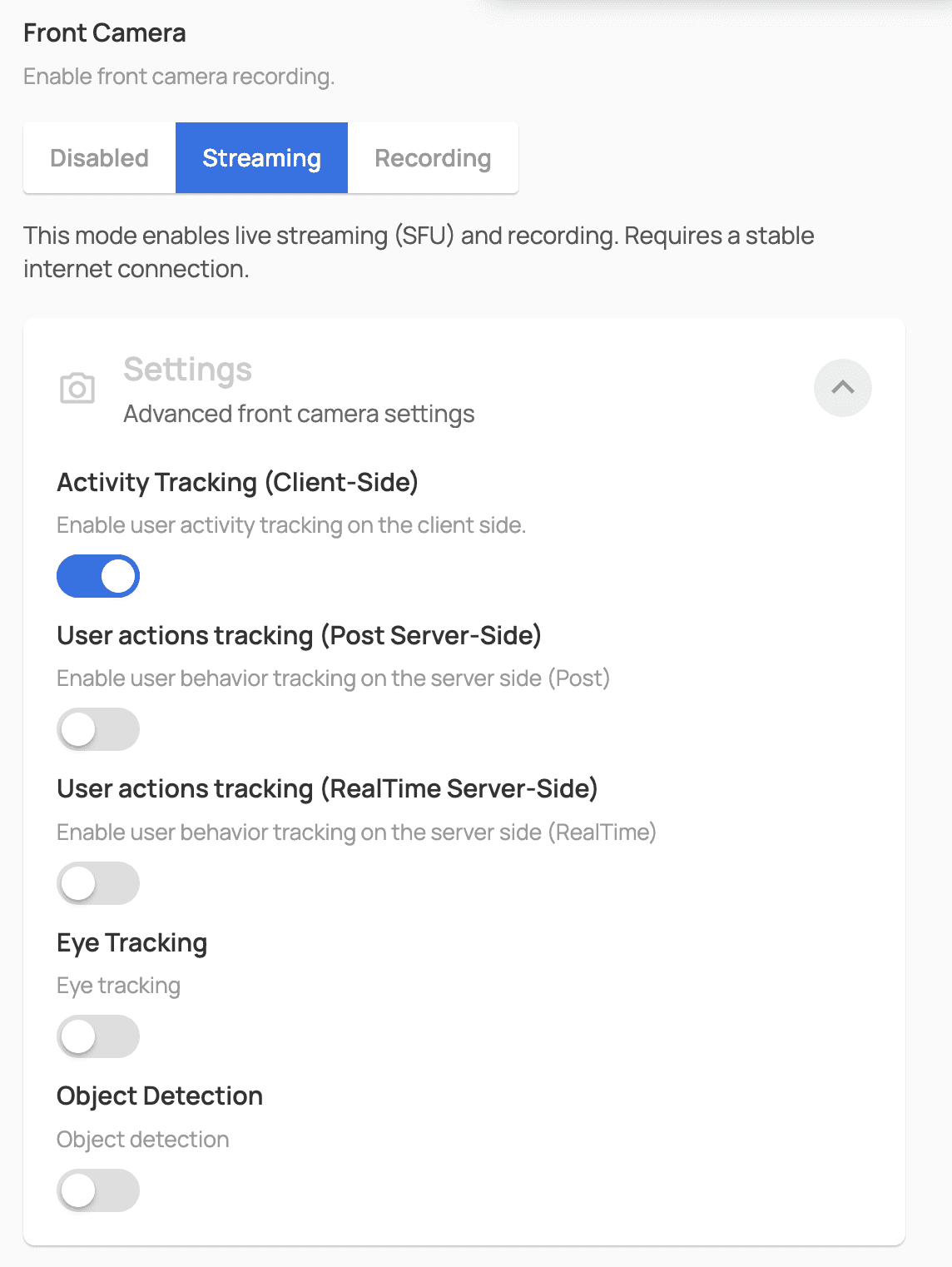
Front Camera Configuration
Enables recording from the participant’s primary camera (usually built into a laptop or monitor):
Disabled — Camera is not used.
Streaming — Video is streamed in real time but not stored.
Recording — Video is saved to the server for later review and analysis.
Recommendation:
Use Recording mode for all formal assessments where auditability is required. Streaming may be used when data storage requirements are limited.
External Camera
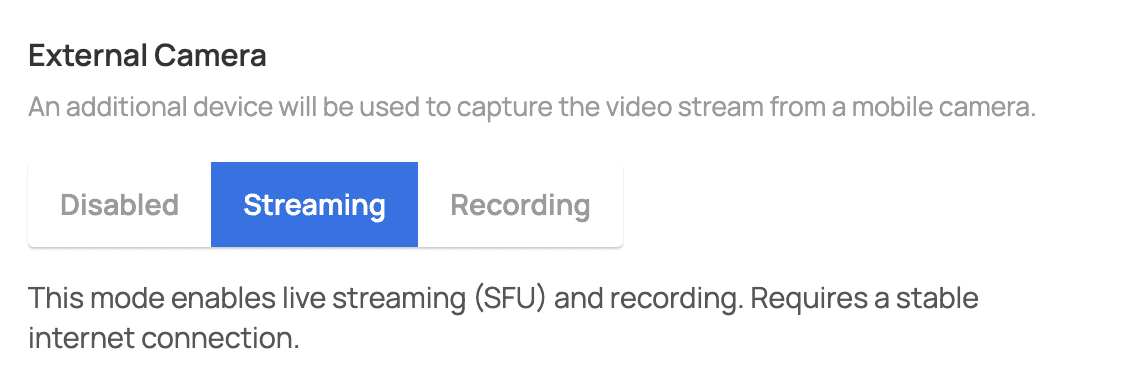
External Camera Configuration
Allows connecting a secondary device (such as a smartphone) to record from an additional angle, for example, to monitor the participant’s workspace:
Disabled — External camera is not used.
Streaming — Video from the external device is streamed in real time.
Recording — Video is recorded alongside the primary camera feed.
When enabled, participants must scan a QR code before starting the assessment to connect their mobile device via a browser.
Screen
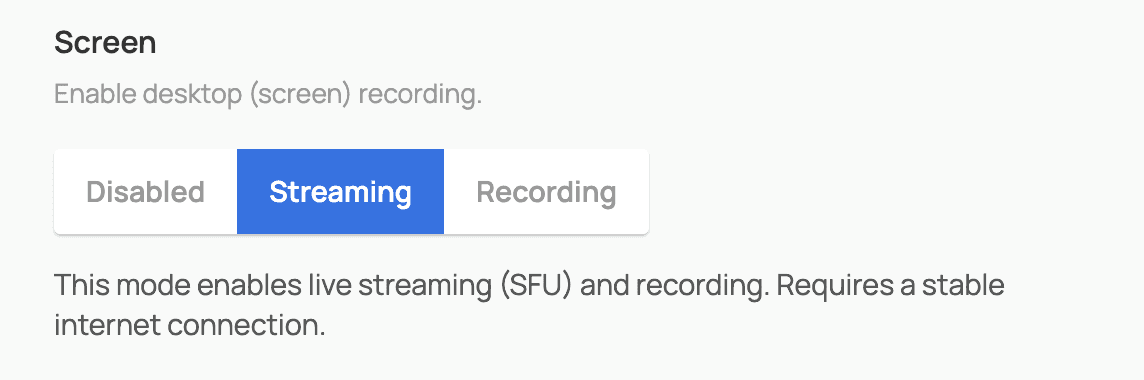
Screen Recording Configuration
Defines whether the participant’s screen content is recorded during the assessment:
Disabled — No screen recording.
Streaming — Screen content is streamed in real time.
Recording — Full screen recording is saved to the server.
Micro Earpiece Detector
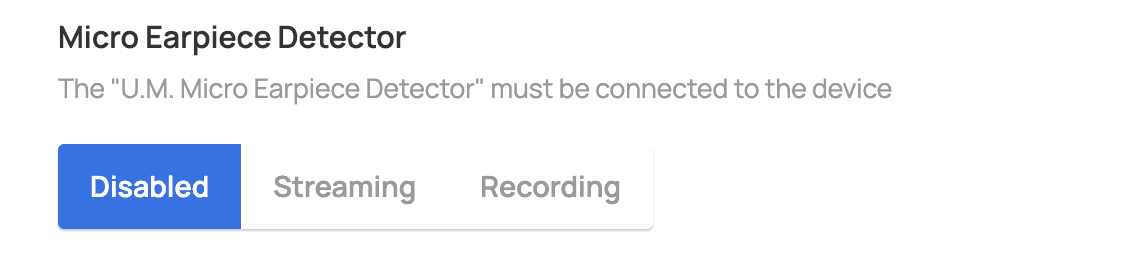
Micro Earpiece Detector
Detects the use of wireless communication devices during the assessment:
Disabled — Detector not used.
Streaming — Live streaming (SFU) with recording; requires a stable internet connection.
Recording — Peer-to-peer (P2P) recording; independent of internet quality.
Recommendation:
Enable for high-stakes exams and certifications. Requires compatible hardware.
Photo Identification

Photo Identification
Enables face verification using a photo uploaded during registration or stored in the user profile.
How it works:
The system compares the face captured at the beginning of the session with the reference photo of the participant.
Video Identification

Video Identification
Enables identity verification using real-time video during the assessment.
How it works:
The system periodically analyzes camera frames and verifies facial consistency with the reference image.
Identity Verification

Verification
Enables identity verification using an official ID (passport, student ID, etc.).
How it works:
The participant uploads a photo of the document and a selfie with it. The system compares the face in the document with the uploaded photo.
Audio Track Noise Detection

Audio Recording
Enables audio recording from the participant’s microphone.
How it works:
All sounds captured by the microphone—speech, conversations, and background noise—are recorded.
Speech Detection

Voice Detection
Enables automatic detection of speech and third-party voices in the audio stream.
How it works:
The system analyzes the audio track and flags moments when voices are detected.
Display Devices

Display Device Detection
Checks for connected external monitors, projectors, or TVs.
How it works:
The system detects the number of active displays and blocks the assessment if external devices are found.
HDCP Check

HDCP Check
Checks external displays for HDCP (High-bandwidth Digital Content Protection) support and screen capture activity (beta feature).
How it works:
Determines whether an external display is being used for recording or screen sharing.
Content Protect
Content Protect
Prevents sharing assessment content with remote users (e.g., via messengers, email, or cloud services).
How it works:
Blocks copying of text, images, and other assessment elements to the clipboard or third-party applications.
Full-Screen Mode

Full-Screen Mode
Forces the proctoring application to run in full-screen mode.
How it works:
The application occupies the entire screen, blocking access to other windows and applications.
Clipboard

Clipboard Monitoring
Enables reading clipboard contents to detect copying of questions or answers.
How it works:
The system periodically checks clipboard content and compares it with assessment text.
Mouse Focus

Mouse Focus Tracking
Tracks mouse focus, including cursor movements and clicks outside the application window.
How it works:
Records instances when the cursor leaves the assessment window, which may indicate switching to other resources.
Browser Extensions

Browser Extension Detection
Checks for installed browser extensions such as ad blockers, translators, or note-taking tools.
How it works:
The system scans active extensions and blocks the assessment if potentially risky extensions are detected.
Advanced Settings
Action Recognition Interval
What it is:
How often the system checks participant actions (movement, speech, gaze).
How it works:
Value in milliseconds (1000 ms = 1 second).
Lower values increase monitoring frequency but raise system load.
Higher values reduce load but check less frequently.
Recommendation:
Use 1500 ms (1.5 seconds) for a balance between control and performance.
Face Recognition Interval
What it is:
How often the system verifies that a real person is present, not a photo or video.
How it works:
Periodic checks for “liveness” indicators.
Prevents spoofing attempts using photos or videos.
Recommendation:
4000 ms (4 seconds) is optimal for most scenarios.
Head Rotation Sensitivity
What it is:
The configured head-position range before a head-rotation event is recorded for review.
How it works:
X-axis (50): Left–right rotation tolerance.
Y-axis (40): Up–down tilt tolerance.
Lower values enforce stricter control.
Recommendation:
Default values 50 / 40 are suitable for most exams.
Head Distance Sensitivity
What it is:
How close a participant must remain to the camera.
How it works:
Tracks distance along the Z-axis.
Value 12 defines the minimum acceptable distance.
Moving beyond the configured range generates a head-distance event for review.
Recommendation:
Value 12 provides a clear face view without excessive restrictions.
Head Rotation Tolerance
What it is:
How long a participant may remain in a “forbidden” head position.
How it works:
At 1500 ms (1.5 seconds), brief turns are allowed.
Exceeding the configured time generates an event for review.
Recommendation:
Strict exams: 1000 ms
Practice tests: 3000 ms
Microphone Noise Sensitivity
What it is:
Sound level at which the system starts treating audio as noise.
How it works:
10 dB is the activation threshold.
Quieter sounds are ignored.
Sounds above the configured threshold may generate noise events for review.
Recommendation:
Increase to 15–20 dB in noisy environments.
Noise Frame Counter
What it is:
Number of consecutive noisy frames required to generate a noise event.
How it works:
With a value of 3, a noise event is recorded after three consecutive noisy frames.
Short, isolated sounds that do not reach this configured count do not generate an event under this check.
Recommendation:
Default value 3 balances control and false positives.
Noise Tolerance
What it is:
Time allowed to stop noise after a warning.
How it works:
At 1500 ms, the participant has 1.5 seconds to reduce noise.
Exceeding the configured tolerance generates a noise event for review.
Recommendation:
Formal exams: 1500 ms
Informal tests: 3000 ms
Focus Loss Tolerance
What it is:
How long the cursor may remain outside the assessment window.
How it works:
At 1500 ms, brief cursor movement to another window is allowed.
Exceeding the configured tolerance records a focus-loss event for review.
Recommendation:
Strict control: 1000 ms
User-friendly mode: 2500 ms
Connection Timeout
What it is:
Maximum time allowed to connect to the video recording server.
How it works:
If the camera or screen cannot be connected within the limit, recording is disabled.
Prevents endless connection attempts.
Recommendation:
Keep the default value for stable operation.
Initialization Timeout
What it is:
Maximum time allowed to initialize action recognition systems.
How it works:
If initialization fails within the timeout, monitoring features are disabled.
Prevents system freezes on low-performance devices.
Recommendation:
Do not change unless necessary, especially on weaker hardware.
Mobile Restrict
What it is:
Blocks assessments on mobile devices.
How it works:
When enabled, access via mobile browsers and tablets is blocked.
Only desktop browsers and applications are allowed.
Recommendation:
Enable for critical exams; disable for participant convenience when appropriate.
Fallback
What it is:
Defines behavior if a monitoring feature fails to connect.
How it works:
Enabled: Skip the problematic feature and continue the assessment.
Disabled: Block the assessment until the issue is resolved.
Recommendation:
Enable for training tests; disable for official exams.