
Cannot Log In: “User Not Exists” Error
Keywords: user not exists, cannot log in, login issue
User accounts become active on the day the testing begins. If you attempt to log in before your official testing date, you may encounter this error.
If the user is unable to log in during the testing period, the issue may be that their login details (email, identification number, name or etc.) was submitted by the school or your institution with an error. In this case, we ask the user to provide the following information:
Full name
Identification number like IIN (if applicable)
Testing event name
Contact details
This information is required so that our operator can verify the user’s login details in the application database.
Access error: Camera access was not granted
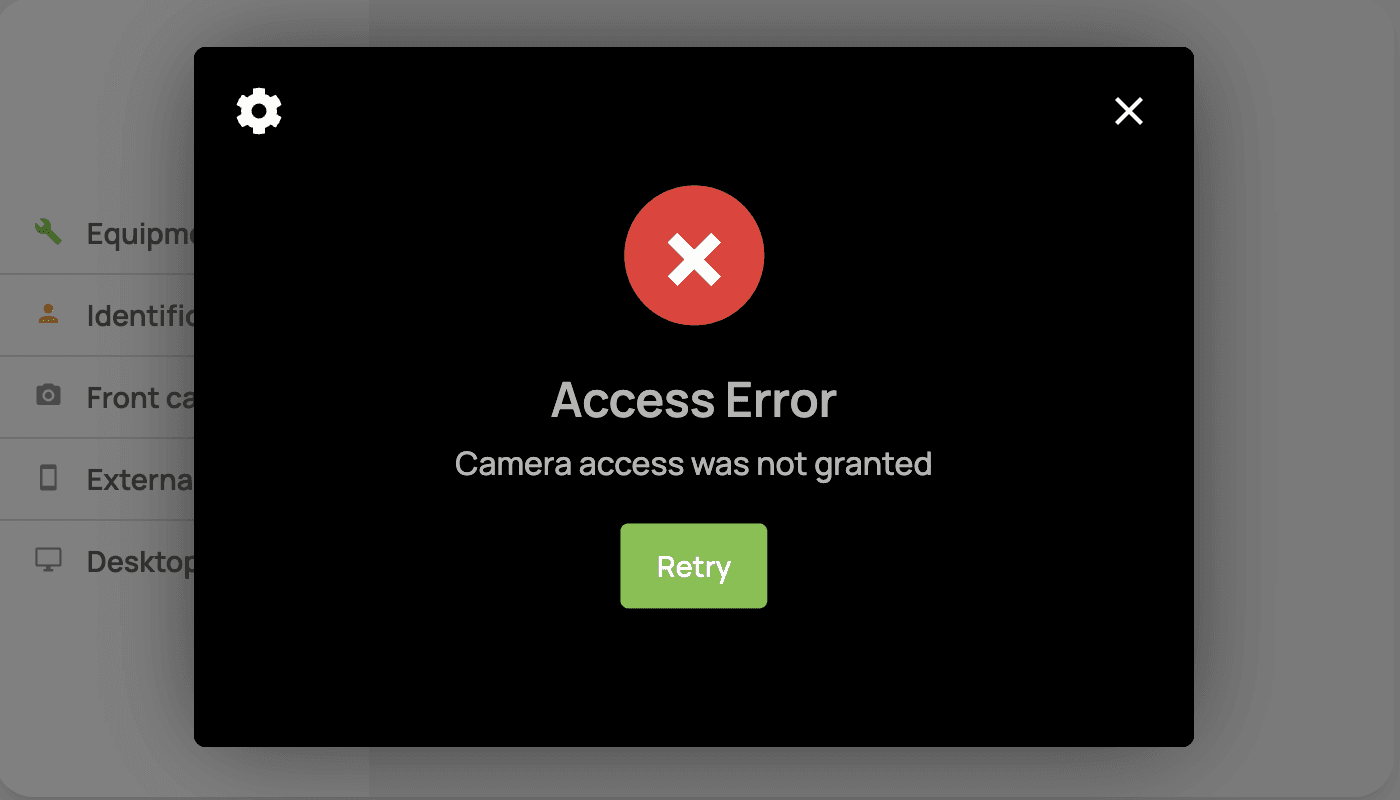
To resolve this issue on Windows devices, you need to check whether the application has permission to access the camera and microphone.
Windows 10
To use the camera in the TrustExam application on Windows 10, you must enable certain permissions in the camera settings. Then you must check the app permissions. Follow these steps:
Select Start > Settings > Privacy > Camera.
In the Allow access to the camera on this device section, click Change and make sure that Camera access for this device is turned on. This setting allows any user of the device to choose whether apps are allowed to access the camera.
Find the setting Allow apps to access your camera and make sure it is enabled. This setting determines whether your apps may access the camera, but it does not specify which apps have access.
To use the microphone with applications on Windows, you must enable certain permissions in the Privacy & Security settings. Here is how to do it:
Select Start > Settings > Privacy & Security.
Find Microphone under the App permissions section and make sure microphone access is turned on.
Then allow apps to access the microphone. Under Microphone settings, select Allow apps to access your microphone and make sure it is enabled.
If apps are allowed to access the microphone, you can adjust these permissions for each specific application. Under Microphone settings, go to Choose which apps can access your microphone and turn on the TrustExam application.
Windows 11
To use the camera in applications on Windows 11, you need to enable specific permissions in the camera settings. Then you must check app permissions if an application needs to use the camera. Follow these steps:
Select Start > Settings > Privacy & Security > Camera and make sure the Camera access setting is enabled. This setting allows any user of the device to choose whether apps may access the camera.
Note: If you cannot change the Camera access setting and you are using a corporate device, ask your administrator to enable it.
Make sure that Allow apps to access your camera is turned on. This setting determines whether applications may access the camera, but does not specify which ones.
Once you allow apps to access the camera, you can enable access for each specific app. Find the TrustExam application in the list and turn on camera access for it.
To use the microphone with applications on Windows 11, you must enable several permissions in Privacy & Security. Here is how:
Select Start > Settings > Privacy & Security.
Find Microphone under App permissions and make sure access to the microphone is turned on.
Then allow apps to access the microphone. In Microphone settings, select Allow apps to access your microphone and make sure it is enabled.
If apps are allowed to access the microphone, you can configure these settings for each application. Under Microphone settings, go to Choose which apps can access your microphone and enable access for the TrustExam application.
Error Connecting External Camera (Phone)
Keywords: black screen on phone, phone camera not working, cannot connect external camera

To resolve this issue in mobile browsers, you must verify that the browser has permission to access the camera and microphone. First, ensure that your browser is allowed to use the camera and microphone in your device settings. If you see a black screen with a constantly spinning loading icon, follow the steps below depending on your phone model and browser:
Chrome (Android)
Tap the three dots (menu) next to the address bar.
Select Settings.
Go to Site settings > Camera.
Enable the camera. If the site is blocked, select the site and change the permission to Allow.
For the microphone:
Go to Site settings > Microphone.
Enable the microphone or change the permission to Allow.
If this does not resolve the issue:
Open Device Settings.
Go to Apps > Chrome > Permissions.
Make sure the camera and microphone permissions are enabled.
Chrome (iOS)
Go back to the previous page or reload the page. You should see a request asking for permission to access the camera and microphone.
If this does not help:
Open Settings on your device.
Find Chrome.
Ensure Camera and Microphone are enabled or set to Allow.
Safari (iOS)
Tap the “AA” icon next to the website address.
Choose Website Settings.
Set both Camera and Microphone to Allow.
If this does not help:
Open the device Settings.
Find Safari.
Make sure camera and microphone access is set to Allow.
Firefox (Android)
Tap the three dots (menu) next to the address bar.
Select Settings > Site permissions > Camera.
Change the setting to Allow.
For the microphone:
Go to Site permissions > Microphone.
Change the setting to Allow.
If this does not resolve the issue:
Open Device Settings.
Go to Apps > Firefox > Permissions.
Enable permissions for the camera and microphone.
Are Linux Applications Available?
Keywords: Linux, OC Linux
At the moment, we do not have an application for Linux OS.
Prohibited Software Detected
Keywords: TrustExam App Blocks the Test and Requires All Prohibited Processes to Be Closed
If the TrustExam application cannot close a prohibited program running in the background, follow these steps:
Terminate all processes related to the prohibited application:
Windows 10 and 11:
Press Ctrl + Shift + Esc to open Task Manager.
Go to the Processes tab.
Find the application, select it, and click End Task.
If this does not resolve the issue, it is recommended to completely uninstall the application from the device:
Windows 10:
Select Start and find the application in the list.
Press and hold (or right-click) the application.
Select Uninstall.
Windows 11:
Go to Start > All Apps and find the application in the list.
Press and hold (or right-click) the application.
Select Uninstall.
After completing these steps, restart the TrustExam application and check if it works correctly.
Server Not Responding: Unable to Establish a Connection
This issue occurs when the user’s device is connected to a private network. We recommend switching to a public network with a fast and stable connection.
Is There a Windows 32-bit Application?
At the moment, we do not have an application for Windows 32-bit.
After Clicking “Open in App”, the Application Does Not Launch (Blank Browser Window)
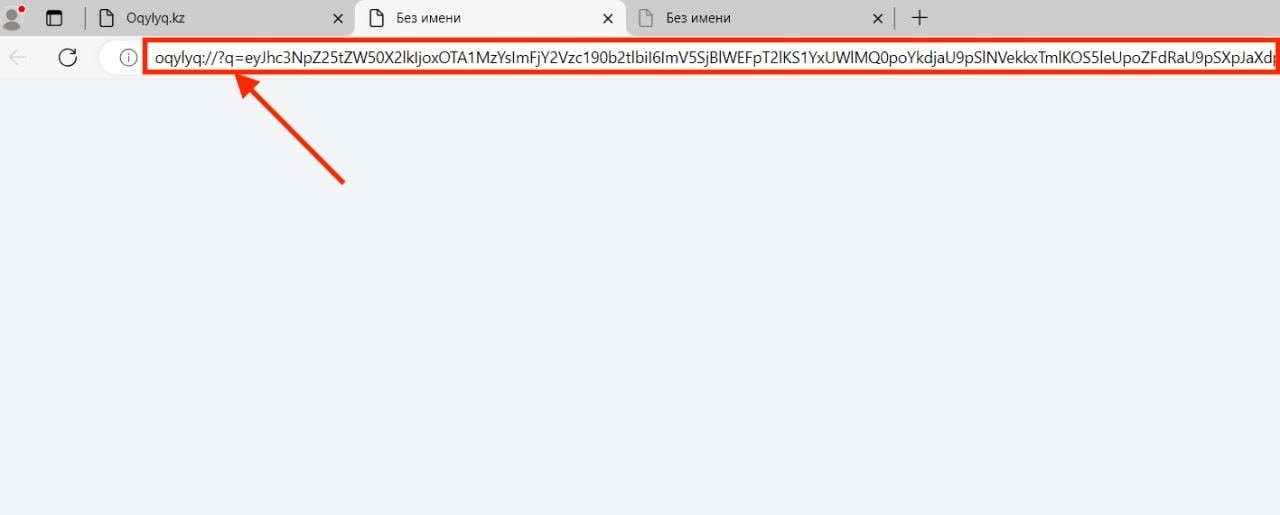
Keywords: nothing happens, blank browser window, application does not launch
If this issue occurs, copy the generated link from the blank tab, paste it into the clipboard, then manually open the TrustExam application, the exam will start automatically.
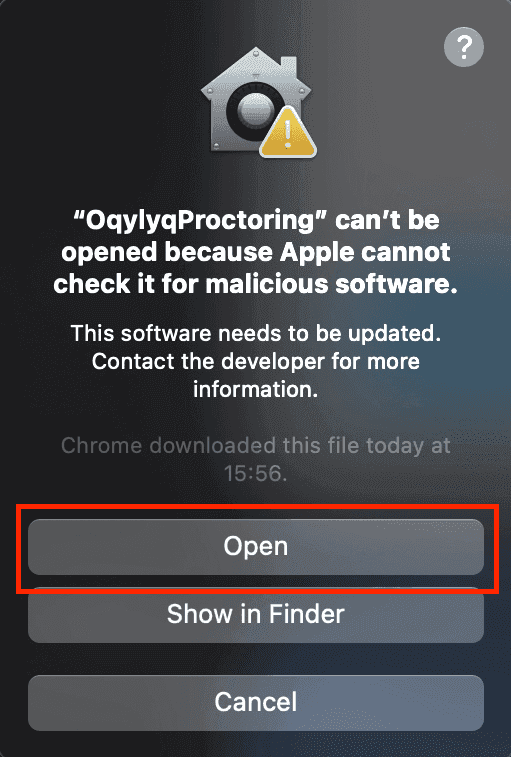
Mac OS app can’t be opened
After launching the application, if the following notification appears (TrustExam can’t be opened because Apple cannot check it for malicious software):
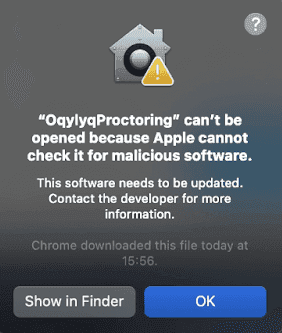
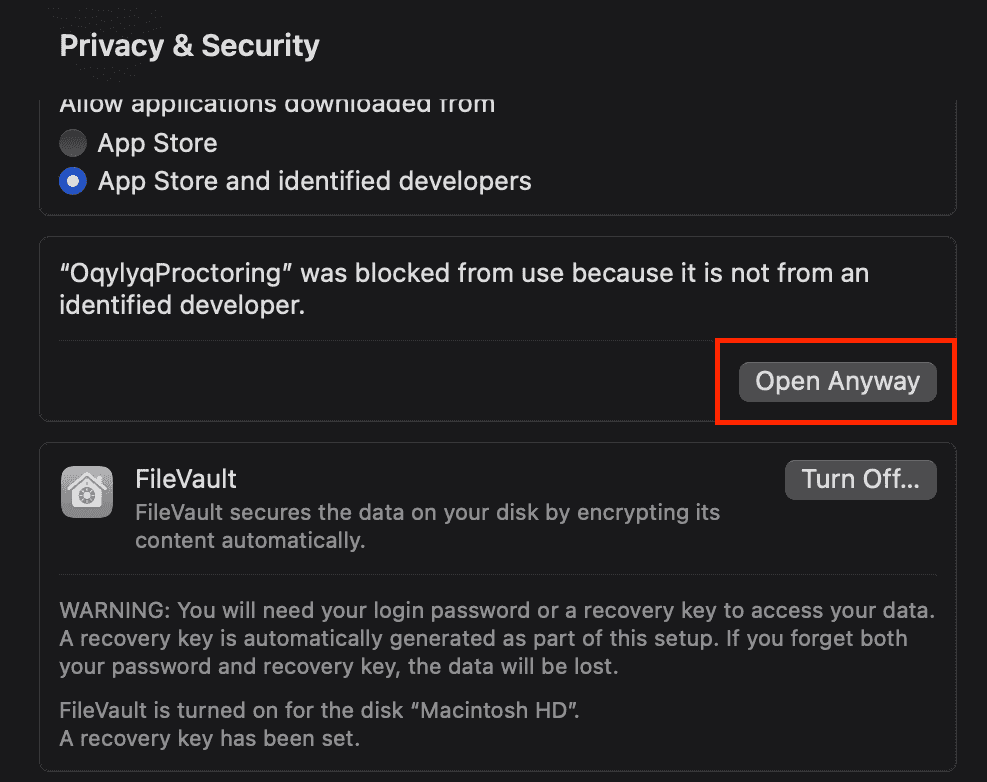
To resolve this issue, open “Settings” and navigate to “Privacy & Security”. Scroll down until you see a message saying that the exam application was blocked because the developer could not be verified. Click “Open Anyway” to allow the application to run.
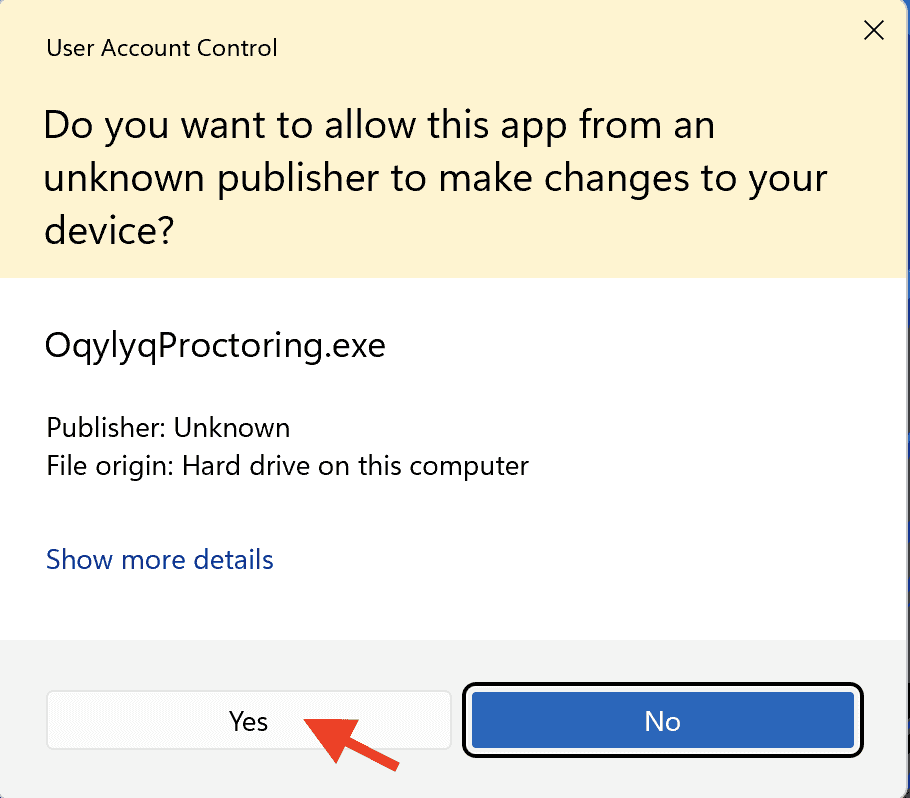
Windows app can’t be opened
After downloading the .exe file and launching it, the following notification may appear:
Before you start your test it is better to check in the Settings that our app has access to your webcam, microphone, and desktop screen
Lenovo Devices: Camera Privacy Settings Blocking the Exam
Keywords: Lenovo camera issue, privacy mode, camera not detected, black screen, Lenovo Vantage
If you are using a Lenovo computer, the issue with camera detection may be caused by Lenovo’s built-in privacy software. To resolve this problem, follow the steps below depending on which Lenovo utility is installed on your device.
1. Lenovo Vantage
Open Start.
Type Lenovo Vantage and launch the application.
Go to Device Settings > Audio/Visual.
Scroll down to Camera Privacy Mode.
Disable this mode.
2. Lenovo Settings
Open Start and type Lenovo Settings.
Select Camera.
Change the mode from Private/Confidential to Normal.
3. Lenovo ThinkVantage Tools
Open Start and type Lenovo ThinkVantage Tools.
Select Web Conferencing.
The Communications Utility window will open.
Click Show my video image and confirm that the gray/black screen is gone.
If after disabling Lenovo privacy features the camera still does not work, you may need to restart your device and try again.
JavaScript Is Disabled: Web Pages or Exam Components Not Displaying Correctly
Keywords: JavaScript disabled, page not loading, infinite loading, exam not starting, browser settings
For the TrustExam platform to function correctly, JavaScript must be enabled in your browser. If JavaScript is turned off, certain elements may not load, and the exam may remain stuck in an infinite “loading” state.
Follow the steps below to enable JavaScript in your browser.
Google Chrome
Enter the following into the address bar:
chrome://settings/content/javascriptPress Enter.
Select “Sites can use JavaScript.”
Refresh the page where the issue occurred.
Mozilla Firefox
Open Firefox.
Type about:config in the address bar and press Enter.
Accept the warning message.
In the search bar, type javascript.enabled.
Make sure the value is set to true (if not, toggle it).
Refresh the exam page.
Microsoft Edge
Enter the following into the address bar:
edge://settings/content/javascriptPress Enter.
Enable the option “Allowed (recommended).”
Refresh the page.
Safari (macOS)
Open Safari.
Go to Safari > Settings (or Preferences).
Open the Security tab.
Check the box “Enable JavaScript.”
Refresh the page.
Important Notice
If JavaScript is disabled, the exam may fail to start and remain in an infinite preparation or loading loop. Make sure JavaScript is enabled before beginning your test.
No Webcam or Microphone Available: What Should I Do?
Keywords: no webcam, no microphone, cannot start exam, missing equipment, hardware requirements
Unfortunately, it is not possible to take an AI-proctored exam without a functioning webcam and microphone. The system must be able to monitor your face and your workspace to ensure exam integrity.
Here’s what you can do:
We recommend obtaining a webcam or borrowing one temporarily from a colleague, friend, or family member for the duration of the exam.
If this is not possible, please contact your exam organizer and ask whether an alternative exam format is available, for example, taking the exam without proctoring or in a supervised offline environment.
Proper equipment is required for the system to operate correctly and to comply with exam security policies.
Can I Use a Smartphone as a Webcam for the Exam?
Keywords: use phone as webcam, no webcam available, external camera, smartphone camera, webcam alternative
Using a smartphone as a replacement for a webcam is not supported or recommended on the TrustExam platform. While it may be technically possible with third-party tools, this method comes with significant limitations and risks.
Please keep the following in mind:
We do not provide support for configuring or troubleshooting smartphone-as-webcam solutions, as this is not an official method.
The presence of a smartphone during an exam may be considered a potential cheating attempt by the exam organizer, which may lead to result disqualification.
Smartphone-based webcam tools may cause equipment check failures, such as missing video feed or incorrect device recognition.
For a stable and secure testing experience, we strongly recommend using:
a built-in laptop webcam, or
a standard external webcam.
These are the only fully supported and reliable options for AI-proctored exams.
Internet Connection Issues: “No Connection” or “Poor Connection” Status
Keywords: internet not approved, low bandwidth, connection error, slow internet, network issue, no internet, poor connection, connection failed, internet check, unstable network, slow speed
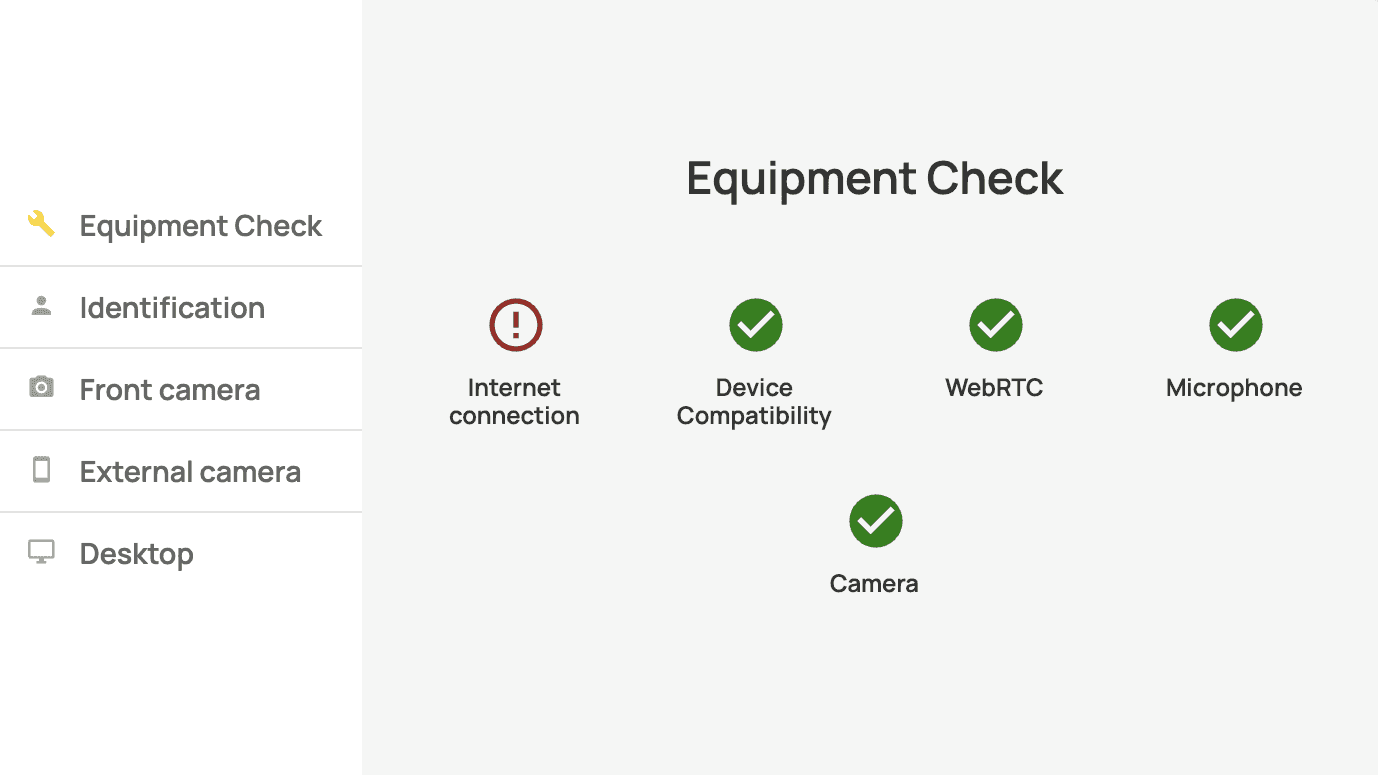
The TrustExam platform requires a stable and high-quality connection to function correctly. If the system detects that your internet is disconnected or does not meet the minimum requirements, you will not be able to proceed with the exam.
Basic Troubleshooting
If you see an error message regarding your connection, follow these steps:
Click the error notification: This will trigger the system to re-check your connection status.
Wait for the update: If the connection stabilizes and meets the requirements, the status will update automatically.
Refresh the page: If the message persists, refresh your browser page and try the check again.
Switch networks: If possible, switch to a more stable internet source.
If the Issue Persists
The platform is highly sensitive to network stability. If the basic steps do not work, please try the following:
Use a Mobile Hotspot: Connect your computer to a mobile data hotspot from your phone. After switching, click the “Check” button again.
Disconnect Other Devices: Ensure no other devices (phones, TVs, tablets) are using the same Wi-Fi network.
Close Background Apps: Close all unnecessary browser tabs and background programs that may be consuming bandwidth.
Disable VPN: Turn off any active VPN services, as they can significantly interfere with the connection check.
Avoid Corporate Networks: If you are on a restricted office network or using a work device, firewall settings may block the platform. Try a private home network instead.
Using Incognito Mode
If you have a functioning internet connection but the system still fails the check, browser extensions or cache may be interfering.
Open Incognito/Private Mode: Press Ctrl + Shift + N (Windows) or Cmd + Shift + N (macOS).
Log in again: Navigate to https://app.trustexam.ai and sign in.
Repeat Equipment Check: Attempt the internet verification again. This mode disables extensions that might block the connection.
Still Unable to Connect?
If none of the above solutions resolve the issue, our support team will need to investigate your specific technical environment. Please provide the following:
Operating System (e.g., Windows 10, macOS Sonoma)
Browser and Version (e.g., Chrome Version 121)
Specific Error Message (or a screenshot of the equipment check screen)
Note: Proper equipment and a stable network are required to comply with exam security policies. If you cannot access an alternative network, please contact your exam organizer to discuss alternative testing options.
Device Compatibility Check Failure
Keywords: device compatibility issue, device compatibility failure, compatibility check, stuck on loading, proctoring initialization
The “Device Compatibility” check ensures that your operating system, machine, and hardware meet the technical requirements for the TrustExam platform. If this parameter takes a long time to load or remains stuck, please follow the troubleshooting steps below. Most of the time the main reason for this error is that you are sharing your desktop screen with some other app (i.e. Zoom/Google Meet). Close all of these processes and the issue should resolve.
Initial Troubleshooting
If the compatibility check is taking more than 30 seconds, try these quick fixes:
Use Google Chrome: We strictly recommend using the latest version of Google Chrome for the best experience.
Hard Refresh: Force the page to reload by pressing Ctrl + F5 (Windows) or Cmd + Shift + R (macOS).
Close Background Processes: Close all unnecessary browser tabs and heavy applications running on your computer.
Disable VPN: If you are using a VPN, turn it off, as it can interfere with hardware detection scripts.
Check Network Stability: Ensure you are on a stable connection and try the check again.
If the Status Does Not Update
The platform is highly sensitive to connection stability during the verification process. If the loading icon persists for more than 2–3 minutes:
Switch to a Mobile Hotspot: Connect your computer to your phone’s mobile data. After switching, refresh the page and restart the check.
Reduce Network Load: Disconnect other devices from your Wi-Fi and stop any active downloads or video streaming.
Update the Page: After making these changes, refresh the browser and wait for the system to automatically update the status.
Using Incognito Mode
If standard troubleshooting does not work, browser extensions (such as ad-blockers or privacy tools) may be blocking the compatibility script.
Open Incognito Mode: Press Ctrl + Shift + N (Windows) or Cmd + Shift + N (macOS).
Log in: Go to https://app.trustexam.ai and sign in.
Repeat the Check: Attempt the equipment verification again. This ensures a “clean” environment without interference from browser add-ons.
Technical Support Request
If the “Device Compatibility” check still fails to complete, please contact our support team and provide:
Your Operating System (e.g., Windows 11, macOS)
Your Browser Name (e.g., Chrome, Edge)
A description of the behavior (e.g., “stuck on loading icon for 5 minutes”)
Questions Not Displaying or Black Screen
Keywords: questions not visible, black screen, missing content, blank test, exam loading issue
If you are unable to see the exam questions or if the testing area appears as a black screen, please follow the steps below to restore the display.
Basic Troubleshooting
Use Google Chrome: We strictly recommend using the latest version of Google Chrome for compatibility.
Hard Refresh: Perform a full page reload by pressing Ctrl + F5 (Windows) or Cmd + Shift + R (macOS).
Toggle Fullscreen: Press ESC to exit fullscreen mode, then re-enter the test. This often triggers the browser to redraw the content.
Restart Browser: Close your browser entirely, reopen it, and navigate back to https://app.trustexam.ai.
Advanced Technical Solutions
If the screen remains black or questions still do not load, external factors like VPNs or unstable networks may be interfering with the content delivery.
Disable VPN & Extensions: Turn off any active VPNs and browser extensions (like ad-blockers), as these can block the connection to the question database.
Stabilize Your Connection: * Switch to a more stable network (e.g., a mobile hotspot).
Disconnect other devices from your Wi-Fi.
Close all unnecessary background programs and browser tabs.
Use Incognito Mode: Press Ctrl + Shift + N (Windows) or Cmd + Shift + N (macOS). Log in and try again. This ensures no cached data or plugins are interfering with the display.
Reporting the Issue
If the problem persists after trying all the steps above, please contact our support team and provide the following details:
Operating System (e.g., Windows 10, macOS)
Browser and Version
Specific Stage: At what exact point did the screen go black? (e.g., “Right after the equipment check” or “After question #5”).
Clipboard Error: Copy and Paste Restricted
Keywords: clipboard error, copy and paste, clipboard access, proctoring restriction, Ctrl+C Ctrl+V
The “Clipboard” error occurs when the system detects an attempt to use copy-paste functions or when a browser extension interferes with the testing environment. To ensure exam integrity, the TrustExam platform may restrict or monitor the use of the clipboard.
What is the Clipboard?
The clipboard is a system function that allows you to copy and paste text (using Ctrl+C and Ctrl+V). During the exam, the platform may limit this feature to comply with security policies. The system does not track your individual keystrokes; it only monitors the use of copy/paste functions within the application.
Troubleshooting the Clipboard Error
If you encounter a persistent clipboard-related notification, please follow these steps:
Use Google Chrome: We strictly recommend using the latest version of Google Chrome for the best experience.
Disable Browser Extensions: Turn off all browser add-ons, especially those related to translation, text selection, or clipboard management.
Close Background Applications: Ensure that no third-party clipboard managers or screen-sharing tools are running in the background.
Hard Refresh: Reload the page by pressing Ctrl + F5 (Windows) or Cmd + Shift + R (macOS).
Avoid Prohibited Shortcuts: Do not attempt to copy questions or paste text from external sources, as the system may flag this behavior as a violation.
Reporting the Issue
If the clipboard error prevents you from proceeding even after following the steps above, please contact support with the following information:
Operating System (e.g., Windows 11, macOS)
Browser and Version
Detailed Description: Are you trying to type in an answer field when the error appears?
Exam Stuck: “Test Not Continuing” or System Freeze
Keywords: test not continuing, frozen screen, system stuck, exam not loading, unresponsive page
If your exam stops responding or the “Next” button does not trigger the following question, it is usually due to a temporary loss of synchronization with the server or a local browser freeze.
Basic Recovery Steps
Do not worry; your progress is saved. Please follow these steps to restore the session:
Exit Fullscreen: Press the ESC key to exit the locked browser view.
Hard Refresh: Force the page to reload by pressing Ctrl + F5 (Windows) or Cmd + Shift + R (macOS).
Re-enter the Test: Navigate back to https://app.trustexam.ai and log in. You will be able to resume from where you left off.
If the Freeze Persists
A frozen exam is often caused by micro-disruptions in your internet connection. To ensure the system can communicate with the proctoring server:
Switch Networks: Connect to a more stable source, such as a mobile hotspot. After switching, refresh the page.
Disconnect Other Devices: Ensure no other devices on your Wi-Fi are streaming or downloading.
Close Background Apps: Close all other software and browser tabs to free up system resources.
Check Status: Once the connection stabilizes, the proctoring status will update automatically, allowing the exam to continue.
Using Incognito Mode
If the system remains stuck, a browser extension may be interfering with the exam script.
Open Incognito Mode: Press Ctrl + Shift + N (Windows) or Cmd + Shift + N (macOS).
Log in: Go to https://app.trustexam.ai and sign in.
Resume Exam: Re-verify your equipment and enter the test. Incognito mode ensures that no external plugins are causing the freeze.
Important Note
If you are unable to resume after these steps, please contact our support team immediately. Provide your full name, exam name, and a screenshot of the frozen screen to help us investigate the server logs.
Photo Identification Failed: “Identity Not Verified”
Keywords: identity verification failed, photo identification error, camera identification, stuck on photo, verification failed
The photo identification step ensures that the person taking the exam matches the registered user. If the system cannot process your photo or the verification fails, please follow the steps below.
Visual Requirements for Success
Before troubleshooting technical settings, ensure your environment meets these criteria:
Center your face: Your face should be positioned in the middle of the frame.
Lighting: Ensure your face is well-lit from the front. Avoid shadows, backlighting (like a window behind you), or glare.
Remove accessories: Take off glasses, hats, or masks.
Eye level: Ensure the camera is at eye level and you are looking directly at it.
Retry: Click “Take Photo” again after making these adjustments.
Basic Technical Troubleshooting
If the environment is correct but the identification still fails:
Use Google Chrome: We strictly recommend using the latest version of Chrome.
Check Permissions: Click the Lock icon in the address bar and ensure “Camera” is set to Allow.
Hard Refresh: Press ESC to exit fullscreen, then press Ctrl + F5 (Windows) or Cmd + Shift + R (macOS).
Close Background Apps: Ensure no other applications (Zoom, Teams, etc.) are using the camera.
Advanced Solutions
If the issue persists, it may be due to browser interference or an unstable connection.
Use Incognito Mode: Press Ctrl + Shift + N (Windows) or Cmd + Shift + N (macOS). Log in and try the identification again. This disables extensions that might be interfering with the camera feed.
Stabilize Your Connection: Verification requires a stable upload to the server.
Switch to a more stable network (e.g., mobile hotspot).
Disconnect other devices from your Wi-Fi.
Once the connection is stable, the system should update the status automatically.
Reporting the Issue
If you are still unable to complete identification, please contact support and provide:
The exact stage: Where does it fail (Photo capture or Front camera check)?
Operating System: (e.g., Windows 10, macOS)
Browser: (e.g., Chrome Version 121)
Slow Loading: “Front Camera” Initialization
Keywords: front camera loading, camera stuck, browser permission issue, camera initialization, loading circle
If the “Front camera” stage takes an unusually long time to load, it is most often caused by browser permission settings or a lack of a stable connection to the video stream.
Managing Browser Permissions
Use Google Chrome: We strictly recommend using the latest version of Google Chrome for the best hardware compatibility.
Check the Lock Icon: Click the Lock icon located to the left of the website address in the address bar.
Verify Access: Ensure that both Camera and Microphone are set to Allow.
Hard Refresh: After changing permissions, reload the page by pressing Ctrl + F5 (Windows) or Cmd + Shift + R (macOS).
Restart Browser: If the loading persists, close the browser entirely and log back in to the platform.
If the Loading Continues
The camera stream requires a stable upload speed to initialize with the proctoring server. If your connection is unstable, the camera may fail to load.
Switch Networks: Connect to a more reliable source, such as a mobile hotspot. After switching, click the “Check” button again.
Disconnect Other Devices: Ensure no other devices on your Wi-Fi are consuming high bandwidth.
Close Background Apps: Close all other software (especially other communication tools like Zoom or Teams) and unnecessary browser tabs.
Wait for Auto-Update: Once the connection stabilizes, the camera status will update automatically.
Using Incognito Mode
If the steps above do not resolve the issue, a browser extension may be blocking the camera access request.
Open Incognito Mode: Press Ctrl + Shift + N (Windows) or Cmd + Shift + N (macOS).
Log in: Navigate to https://app.trustexam.ai and sign in.
Repeat Equipment Check: Attempt the camera initialization again. Incognito mode ensures a “clean” environment free from extension interference.
Screen Sharing Access and Infinite Loading
Keywords: screen sharing, grant access, desktop permission, stuck on loading, share entire screen
For the TrustExam proctoring system to function, you must grant permission to share your screen. If the system continues to show an access error or remains stuck on a loading screen, please follow the steps below.
How to Correctly Grant Screen Access
When the browser prompts you to share your screen, ensure you select the correct options:
Select “Entire Screen”: Do not select “Window” or “Chrome Tab.” Only “Entire Screen” is supported.
Click the Preview: You must click on the thumbnail image of your screen within the pop-up window to highlight it.
Click “Share”: Once the screen is highlighted, the “Share” button will become active.
Basic Troubleshooting for Screen Access
If you have granted permission but the system still returns an error:
Use Google Chrome: We strictly recommend using the latest version of Chrome.
Check Site Settings: Click the Lock icon next to the address bar. Verify that Camera and Microphone are set to Allow.
Disconnect External Monitors: Unplug any additional screens or monitors; only one primary display should be active.
Disable Remote Software: Ensure programs like AnyDesk, TeamViewer, or Zoom are completely closed, as they may block screen capture.
If the Screen is Stuck or Loading
If the interface is unresponsive or stuck on a loading icon for more than 2 minutes:
Exit Fullscreen: Press the ESC key.
Hard Refresh: Press Ctrl + F5 (Windows) or Cmd + Shift + R (macOS).
Check Connection: Stable internet is required for the proctoring stream. Switch to a mobile hotspot if your Wi-Fi is unstable.
Close Background Apps: Close unnecessary tabs and heavy applications to free up system resources.
Using Incognito Mode
If the steps above do not work, a browser extension may be interfering with the screen-sharing prompt.
Open Incognito Mode: Press Ctrl + Shift + N (Windows) or Cmd + Shift + N (macOS).
Log in: Navigate to https://app.trustexam.ai and sign in.
Repeat Equipment Check: Attempt to share your screen again. Incognito mode ensures no third-party extensions are blocking the request.
Reporting the Issue
If the problem persists, please contact our support team and provide:
The specific error stage: Does it fail at “Front Camera” or “Desktop”?
Operating System: (e.g., Windows 11, macOS)
Browser and Version.
“Next”/“Next Question” Button Is Inactive or Disabled
Keywords: next button not working, cannot proceed, button greyed out, stuck on question, navigation issue
If the button to proceed to the next question is inactive or does not respond when clicked, it usually indicates a temporary synchronization error with the server or a local browser glitch.
Basic Troubleshooting
Exit Fullscreen: Press the ESC key to exit the locked browser view.
Hard Refresh: Force the page to reload by pressing Ctrl + F5 (Windows) or Cmd + Shift + R (macOS).
Check Browser: Ensure you are using Google Chrome (strictly recommended).
Report if Persistent: If the button remains inactive after refreshing, please provide your Operating System and Browser version to support.
If the Issue Persists
The “Next” button may be disabled if the platform loses a stable connection to the proctoring server. To restore functionality:
Switch Networks: Connect to a more stable source, such as a mobile hotspot. Once the network is changed, refresh the page and try again.
Reduce Bandwidth Usage: Disconnect other devices from your Wi-Fi and close all unnecessary programs and browser tabs.
Automatic Update: Once a stable connection is established and system requirements are met, the status should update automatically, and the button will become active.
Using Incognito Mode
If the steps above do not resolve the issue, a browser extension may be interfering with the exam scripts.
Open Incognito Mode: Press Ctrl + Shift + N (Windows) or Cmd + Shift + N (macOS).
Log in: Navigate to https://app.trustexam.ai and sign in.
Resume Exam: Repeat the equipment check. Incognito mode disables third-party extensions that might be blocking the “Next” button functionality.
“An Error Occurred” When Returning to Previous Page
Keywords: back button error, page error, navigation failed, occurred an error, previous page stuck
If you encounter an error message while trying to return to a previous page or question, it is typically caused by a temporary synchronization timeout or an unstable internet connection.
Basic Troubleshooting
Exit Fullscreen: Press the ESC key to exit the locked browser view.
Hard Refresh: Force the page to reload by pressing Ctrl + F5 (Windows) or Cmd + Shift + R (macOS).
Restart the Browser: If the refresh does not help, close the browser completely, reopen it, and log back into the platform.
If the Issue Persists
The platform requires a constant, stable connection to verify your navigation actions with the proctoring server. If your network is flickering:
Switch to a Stable Network: We recommend connecting to a mobile hotspot. After switching, refresh the page.
Disconnect Other Devices: Ensure no other devices on your Wi-Fi are using high bandwidth (streaming, downloads).
Close Background Apps: Close unnecessary browser tabs and heavy applications to free up system memory and bandwidth.
Wait for Sync: Once the connection is stable, the system will automatically sync your progress, allowing you to continue.
Using Incognito Mode
If the navigation error continues, a browser extension or corrupted cache may be the cause.
Open Incognito Mode: Press Ctrl + Shift + N (Windows) or Cmd + Shift + N (macOS).
Log in: Go to https://app.trustexam.ai and sign in.
Resume Test: Re-verify your equipment and enter the test. Incognito mode ensures a clean environment free from extension interference.
Reporting the Issue
If the error remains, please contact our support team with the following details:
The exact error message (or a screenshot).
Your Operating System and Browser name/version (Google Chrome is strictly recommended).
“No Query Results For” Error
Keywords: no query results, data not found, search error, loading error, database error
The message “No query results for” typically appears when the system cannot find the requested data (such as your exam session, login credentials, or the next question) due to a synchronization gap or a minor database timeout.
Basic Troubleshooting
Verify Your Input: Double-check that your login credentials, search terms, or answers are entered correctly without extra spaces.
Hard Refresh: Force the page to reload by pressing Ctrl + F5 (Windows) or Cmd + Shift + R (macOS).
Exit Fullscreen: Press ESC to exit the locked view, then attempt the action again.
Restart Session: If the error occurs during the test and prevents you from continuing, close the browser entirely, reopen it, and log back in to https://app.trustexam.ai.
If the Error Persists
This error can be triggered by “packet loss” during an unstable internet connection, meaning the server didn’t receive your request properly.
Switch Networks: Connect to a more stable source, like a mobile hotspot, and refresh the page.
Minimize Network Load: Disconnect other devices from your Wi-Fi and close high-bandwidth apps (like streaming services or downloads).
Clear Path: Once the connection stabilizes, the system should be able to fetch the required data automatically.
Using Incognito Mode
If the database error is caused by conflicting browser cache or extensions:
Open Incognito Mode: Press Ctrl + Shift + N (Windows) or Cmd + Shift + N (macOS).
Log in: Sign in again at https://app.trustexam.ai.
Resume: Complete the equipment check and continue your test. Incognito mode ensures a “clean” request to the server.
Reporting the Issue
If you are still seeing this message, please contact support with the following:
Location of Error: At what stage does this appear (Login, Question loading, or Search)?
OS & Browser: Your operating system and browser version (Google Chrome is strictly recommended).
Restroom Breaks During the Exam
Keywords: restroom break, leave workplace, bathroom, emergency exit, proctoring rules
Follow the break and absence rules issued by your exam organiser. Agree planned breaks and accessibility arrangements before the exam.
Important Guidelines:
Stay in View: Follow the approved exam instructions. Leaving the camera’s view may create a proctoring event for review; the event alone does not establish a violation.
Planned Breaks: Use the timing and procedure agreed with your organiser.
Unexpected Interruption: Notify the designated support channel or proctor according to the exam rules as soon as possible.
The authorised reviewer considers the circumstances and determines any consequences under the programme’s rules.
Using a Phone Calculator During the Exam
Keywords: phone calculator, use of phone, mobile device, forbidden items, proctoring violation
Use a phone only for a purpose explicitly required or permitted in your exam instructions. A phone required as a second camera does not give permission to use its calculator or open other materials.
Important Guidelines:
Phone Use: Keep the phone put away unless your exam instructions require or permit its use. Follow the specified purpose and setup.
Built-in Tools: If the specific assignment allows for a calculator, please use the built-in software tools provided within the exam interface.
Physical Calculator: You may only use a standard, standalone physical calculator if it is explicitly permitted in your exam instructions.
Proctoring Events: Recorded events are reviewed in context. The authorised reviewer determines whether the device was used contrary to the exam rules.
Having Trouble Downloading or Receiving Your Certificate?
Keywords: cannot download certificate, certificate not available, certificate issue, no certificate, missing certificate
If you are experiencing difficulties accessing, downloading, or receiving your certificate after completing your exam, our support team can help you resolve the issue quickly.
Common Situations Where You May Need Assistance
You may need to contact support if:
The certificate is not appearing in your account
The download button is missing
The certificate link opens a blank or error page
The certificate contains incorrect information
You completed the exam, but no certificate was issued
What You Should Do
Please contact our support team so we can investigate the issue and provide a solution.
When reaching out, include the following information to speed up the process:
Your full name
The name of your exam or organization
Your email or phone number used for login
A screenshot of the issue (if possible)
How to Contact Support
You can contact us through:
In-platform chat (recommended)
Our team will review your request, check your exam completion status, and assist you in issuing or correcting your certificate.