Skip to content
Exam participants

Browser access checks

Enable camera, microphone and screen-recording permissions in Windows and macOS.

Guide reviewed:

To successfully complete an AI-proctored exam, the system must have access to your webcam, microphone, and, in some cases, desktop screen. If any of these permissions are blocked, the exam may not start, or the proctoring system may not function correctly.

Camera Access

Windows Settings

  1. Open Settings

  2. Go to Privacy

  3. Select Camera

  4. Enable: Allow apps to access your camera

  5. Ensure your browser (Chrome, Firefox, Edge) is allowed
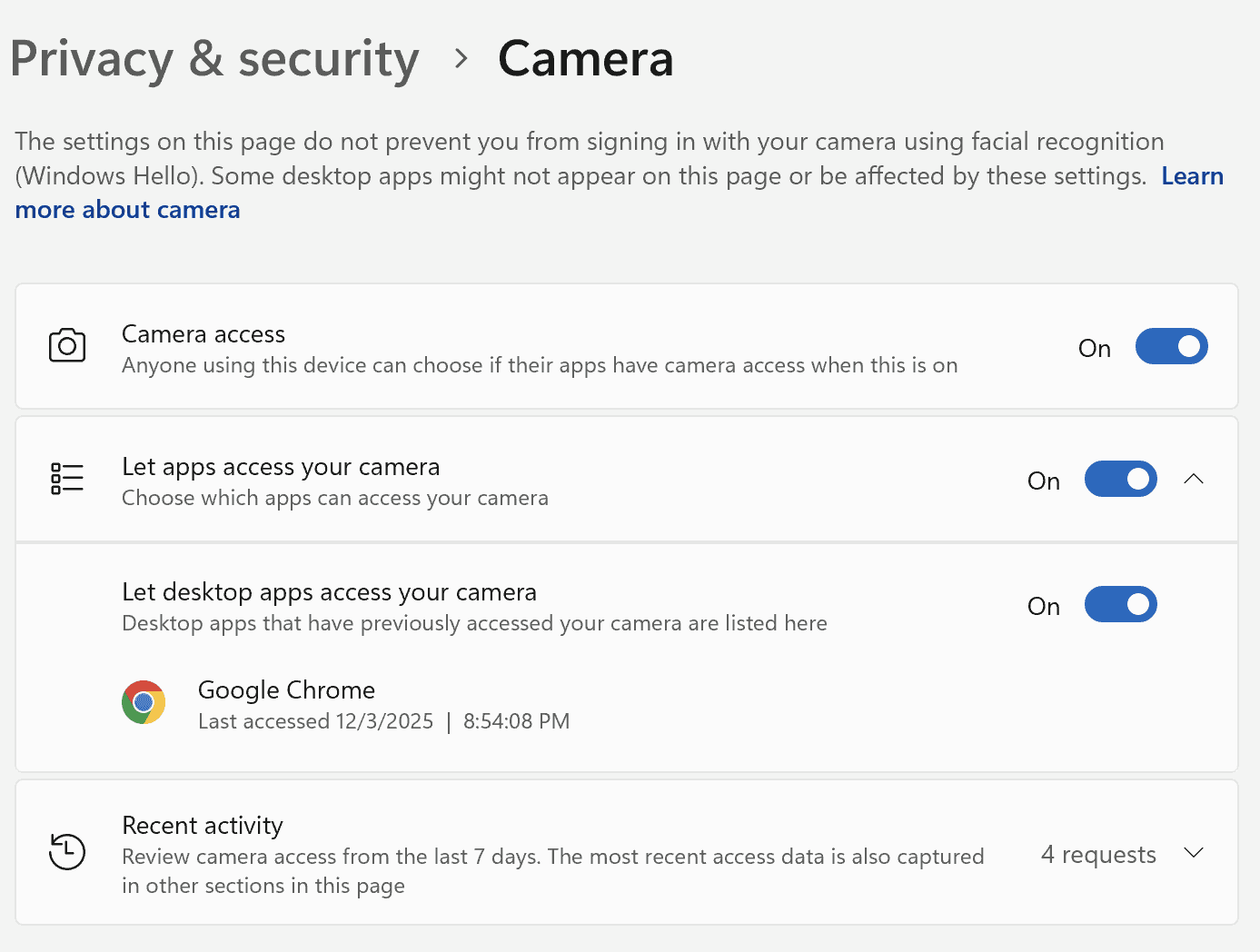
Windows Settings — screenshot 1

MacOS Settings

  1. Open System Settings

  2. Go to Privacy & Security

  3. Select Camera

  4. Allow access for your browser (Chrome, Firefox, Safari)
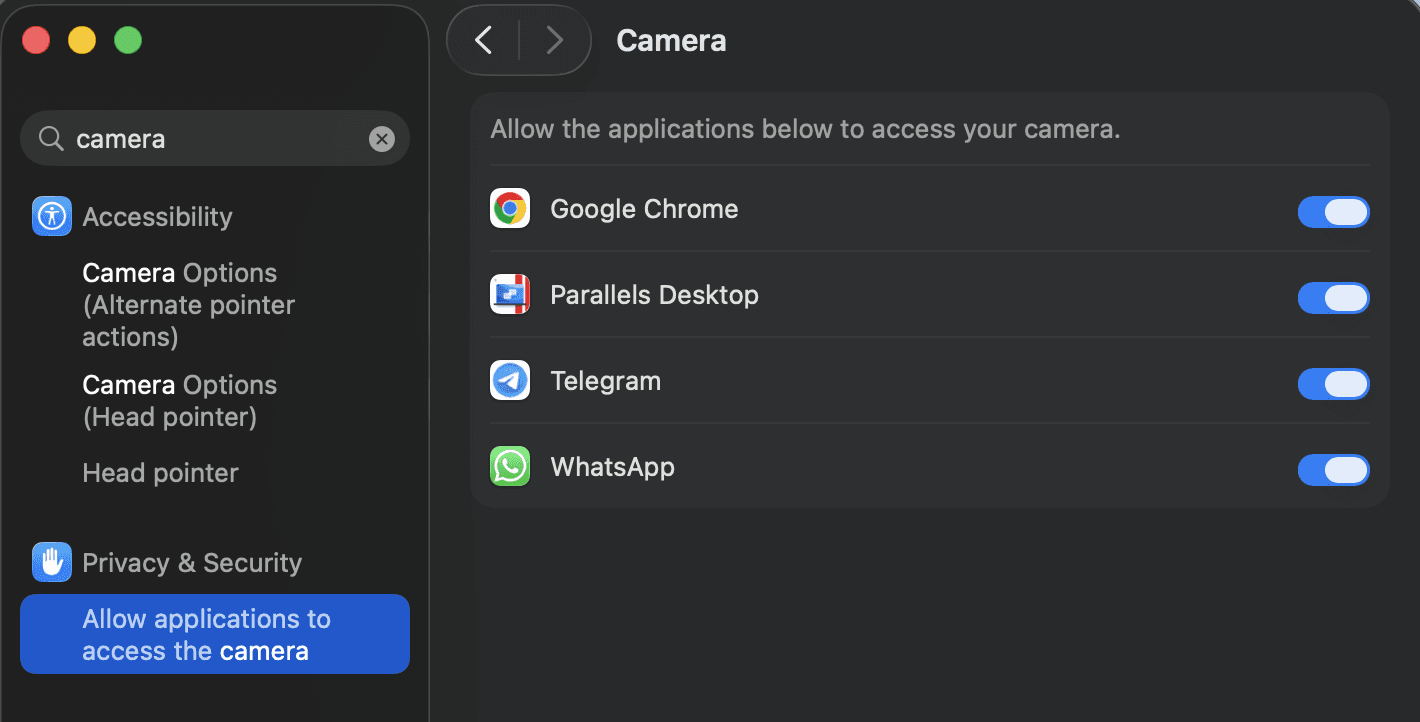
MacOS Settings — screenshot 2

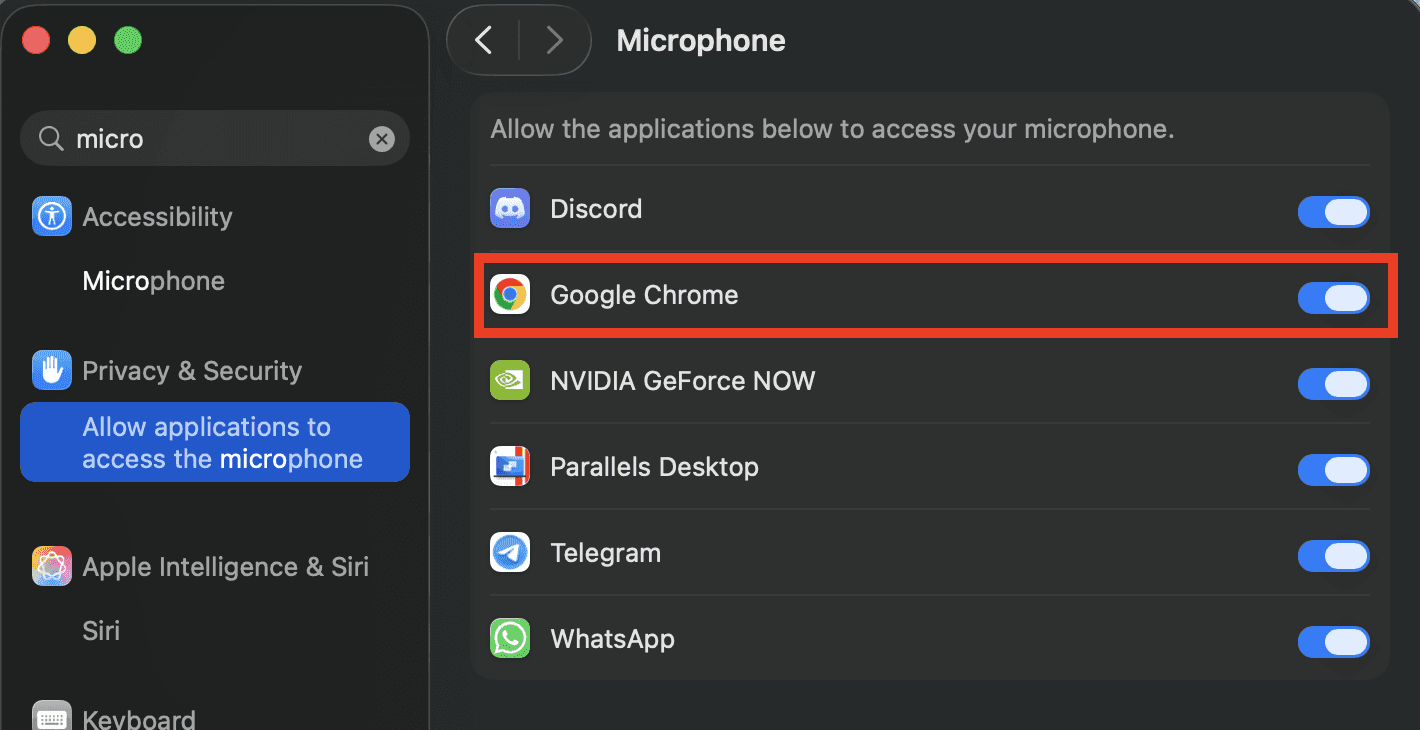
Microphone Access

Windows Settings

  1. Settings → Privacy

  2. Select Microphone

  3. Enable microphone access for apps and for your browser
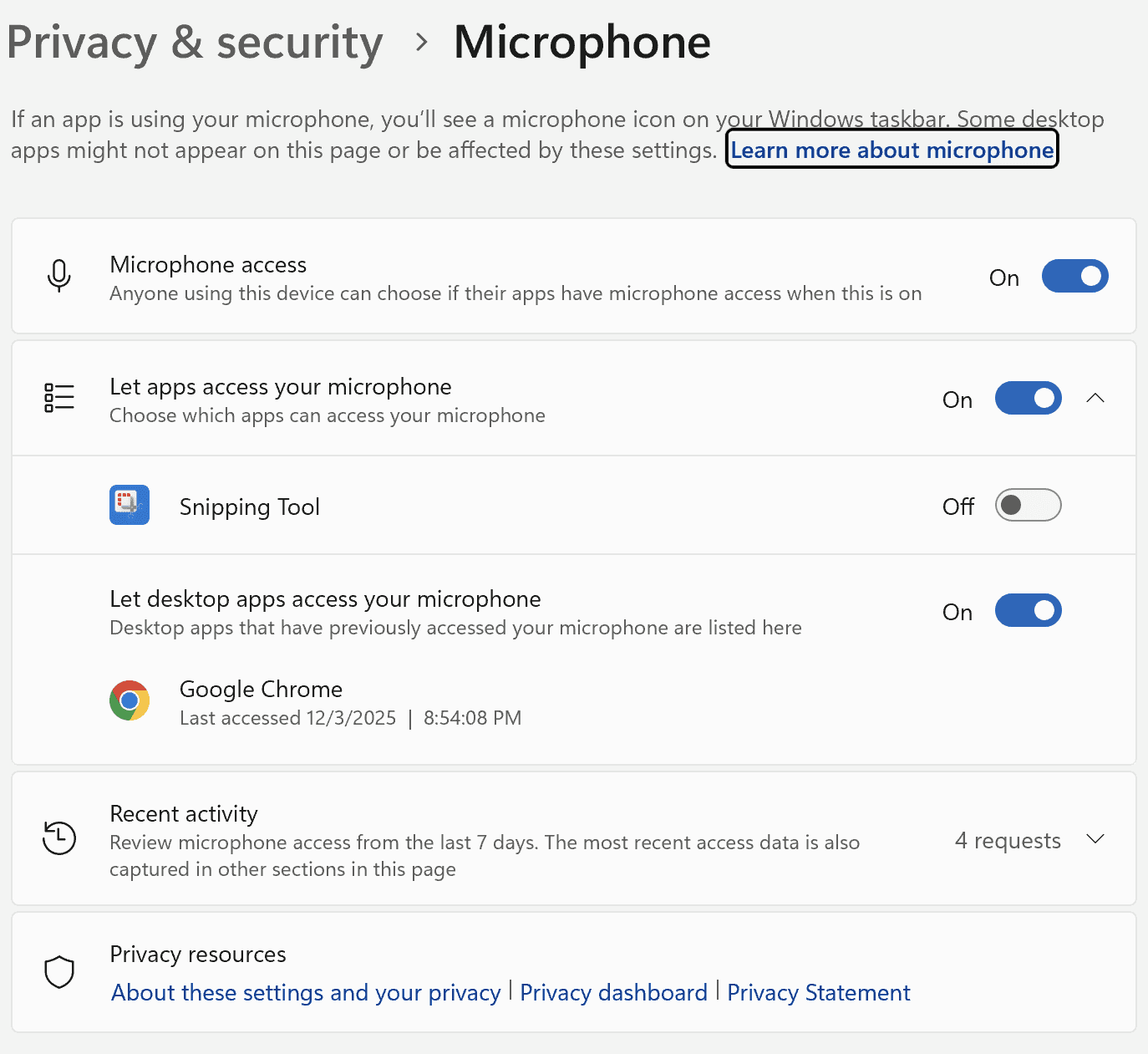
Windows Settings — screenshot 3

MacOS Settings

  1. System Settings → Privacy & Security

  2. Select Microphone

  3. Allow access for your browser

MacOS Settings — screenshot 4

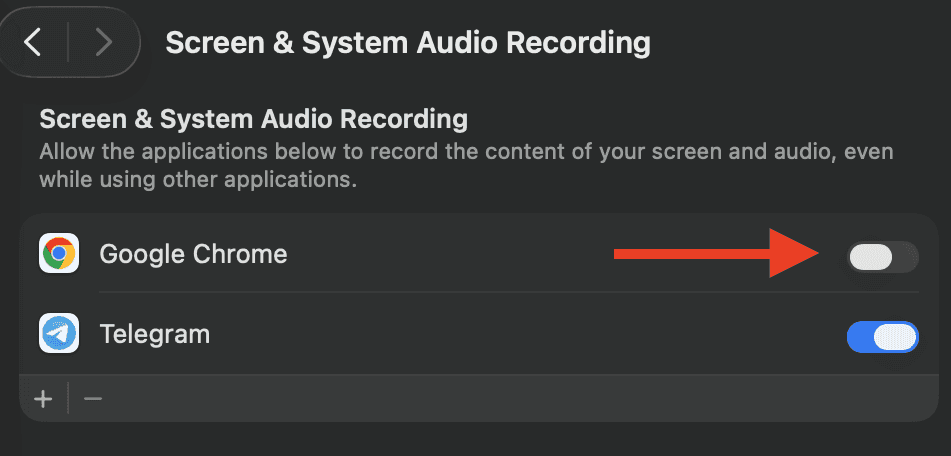
Desktop Recording Access

Windows Settings

  1. Open Settings

  2. Go to Privacy

  3. Select Screenshots and screen recording

  4. Enable: Allow apps to access your camera

  5. Ensure your browser (Chrome, Firefox, Edge) is allowed
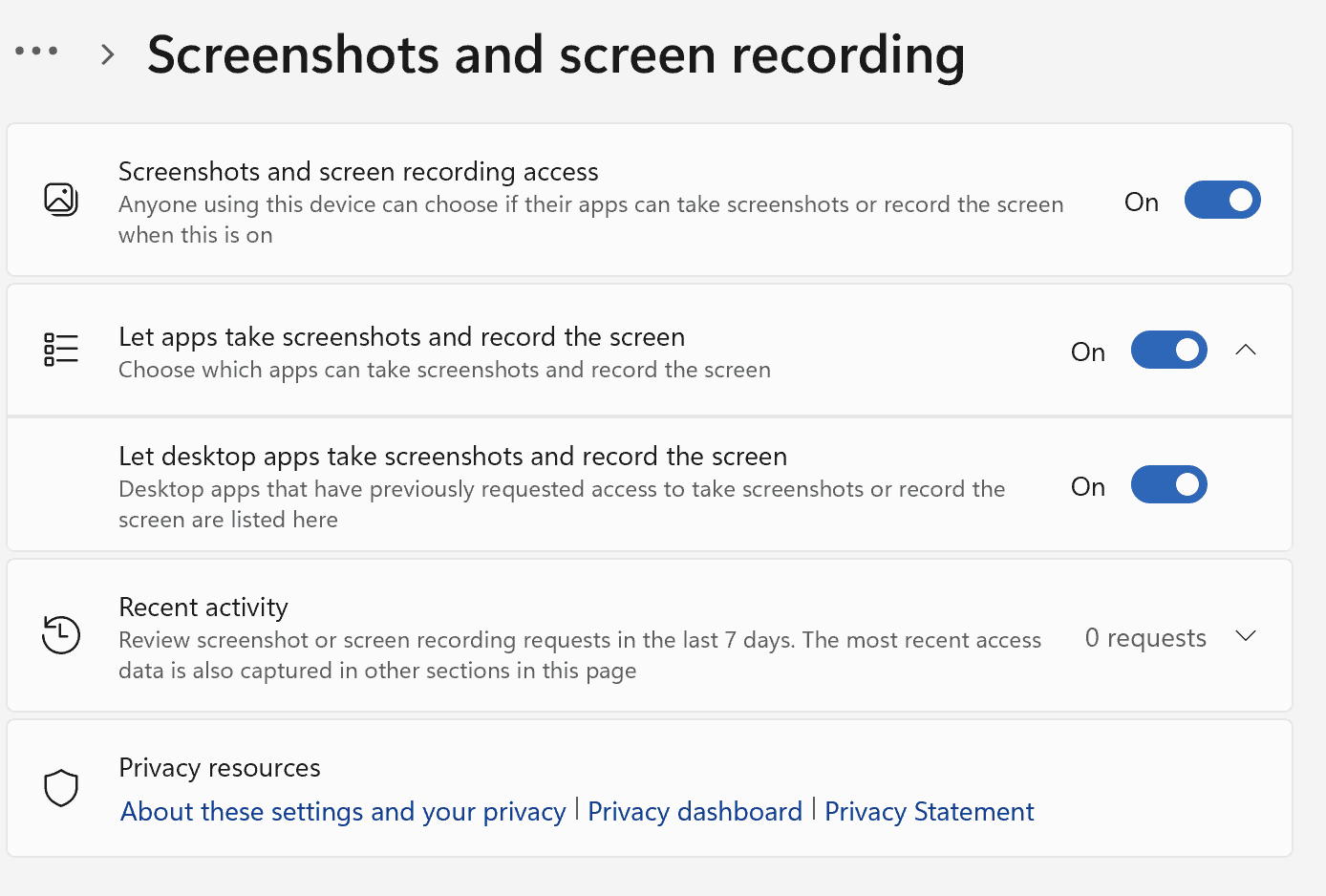
Windows Settings — screenshot 5

MacOS Settings

  1. System Settings → Privacy & Security

  2. Select Screen & System Audio Recording

  3. Allow access for your browser

MacOS Settings — screenshot 6
YOUR NEXT STEP

Still need help?

Reach the right team for your question.

A technical problem

For the camera, microphone, app or equipment check, open support chat inside TrustExam when available in your session. If you cannot sign in, use the contact in your invitation.

Open TrustExam

Access, schedule or results

Contact your exam organiser using the details in your invitation. They handle assignment access and timing, grades, retakes, appeals and individual arrangements.

What to check before contacting them
What to include in a support message
  • Exam name and the step where the problem occurred.
  • The time and your time zone.
  • Exact error text, operating system, and browser or app version.
  • Checks already tried; an error screenshot without exam questions or unnecessary personal data.

Do not include passwords, sign-in codes or identity documents in an ordinary message. Use the exam’s designated identity-check step for documents.